Accounts Receivable (A/R)
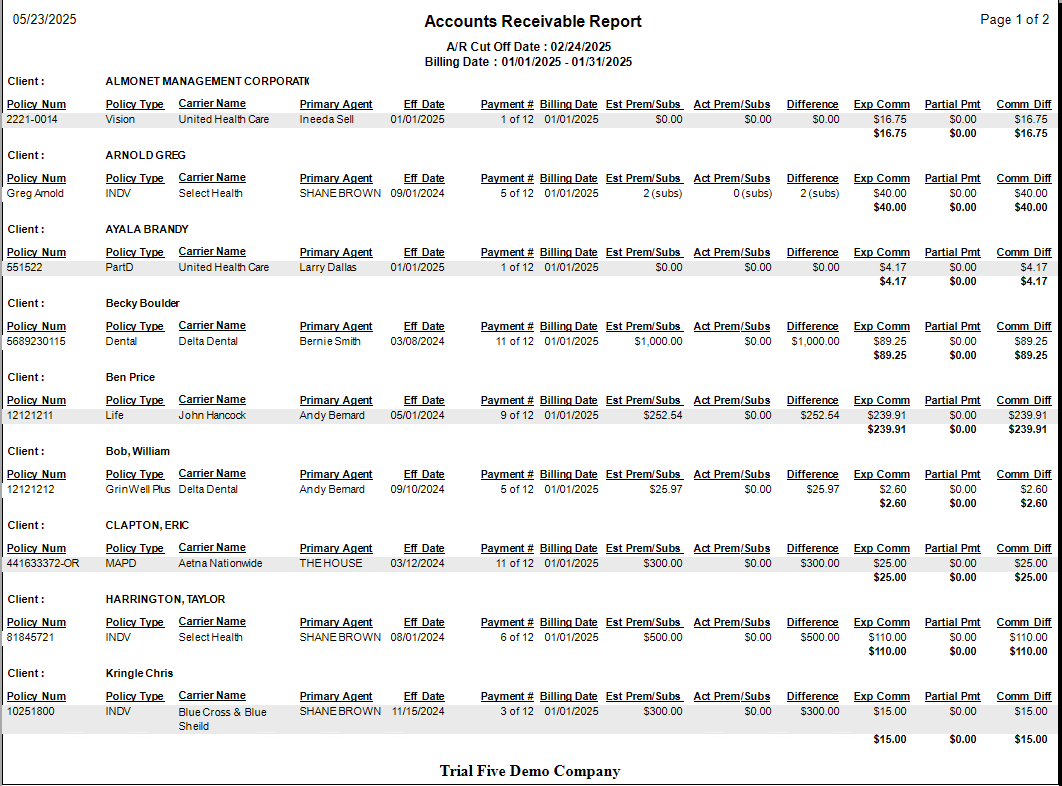
The Accounts Receivable (A/R) report itemizes exactly how much commission is outstanding for each policy. This tool is essential for tracking delinquent commission payments from carriers and ensuring your agency is paid what it is owed.
When to Use This Report
Use this report when you need to:
-
Track Delinquent Payments - Identify which carriers have not sent expected commissions.
-
Audit Outstanding Balances - View an itemized list of commissions due by policy.
-
Monitor Aging - Use the "Months Overdue" filter to see how long payments have been outstanding.
This is different from the Payment Discrepancy report, which tracks payments that were received but were for the wrong amount.
Training Video
If the video below does not play, please copy and paste this link into your browser:
Watch on YouTube
Report Options and Filters
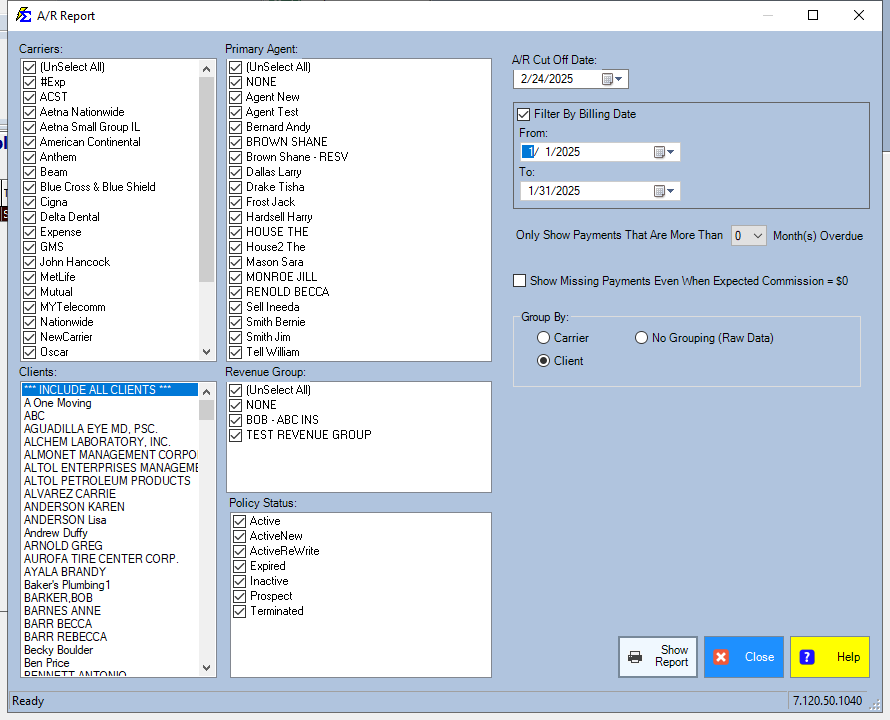
You can customize the data shown in the report using several key filters:
- Primary Groups - Filter by Carrier, Client, or Primary Agent.
- Revenue Group - Limit the report to specific business units or revenue types.
- Month(s) Overdue - Filter by the "age" of the balance to find the oldest outstanding debt first.
Key Requirements & Logic
Expected Commission Logic
The A/R report relies entirely on Expected Commission values.
- Setup Required: If you do not set up Carrier Commission Tables or set the "Commission Per Pmt" value directly on the policy, the system cannot calculate what is owed, and the policy will not appear here.
- Partial Payments: If a partial payment is recorded, the system automatically deducts it from the Expected Commission and shows only the remaining balance.
Termination Rules
Policies with a status of "Terminated" have specific behavior on this report:
- After Termination Date: Policies do not show up for billing periods after their Termination Date.
- Prior Commissions: If a payment was due in the same month as (or prior to) the termination, it will still appear if it remains unpaid.
Step-by-Step: Running the Report
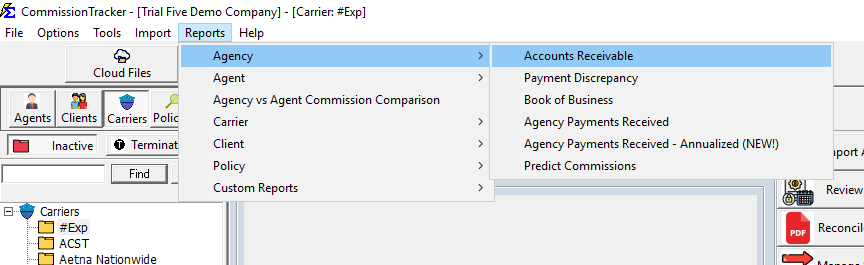
- Navigate to the Reports menu.
- Select Accounts Receivable.
- Choose your Filter Options (Carrier, Agent, etc.).
- Set the Months Overdue if looking for older debt.
- Click View Report.
What Happens When a Payment is Received
When you record a payment:
- The amount received is applied against the Expected Commission.
- If paid in full, the policy is removed from the A/R report.
- If partially paid, the remaining balance continues to show as outstanding.
Troubleshooting
Q: Why is a policy missing from my A/R report? A: Most likely, there is no Expected Commission set for that policy. Check the policy record to ensure a "Commission Per Pmt" or a Carrier Table is assigned.
Q: Does this report show Bonus or Override payments? A: No. This report focuses on regular recurring commissions. Bonuses are handled as separate manual entries.
Q: Can I see how much total we are owed by a specific Carrier? A: Yes. Use the Carrier Filter and look at the report footer for the grand total of outstanding commissions for that specific carrier.
Need help? Contact support@commission-tracker.com