Agent Book of Business Report
The Agent Book of Business report provides a comprehensive breakdown of all active policies and projected earnings associated with a specific agent. This is an essential tool for agents to track their current client base and for management to audit agent productivity.
When to Use This Report
Use this report when you need to:
-
Review Agent Portfolios - See every policy currently assigned to an agent.
-
Track Policy Volume - Count the number of active clients or policies an agent is managing.
-
Audit Projected Earnings - View the commission values tied to an agent's current book of business.
Accessing the Report
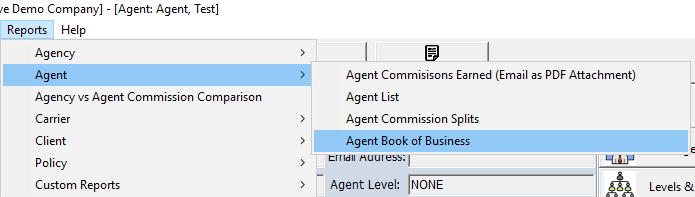
- Open the Reports menu.
- Go to Agent
- Select Agent Book of Business.
Report Parameters
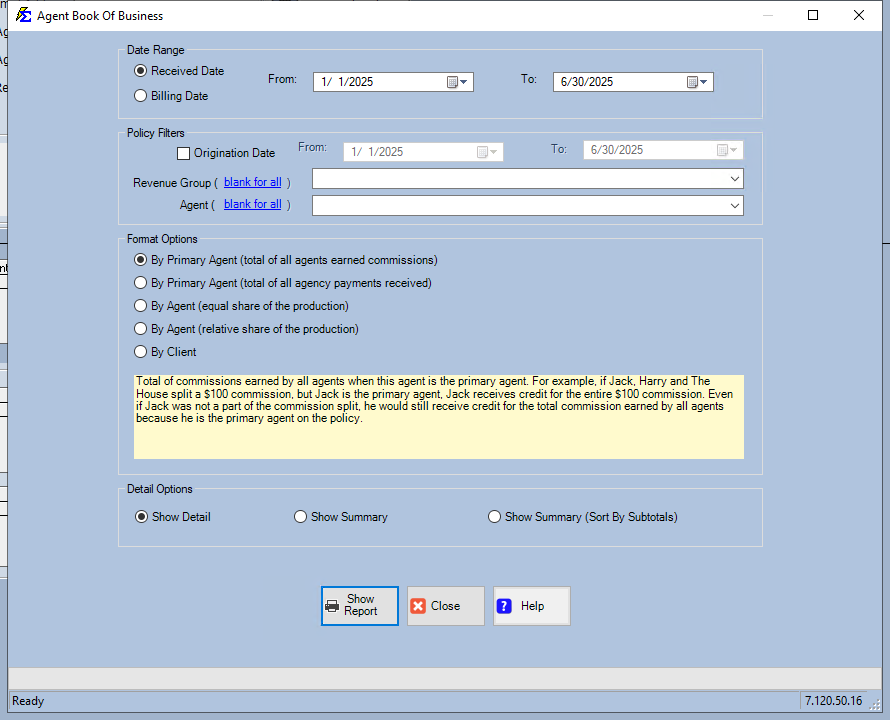
Before generating the report, you can customize the output using the selection screen. You can filter by specific Agents, Carriers, or Policy Status to narrow down the results.
Step-by-Step: Running the Report
- Navigate to the Agent Book of Business selection screen.
- Select the Primary Agent you wish to review.
- (Optional) Filter by Carrier or Revenue Group if you only want to see a subset of their business.
- Set the Policy Status (e.g., Active only) to exclude terminated business.
- Click Show Report.
What Happens When the Report Generates
Once you click Show Report:
-
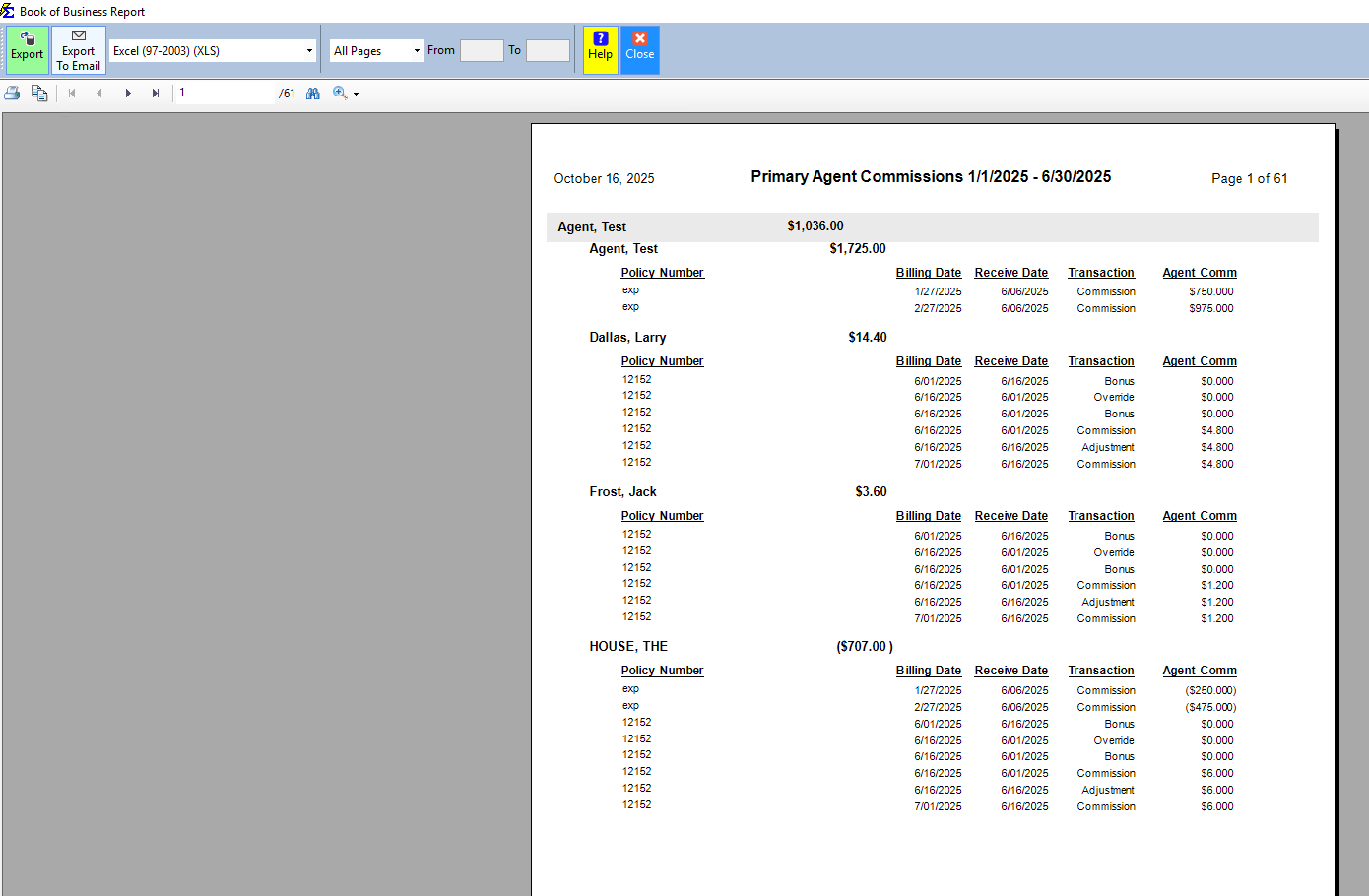
The system scans all policies where the selected agent is listed in the Agent Splits.
-
It aggregates the Premium and Expected Commission values based on the current policy terms.
-
The report displays a grouped list, typically sorted by Client or Carrier, depending on your chosen format.
Troubleshooting
Q: Why are some policies missing from the agent's report? A: Ensure the agent is correctly assigned to the policy’s Agent Commission Split Table. If they are only listed as a "Contact" but not in the splits, the policy will not appear in their Book of Business.
Q: Can I run this for my entire agency at once? A: Yes. If you leave the Agent selection blank or select "All Agents," the report will generate a master list grouped by each agent.
Q: Does this include terminated policies? A: This depends on your selection. Use the Policy Status filter to include or exclude "Terminated" or "Pending" policies as needed.
Need help? Contact support@commission-tracker.com