Agent Alias
The Agent Alias feature ensures that your agent records remain clean and deduplicated. Since different carriers may use variations of an agent's name (e.g., "Dave Jones" vs. "David Jones"), Aliases tell the system to treat these variations as a single person.
When to Use Aliases
Use this feature when:
-
Processing Carrier Statements - A carrier uses a name variation that doesn't match your existing Agent record.
-
Preventing Duplicate Agents - To avoid having multiple records for the same person in your database.
-
Standardizing Data - Mapping various "nicknames" used by different carriers back to one primary Agent profile.
Training Video
If the video below does not play, please copy and paste this link into your browser:
Watch on YouTube
Methods for Creating Aliases
There are three ways to create an Agent Alias within Commission Tracker:
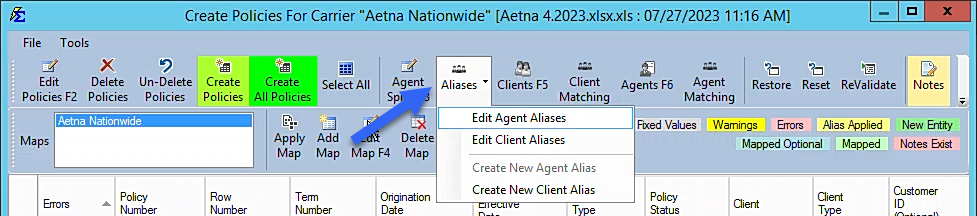
1. From the Create Policies Screen
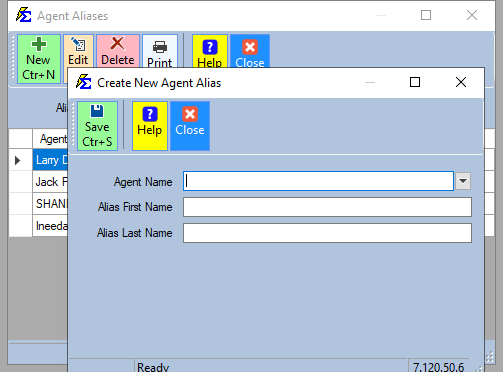
When importing a statement, you can map the incoming name to an existing agent to create the alias on the fly.
2. Via the Tools Menu
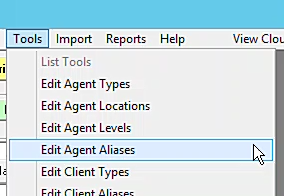
You can manage aliases globally by navigating to the Tools menu. First, select the primary agent from the dropdown, then type the alias name and click Save.
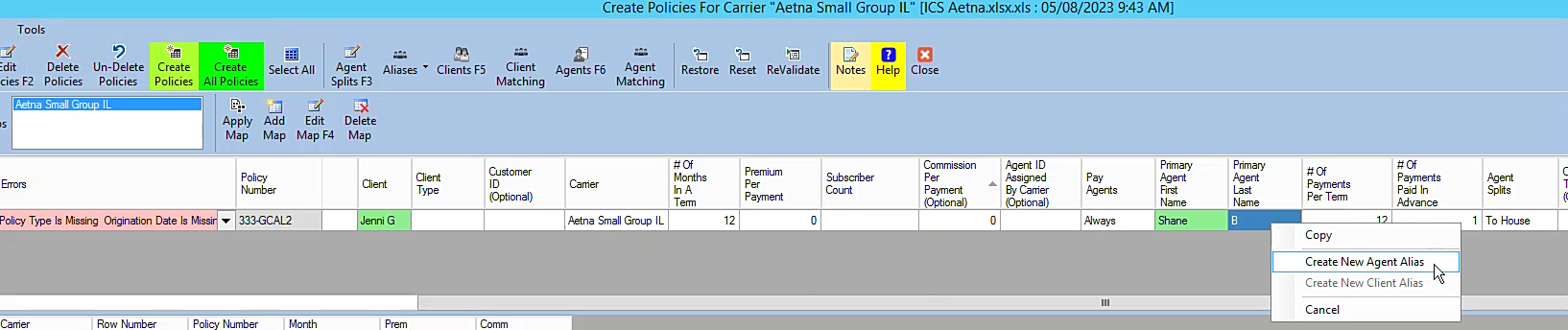
3. Quick Create (Right-Click)
Within the Create Policies screen, you can quickly create an alias by right-clicking on an agent's first or last name.
Important Rules for Aliases
To maintain data integrity, the system enforces the following rules:
-
Uniqueness - You cannot create an Alias that is identical to an existing Agent name.
-
No Overlap - You cannot create an Agent name that is already being used as an Alias.
-
Multiple Aliases - A single Agent can have an unlimited number of Aliases assigned to them.
Step-by-Step Example
- Open the Tools menu and select Agent Alias.
- Select the "Master" Agent (e.g., Dave Jones) from the dropdown.
- In the Alias field, type the variation used by the carrier (e.g., David Jones).
- Click Save.
What Happens During Import
When you import a carrier statement:
-
The system reads the name on the statement.
-
It checks the Agent Alias table first.
-
If a match is found, it automatically converts the name to the "Master" Agent name before proceeding.
-
This prevents the "Create Policies" screen from asking you to create a new (duplicate) agent.
Troubleshooting
Q: Why won't the system let me save my alias? A: Check to see if that name already exists as a primary Agent name or as an alias for someone else. Every name in the system must be unique.
Q: Can I delete an alias if I made a mistake? A: Yes. You can manage and delete existing aliases through the Tools > Agent Alias menu.
Need help? Contact support@commission-tracker.com