Policy-Specific Agent Commission Split Table
Recommended Practice
It is generally more efficient to use Carrier Table Agent Splits to define splits at the carrier level. Use the Policy-Specific Split only when you need to create a unique exception for one specific policy.
When to Use This Feature
Use a Policy-Specific Split when:
-
Unique Negotiations - A specific policy has a split that differs from your standard carrier-level agreement.
-
Mid-Term Changes - An agent leaves or joins a case in the middle of a policy year.
-
Exceptions - You need to override the global carrier table rules for a single client.
Training Video
If the video below does not play, please copy and paste this link into your browser:
Watch on YouTube
Commission Calculation Types
When setting up a split, you must choose how the system calculates the agent's pay:
| Type | Description |
|---|---|
| % of Commission | Agent earns a percentage of the Gross Commission received by the agency. |
| % of Premium | Agent earns a percentage of the total Policy Premium. |
| Dollar Amount | Agent earns a flat fee (e.g., $5.00) regardless of the premium size. |
Flat Dollar Logic
To prevent overpayment, a Dollar Amount split will only pay an agent once per Billing Month, even if the agency receives multiple carrier payments for that month.
Step-by-Step: Creating a Unique Split
- Create or Save the policy first.
- Click the New Split Table button.
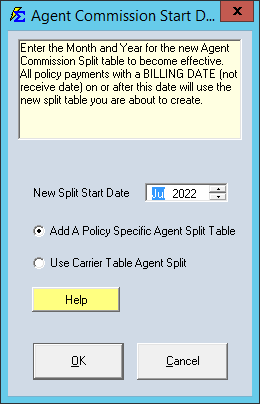
- Set the Commission Start Date.
- Note: This date refers to the payment Billing Date, not the Receive Date.
- Select the Agents and assign their percentages or dollar amounts.
- Click Save.
Managing Split History (Timeline)
You can create a timeline of splits that change over time. The system will always use the split associated with the payment's Billing Date.
| Start Date | Example Allocation | Preview |
|---|---|---|
| 01/01/2022 | House: 25% / Jack Frost: 75% | 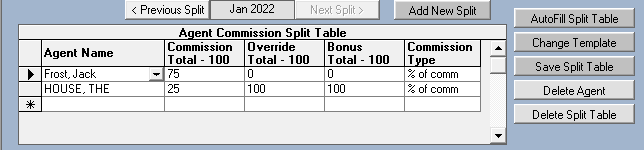 |
| 06/01/2022 | House: 95% / Jack Frost: 5% | 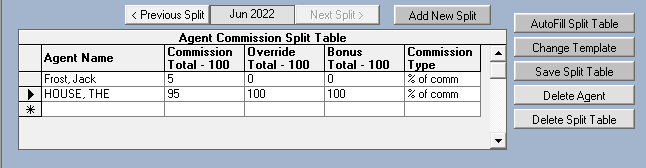 |
| 01/01/2023 | House: 100% (Agency retains all) | 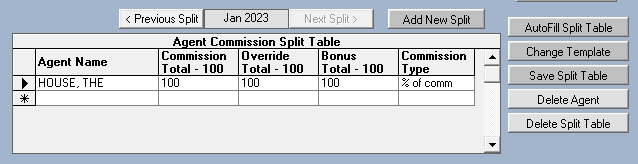 |
What Happens When a Payment is Received
- The system looks at the Billing Date of the incoming payment.
- it checks the Agent Commission Split Table for that policy.
- It identifies which split was active on that Billing Date.
- It calculates the payout and makes the data available for the Agent Commissions Earned report.
Troubleshooting & FAQ
Q: I get an error saying I cannot change a split because it has been used. A: 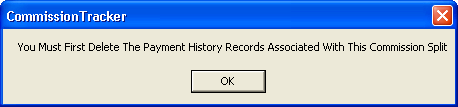
You cannot modify a split if a payment has already been posted using those rules. To fix this, you must delete the payment in Payment History, update the split, and then re-post the payment.
Q: Why isn't an agent being paid even though they are in the table? A: Ensure the Commission Start Date is equal to or earlier than the Term Effective Date. If a payment is billed for January but your split table doesn't start until March, no one will be paid for that January payment.
Q: An agent left mid-year. How do I stop their pay without losing history? A: Simply create a New Split Table with a Start Date of the day they left. In the new table, remove that agent and re-allocate their percentage to the House or a new agent. All historical payments stay as they were.
Need help with complex splits? Contact support@commission-tracker.com