Agent Commission Splits Report
The Agent Commission Splits Report is an auditing tool used to review how commissions are allocated across your agency. It allows you to verify that every policy has a valid split and provides a clear view of which agents are assigned to which clients.
When to Use This Report
Use this report when you need to:
-
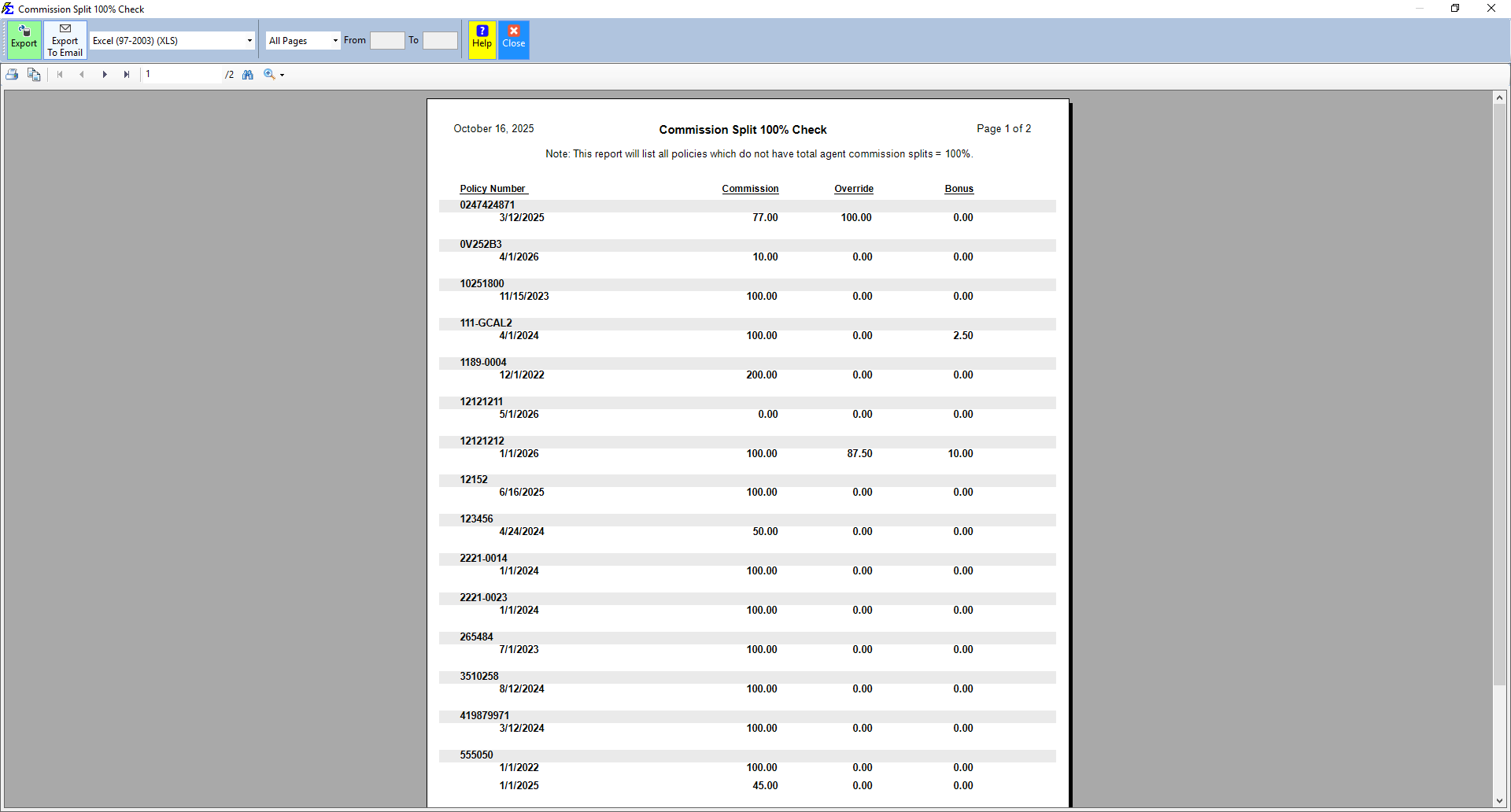
Audit Data Integrity - Identify any policies where the splits do not total 100%.
-
Review Agent Assignments - See a master list of all policies assigned to a specific primary agent.
-
Export Data - Generate a flat file of split percentages to use in Excel for external analysis.
Accessing the Report
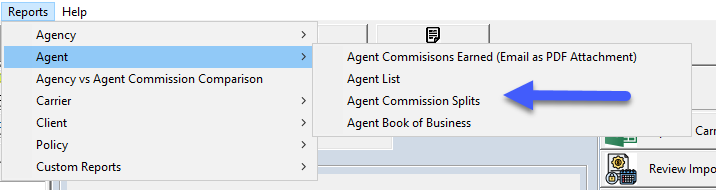
- Open the Reports menu.
- Navigate to the Agent tab.
- Select Agent Commission Splits.
Report Configuration
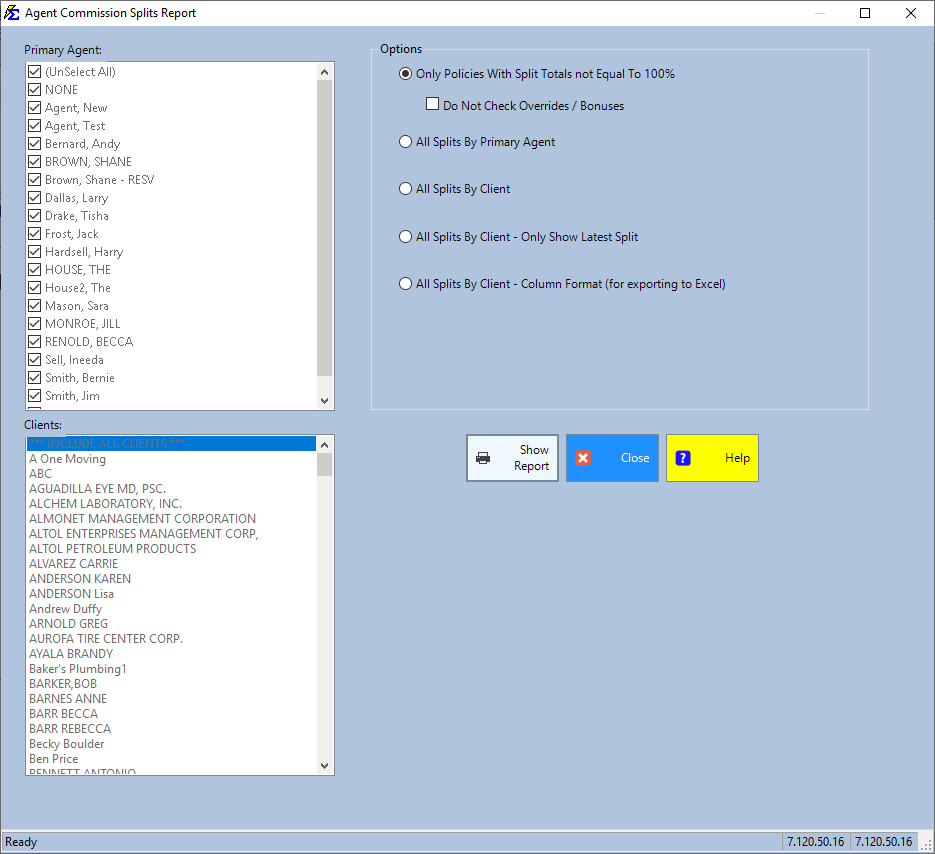
The configuration screen allows you to filter by Agent or Carrier and select the specific layout for your results.
Available Report Formats
The system provides several variations of this report based on the "Options" you select:
1. Data Integrity Audit (Exception Only)
Option: Only Policies With Split Totals not Equal To 100% This is the most critical audit tool. It filters out all "correct" policies and only shows you the ones that need fixing because the splits are incomplete or exceed 100%.
2. Grouping by Agent or Client
You can choose to organize the data based on the Primary Agent or the Client Name.
| Format | Description | Preview |
|---|---|---|
| By Primary Agent | Lists all policies grouped under the main agent assigned. | 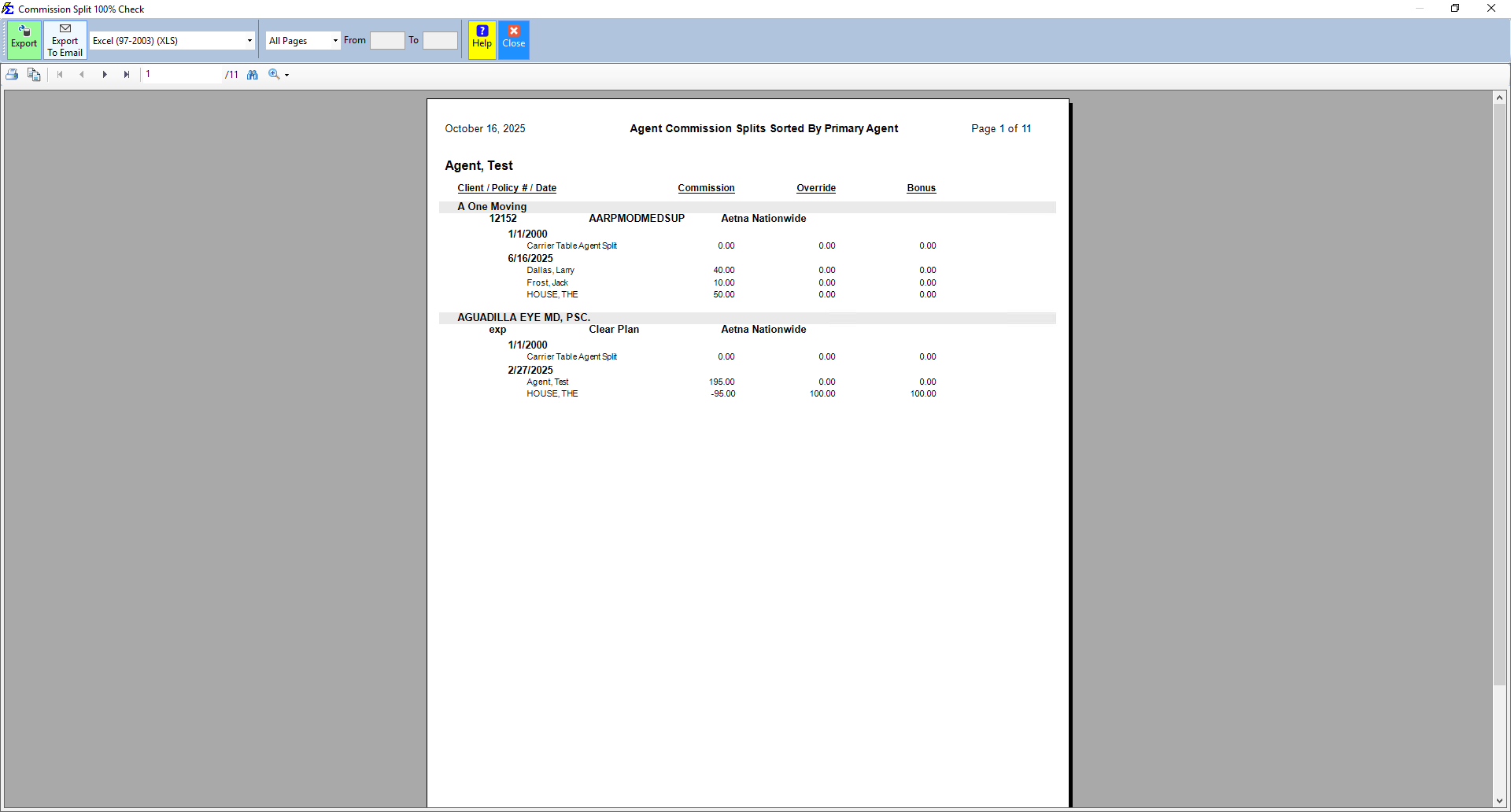 |
| By Client | Lists policies grouped by the client they belong to. | 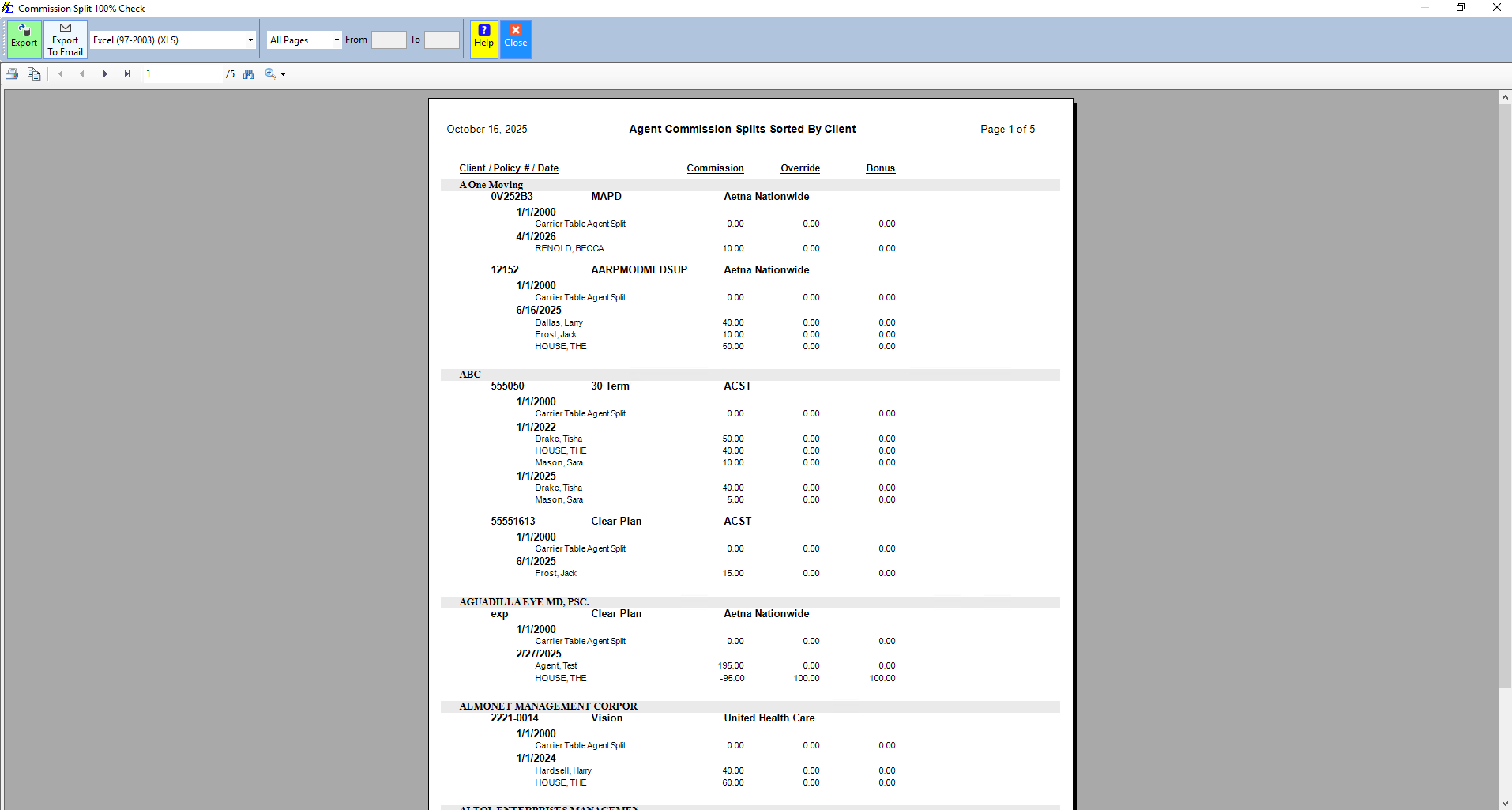 |
3. Historical vs. Current Splits
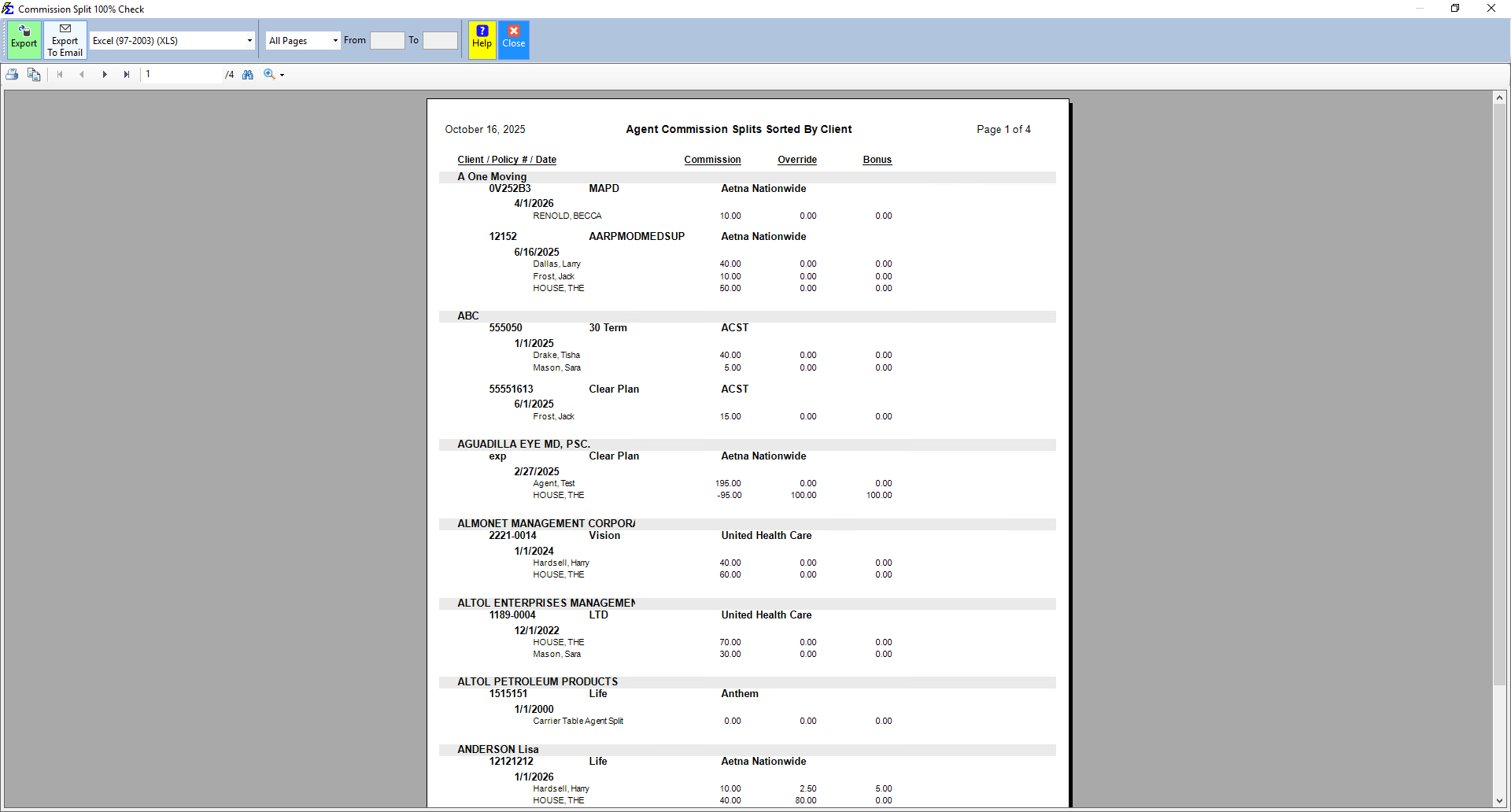
Option: Only Show Latest Split Since policies can have multiple split changes over time (as seen in the Policy Specific Split timeline), this option hides the history and only shows the split currently in effect.
4. Excel / Spreadsheet Format
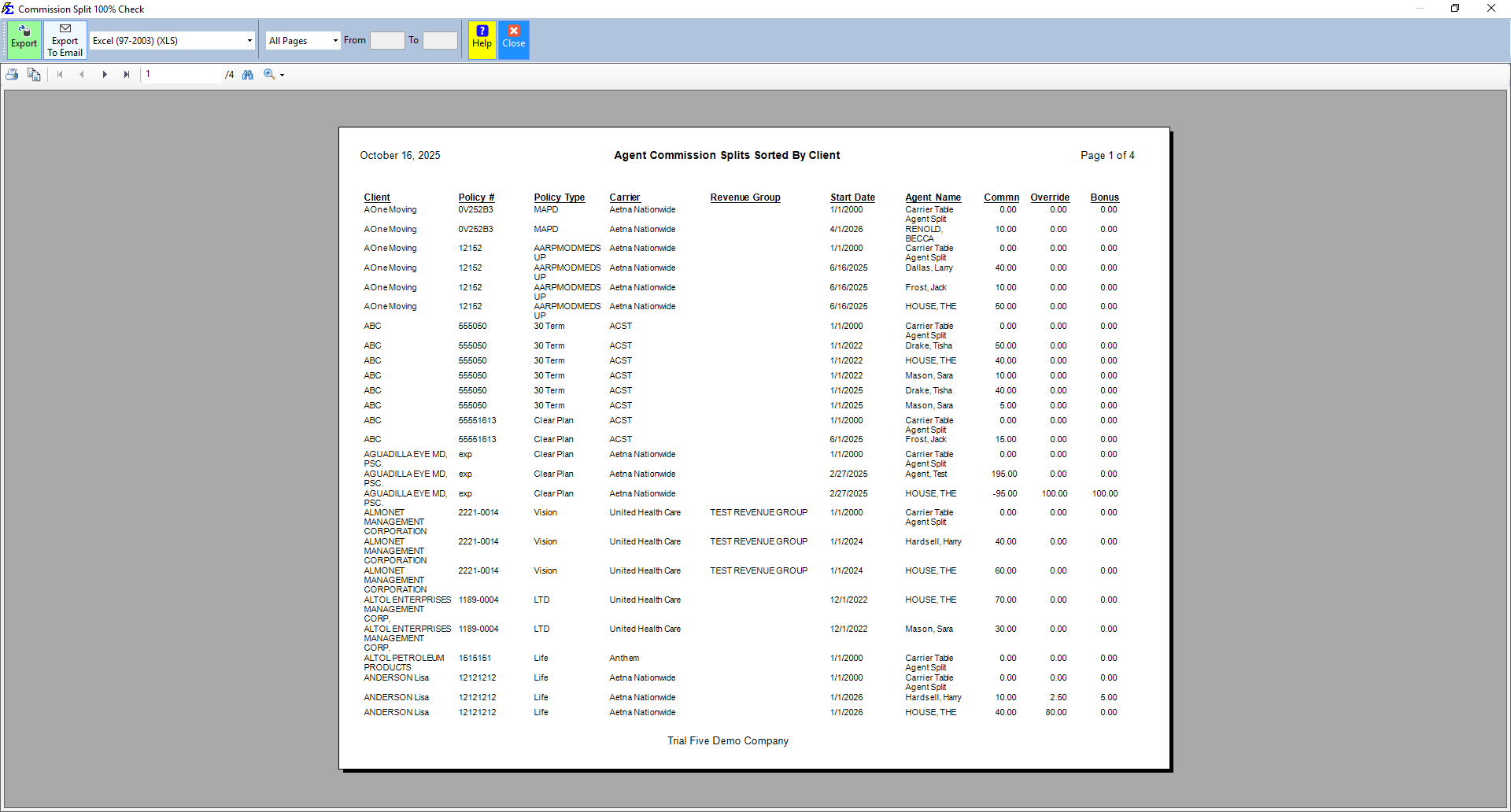
Option: Column Format If you intend to export this report to Excel, choose the Column Format. This removes the grouping headers and puts all data into a "flat" grid, making it easy to sort and filter in a spreadsheet.
Step-by-Step: Finding Errors in Splits
- Go to Reports > Agent Tab > Agent Commission Splits.
- Select the option Only Policies With Split Totals not Equal To 100%.
- Click View Report.
- Note the policy numbers listed.
- Navigate to those policies and update the Agent Commission Split Table so the total equals 100%.
What Happens When the Report Generates
- The system scans the Agent Split Table for every policy in your database.
- It calculates the sum of all percentages for each split record.
- It formats the data according to your chosen "Option" (Grouping, Columnar, or Latest).
Troubleshooting
Q: Why does my report show 0% for an agent I know is on the policy? A: Check the Commission Start Date on the policy split table. If the start date is in the future, the agent will not appear as an active split for current reporting.
Q: Can I run this for just one Carrier? A: Yes. Use the Carrier filter on the selection screen to see how splits are handled for a specific provider.
Need help with your audit? Contact support@commission-tracker.com