Agent Commissions Earned (ACE) Report & Emailing
The Agent Commissions Earned (ACE) report is the most critical report in Commission Tracker. It calculates exactly what is owed to each agent for a specific pay period. Once generated, you can email these reports as PDF attachments to all agents simultaneously.
When to Use This Report
Use this report when you are ready to:
-
Finalize Payouts - Determine the total commission due to each agent.
-
Distribute Statements - Send professional PDF summaries to your team via email.
-
Audit Expenses - Review the agency's total payout liabilities for a specific date range.
Selecting Your Report Format
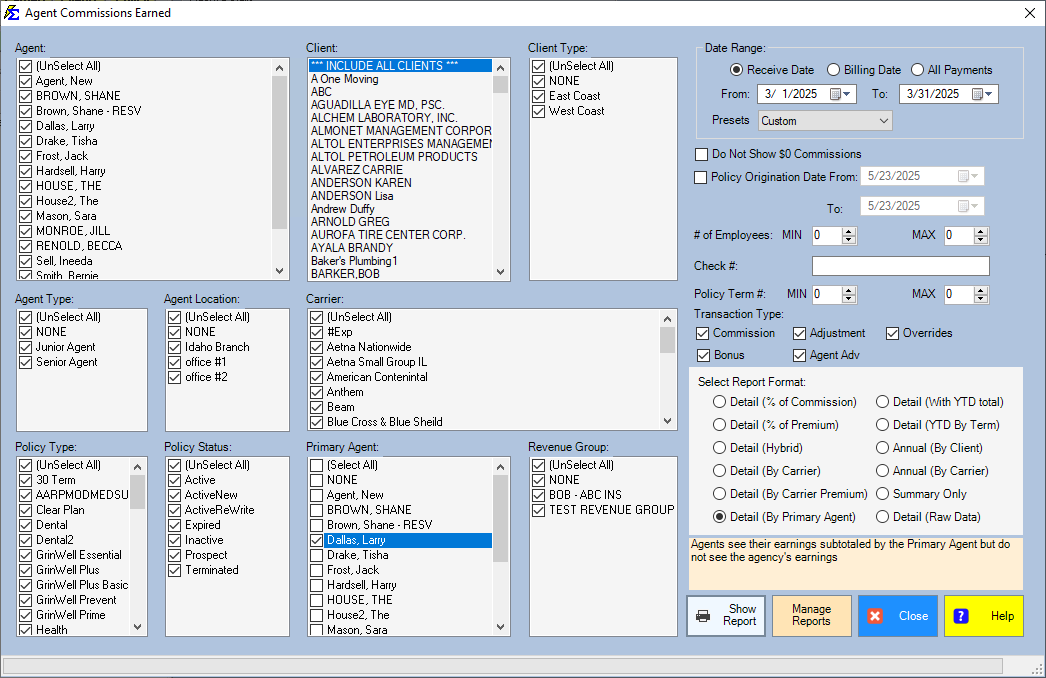
Commission Tracker offers several formats. The primary difference is the level of transparency regarding the "Agency Gross" amount. All formats result in the same agent totals.
- Detail Versions: Show policy-level data (Carrier, Client, Premium).
- Summary Version: Shows only the total owed per agent.
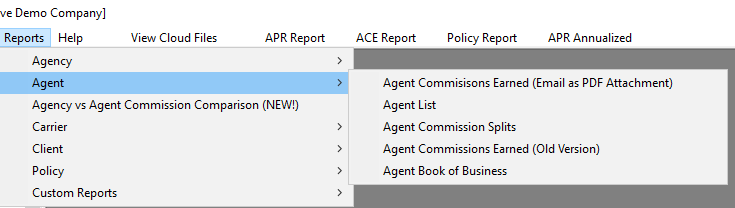
Note: You must have an Agent License for each agent you wish to include in these reports.
Phase 1: Email Setup
Before you can email reports in bulk, you must complete the following two configuration steps:
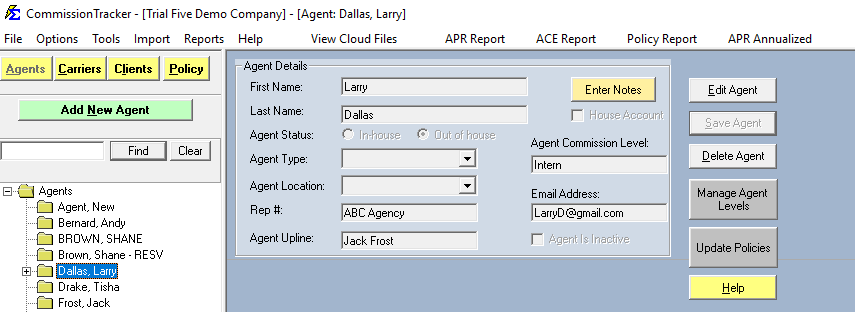
1. Agent Email Addresses
Enter the agent's email address in their Agent Profile. To send to multiple addresses (e.g., the agent and their manager), separate the emails with a semicolon (;).
2. Report Settings
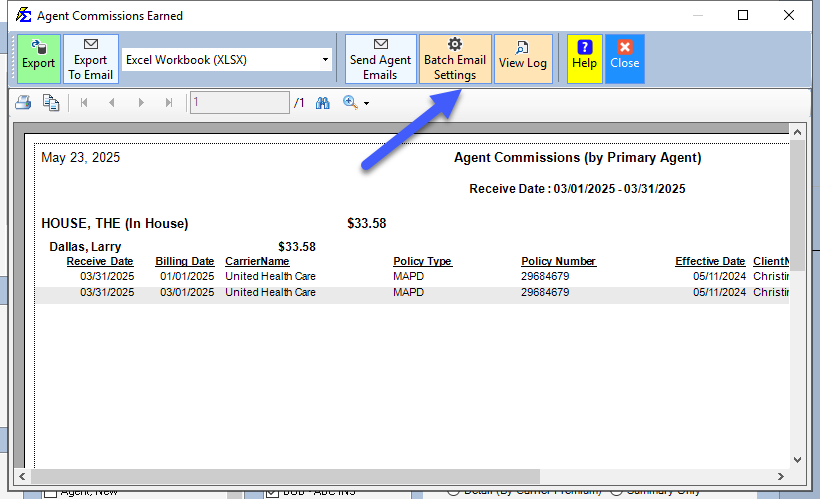
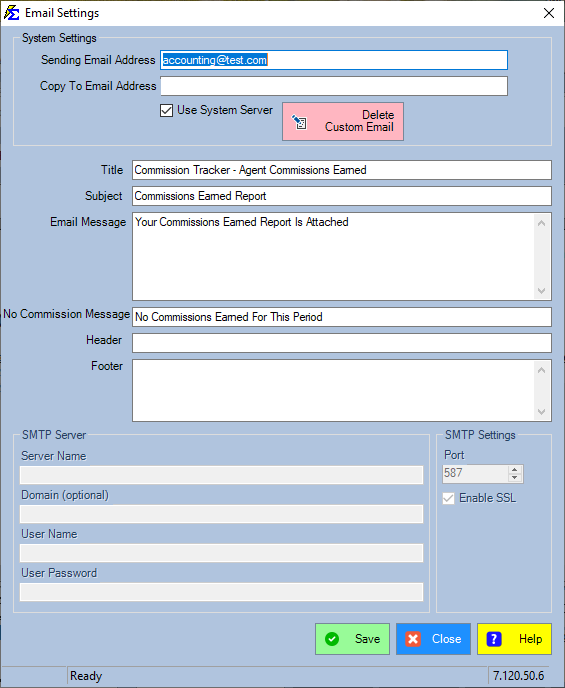
After clicking "Show Report," click the Settings button at the top to configure your "From" address and server preferences.
- Sender: The "From" address agents will reply to.
- Server: We recommend using the System Server to ensure high deliverability and avoid spam filters.
- Custom Email: Advanced users can design HTML messages (Contact Support for help).
Phase 2: Sending Agent Emails
Once settings are saved, you can initiate the bulk email process.
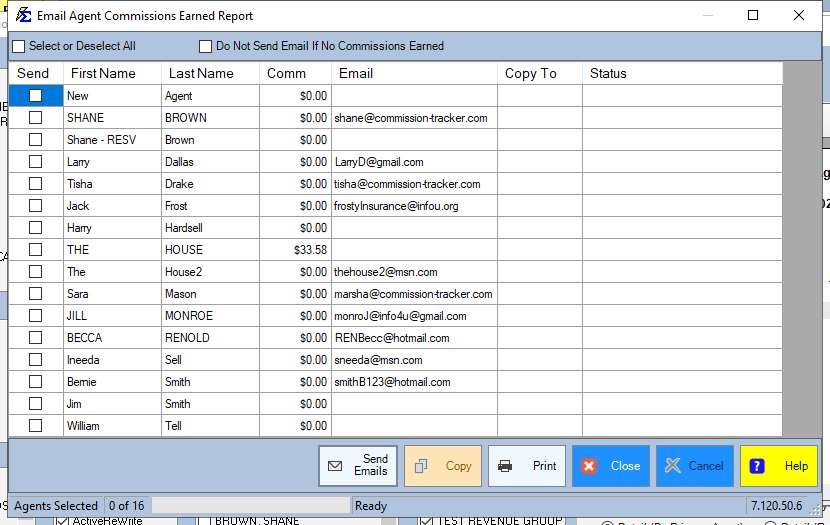
- Click the Send Agent Emails button.
- Choose to send to All Agents or select individuals from the list.
- Decide if you want to send "No Commission" emails to agents who earned $0.00.
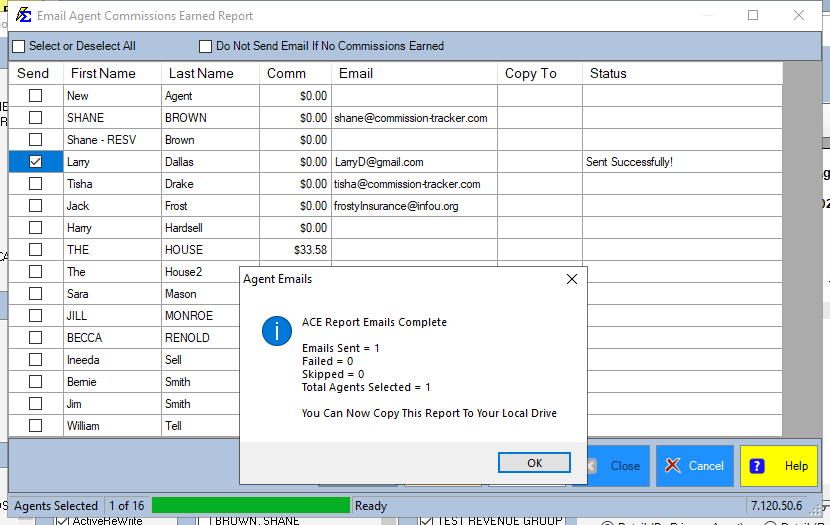
- Monitor the Status column to confirm successful delivery.
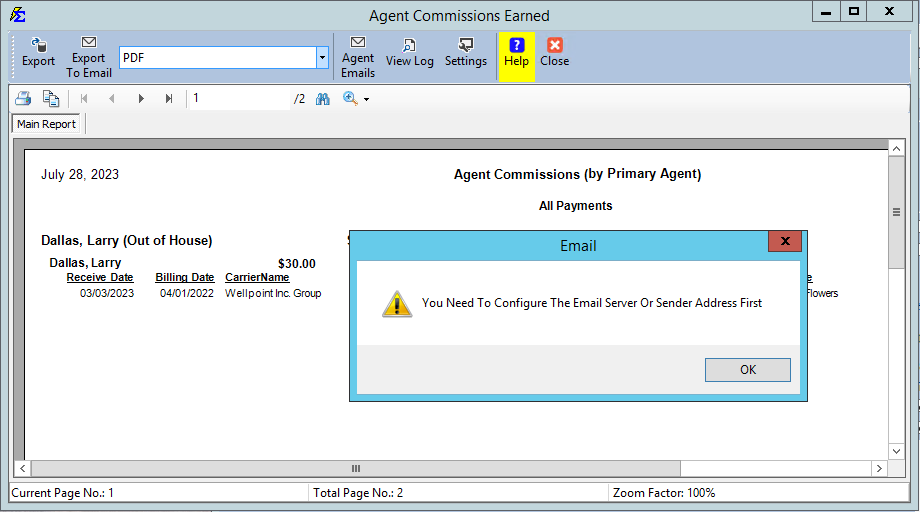
Common Error
If you see an error during the send process, re-open Settings, ensure all required fields are filled out, and click Save before trying again.
Phase 3: Archiving & Managing Reports
Every email session creates PDF files that are stored on your local computer for auditing and backup purposes.
- Location:
Documents\Commission Tracker\AgentCommissionsEarned\ - Archiving: Click the Copy button on the send screen to download all PDFs to a specific folder for your records.
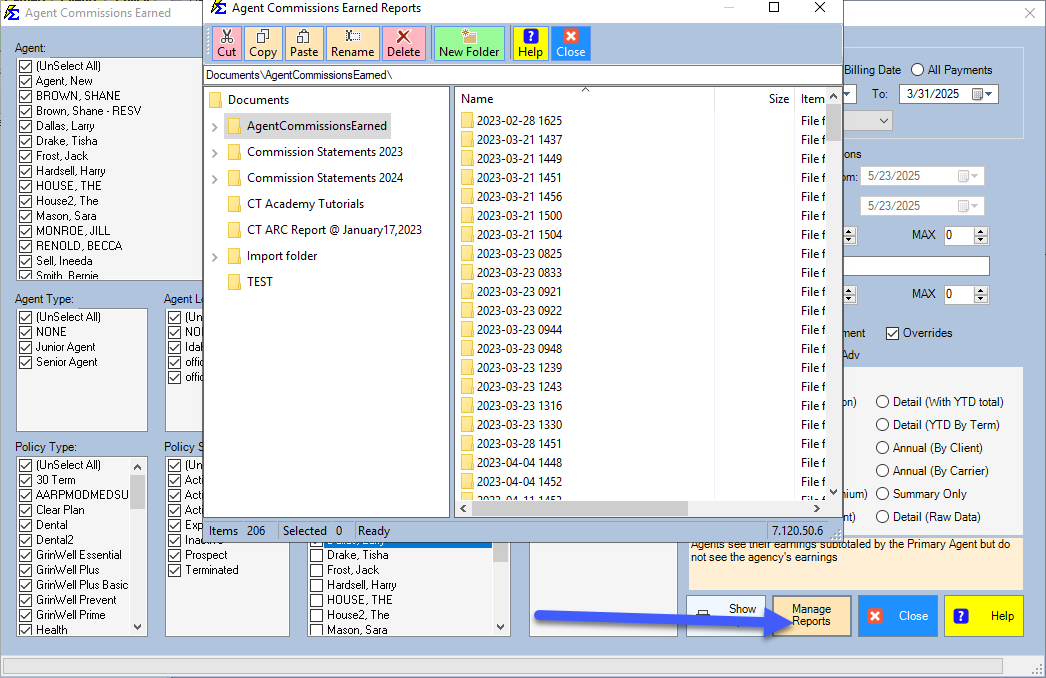
- Manage Reports: If you forgot to copy them during the send, use the "Manage Reports" button later to access these folders (sorted by timestamp).