Agent Contact Info
The Agent Contact Info section is where you store the primary communication details for an agent, including their name, email addresses, and title. Accurate contact data is vital for ensuring that automated ACE Reports reach the correct recipient.
When to Use This Section
Complete this section during the initial setup of an agent or when:
-
Updating Email Addresses - Ensuring commission statements are sent to the correct inbox.
-
Adding Multiple Recipients - Adding secondary emails (like a manager or assistant) to receive copies of agent reports.
-
Standardizing Titles - Recording an agent's professional title for use in agency-wide directories.
Adding or Editing Contact Information
Once an agent record has been created, you can access the contact fields to fill in the specifics.
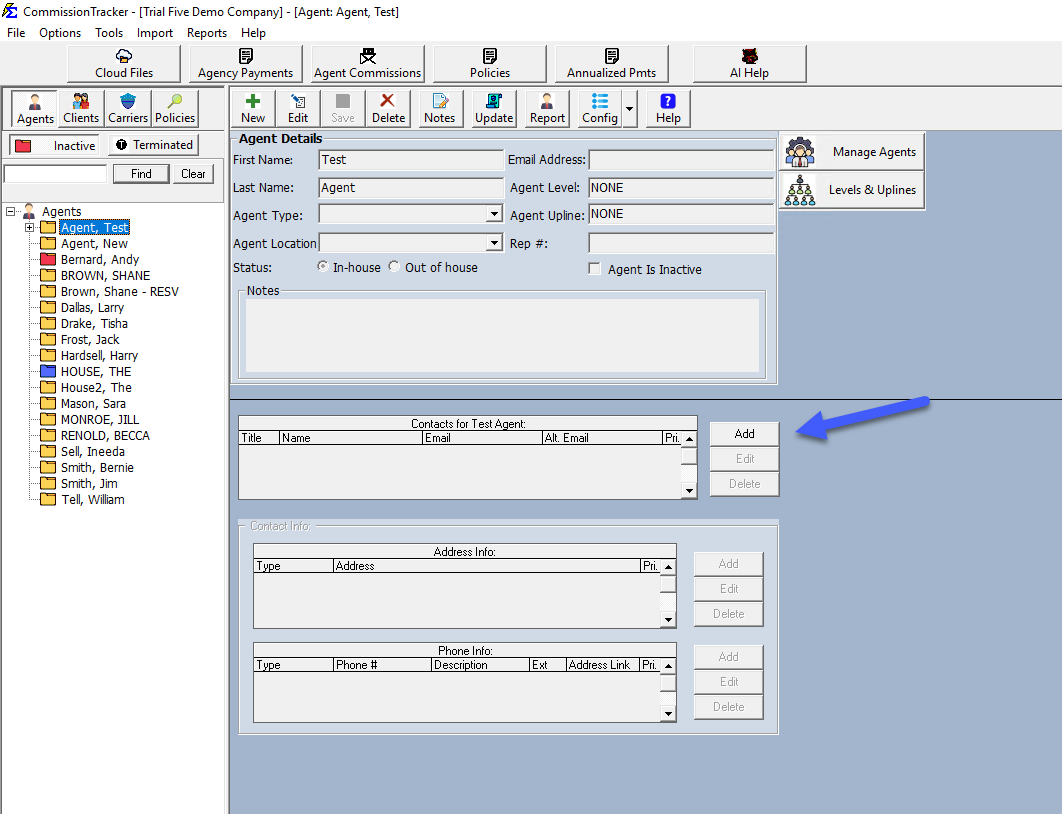
Key Fields:
-
First & Last Name: The legal name of the agent.
-
Title: The agent's professional designation.
-
Email: The primary address used for report distribution.
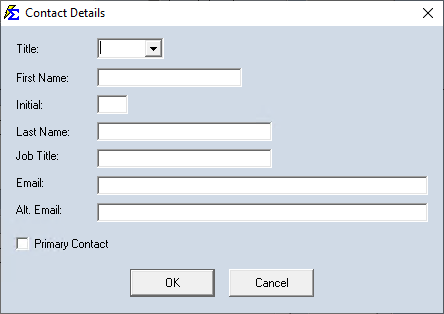
Multiple Email Addresses
You can enter multiple email addresses for a single agent by separating them with a semi-colon (;). This is perfect for sending commission reports to both an agent and their administrative assistant simultaneously.
Step-by-Step Instructions
- Open the Agent List and select the agent you wish to edit.
- Ensure you have already completed the Initial Agent Creation.
- Fill in the First Name, Last Name, and Title.
- Enter the Email Address (remember to use a
;for multiples). - Click Save.
What Happens When You Save
- The email address is instantly mapped to the agent's profile for use in the Email Agent Commissions feature.
- The agent's name is updated across all associated policies and reports.
- These details become the default contact information for any exported agent directories.
Troubleshooting
Q: Can I change an agent's name after I've already paid them? A: Yes. Changing the name in the Contact Info section updates the label for that agent throughout the system, but it does not affect their historical payment data or their unique Agent ID.
Q: Why isn't the agent receiving their emailed statements? A: Double-check the email field for typos and ensure there are no spaces before or after the semi-colon if you are using multiple addresses.
Next Step: Once contact info is saved, proceed to the Agent Address section to complete the profile.
Need help? Contact support@commission-tracker.com