Agent Matching
The Agent Matching feature is a powerful tool designed to prevent duplicate agent records. Carriers often use different naming conventions for the same person (e.g., "Doe, John E" vs. "John Doe"). This tool identifies those variations and allows you to merge them into a single "Master" agent record using Aliases.
When to Use This Feature
Use Agent Matching when:
-
Importing Carrier Statements - You notice the system trying to create "new" agents that already exist in your database.
-
Cleaning Your Database - You want to consolidate multiple records for the same person into one primary profile.
-
Standardizing Naming - Ensuring all commission data maps to one consistent name regardless of how the carrier reports it.
How Agent Matching Works
When the system detects a name on a spreadsheet that isn't an exact match but is phonetically or structurally similar to an existing agent, it flags it for your review.

Identifying Possible Matches
If the system finds more than one potential match, the Possible Match column will be highlighted in light blue. You can click the dropdown arrow in that cell to select the correct agent from the list of candidates.
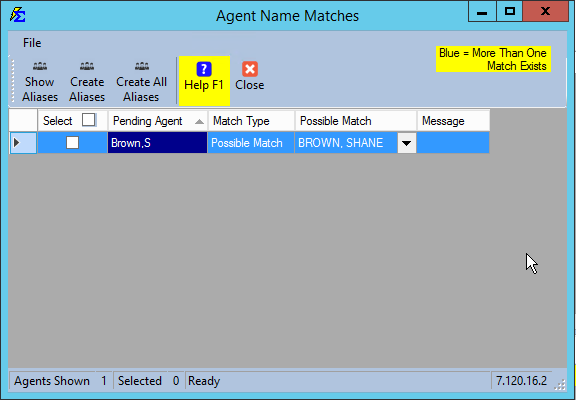
Step-by-Step: Processing Matches
- Review the list of Pending Agents found in your import.
- For each correct match, select the checkbox next to the agent's name.
- Click Create Aliases to process only your selected matches.
- (Optional) Click Create All Aliases if you have verified that every match in the list is correct.
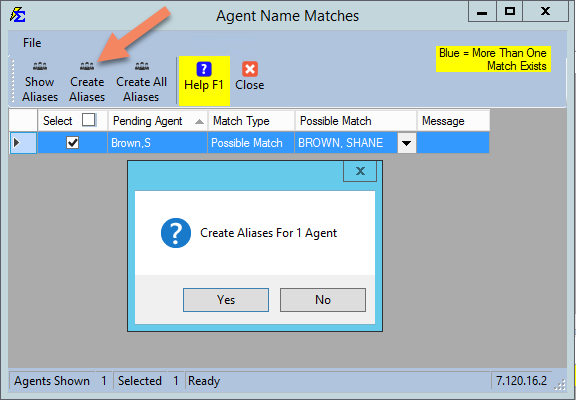
What Happens After Matching
Once an Agent Alias is created:
-
The agent name is highlighted in yellow in the import grid.
-
The "Carrier Name" is replaced with the "Master Agent Name" found in your database.
-
Future Imports: Every time a spreadsheet contains that specific variation (e.g., "S Brown"), the system will automatically convert it to the real name (e.g., "Shane Brown") without asking you again.
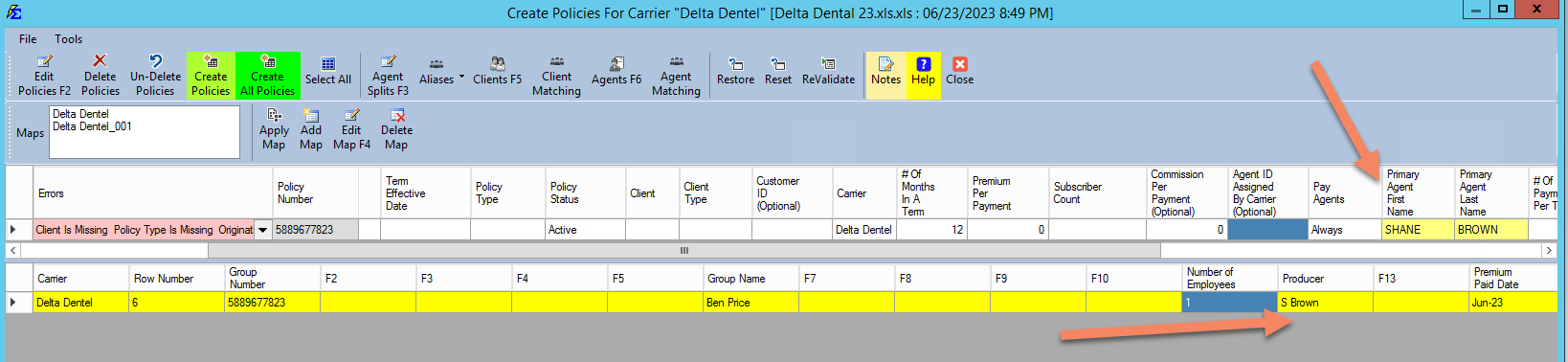
Troubleshooting
Q: Why is the Possible Match column highlighted in blue? A: This means the system found multiple agents with similar names. You must manually select the correct one from the dropdown to ensure the alias is mapped to the right person.
Q: I accidentally matched the wrong agent. How do I fix it? A: You will need to go to the Agent Alias screen under the Tools menu to delete the incorrect alias and recreate it correctly.
Q: What if no match is found? A: If the agent is truly new to your system, you can proceed with creating them as a new record. However, always double-check the Agent List first to ensure they aren't already in the system under a completely different name.
Next Step: To manage your full list of name variations, visit the Agent Alias documentation.
Need help with data cleanup? Contact support@commission-tracker.com