Auto Receive Payments
The Auto Receive Payments feature is a time-saving utility used when adding policies that have been active for several months. It allows you to quickly mark past months as "paid" so the system doesn't flag them as missing or overdue in your Accounts Receivable reports.
When to Use This Feature
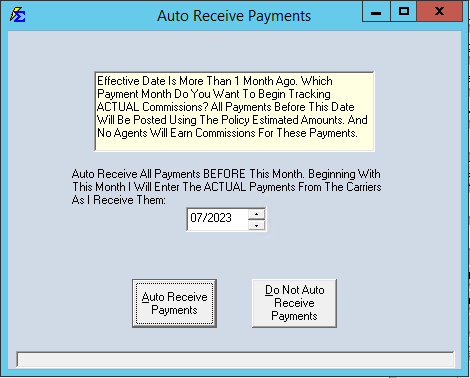
This pop-up appears automatically whenever you create a new policy with an Effective Date more than one month prior to today's date.
Use this feature when:
-
Onboarding Existing Business - You are moving a client into Commission Tracker who has been with your agency for a long time.
-
Cleaning Up Backlogs - You want to skip the manual entry of historical payments that have already been settled and paid out to agents.
-
Setting a "Start Date" - You want Commission Tracker to start tracking actual revenue from the current month forward.
Important Accounting Rules
Payments created via the Auto Receive tool behave differently than standard manual entries:
-
No Agent Payouts: These payments will NEVER be paid to any agent. They are recorded for agency history only.
-
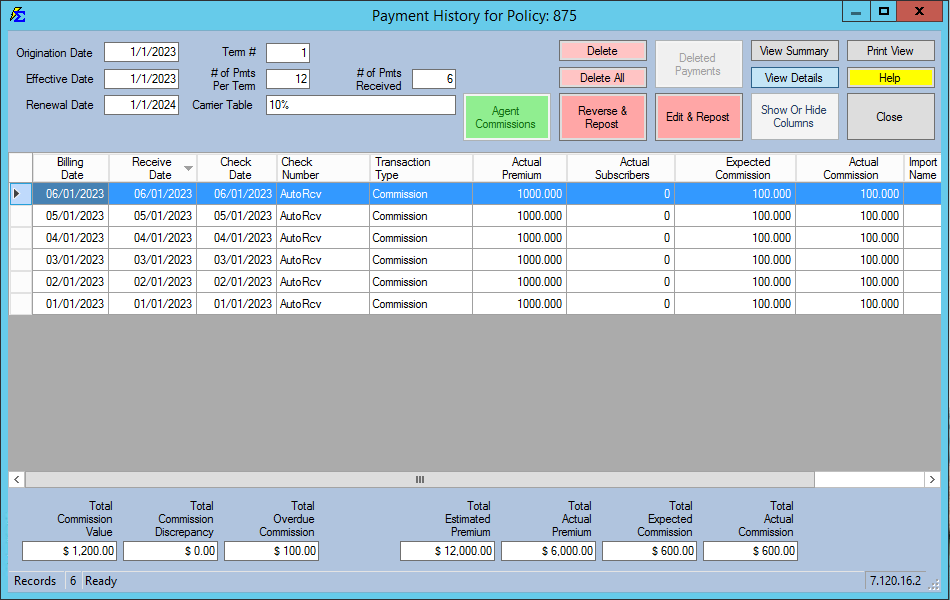
Payment History Label: They appear in history with a Check Number of "AutoRcv".
-
Estimated Data: They use the default Premium and Commission values from the Policy screen rather than actual statement data.
-
AR Cleanup: Once auto-received, these months will no longer appear in Accounts Receivable or on the Reconcile Carrier Statement screen.
Step-by-Step: Using Auto Receive
1. Set the Effective Date
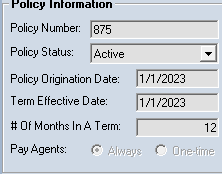
Create a new policy and set the Effective Date to a past date (e.g., Today is 07/01/2023, Effective Date is 01/01/2023).
2. Configure the Pop-up
When you save, the Auto Receive box appears. Select the month/year you want the system to be "current" as of.
Example: If you set the month to 07/2023, the system will automatically post 6 payments (January through June).
3. Verify in Payment History
Open the Payment History for the policy. You will see the "AutoRcv" entries with Receive Dates and Check Dates set to match the Billing Date.
What Happens Next?
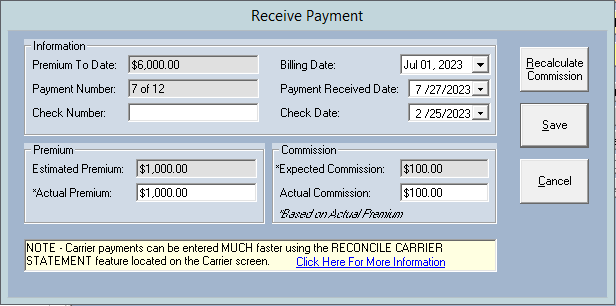
Once the past months are auto-received, the policy is "caught up." When you next click Receive Payment, the system will automatically suggest the next logical billing month (e.g., July 2023), ready for you to enter actual statement data.
Troubleshooting
Q: Why don't these payments show up on my Agent Commission reports? A: Auto Receive assumes you have already paid your agents for this historical period outside of the software. To pay an agent through Commission Tracker, you must enter the payment manually or via import.
Q: Can I undo an Auto Receive? A: Yes. You can go into the Payment History for that policy and delete the "AutoRcv" entries individually if you decide you need to enter the actual amounts instead.
Q: Should I use this for a policy that started last month? A: You can, but if you want 100% accurate commission data for that month, it is better to click "Do Not Auto Receive Payments" and enter the actual carrier check details.
Next Step: Learn how to enter your first "real" payment on the Receiving Payments page.
Need help with historical data? Contact support@commission-tracker.com