AutoRenew Policies
The AutoRenew Policies feature is an automated maintenance tool that ensures your policy data remains current. Every time Commission Tracker starts, it scans for policies that have expired or are set to expire within the next month, offering to create the next term for you automatically.
How AutoRenew Works
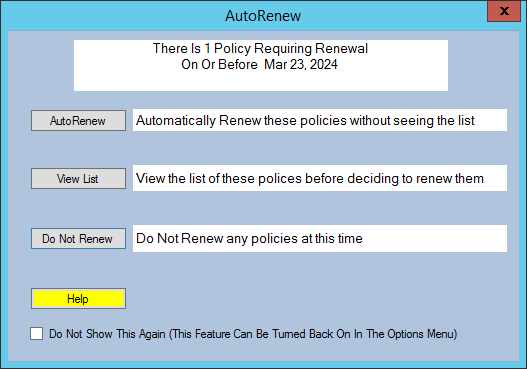
When you launch the software, the system performs a background scan of your database. If eligible policies are found, a prompt will appear.
- Status Filters: Only policies marked as Active or Pending are eligible. Policies with a status of Terminated, Inactive, or Prospect are ignored.
- Settings Retention: All policies are renewed using the exact settings of the current term, including the Estimated Premium and Agent Commission Splits.
Processing Renewals
1. The Automated Prompt
You can choose to start the renewal process immediately or click Cancel to be prompted again the next time the software starts.
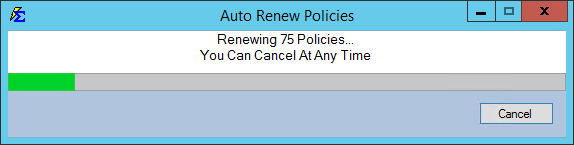
Processing Time
If you are renewing several hundred policies at once, the process may take 10–20 minutes to complete. Please allow the software to finish the task to ensure data consistency.
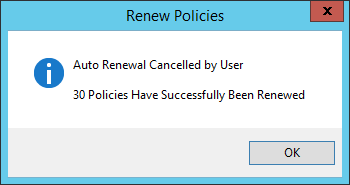
2. Manual Selection (View List)
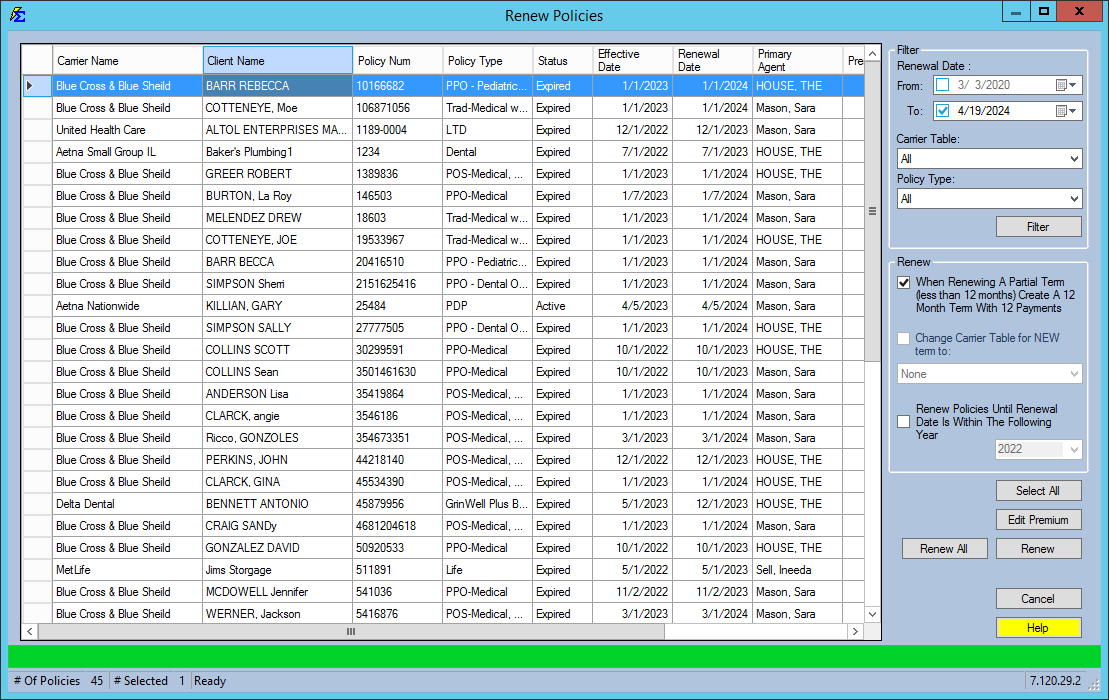
If you do not want to renew everything at once, click View List. This allows you to see the full list of policies eligible for renewal across all carriers.
- Selective Renewal: Use the checkboxes to select only specific policies.
- Interactive Sorting: Click any column heading to resort the list by Client, Carrier, or Expiration Date.
- Global Scope: Unlike the Renew Policies (By Carrier) screen, this list aggregates data from every carrier in your system.
Auditing Renewals via Reports
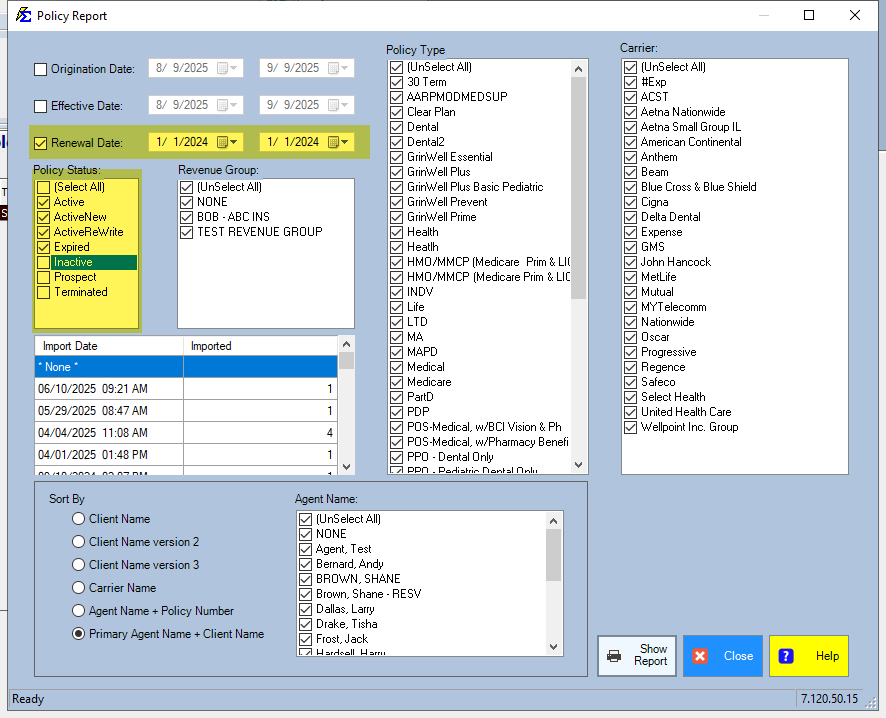
If you prefer to see a list of what will be renewed before committing, click "No" on the prompt and run the following report:
- Go to Reports > Policy > Policies (NEW!).
- Set the Renewal Date filter:
- Start Date: One year in the past.
- End Date: One month from today.
- Uncheck the statuses: Inactive, Prospect, and Terminated.
- Run the report to see every policy currently eligible for AutoRenewal.
Disabling the Feature
If your agency prefers to handle renewals manually or on a case-by-case basis, you can turn this prompt off.
- Navigate to the Options menu.
- Check the box for "Disable the AutoRenew Policy Function."
Troubleshooting
Q: Why wasn't a specific policy renewed? A: Check the policy status. If it is marked as "Terminated" or "Inactive," the AutoRenew scan will skip it. Also, ensure the expiration date falls within the next 30 days.
Q: I auto-renewed by mistake; can I undo it? A: You will need to go into the specific Policy screen and delete the newly created term. This will revert the policy to its previous expiration date.
Next Step: Learn how to handle renewals for a single provider on the Renew Policies (By Carrier) page.
Need help managing your renewals? Contact support@commission-tracker.com