Receive Bonus / Override
The Receive Bonus / Override form allows you to manually record bonus or override commission payments for a specific policy. This is separate from regular commission payments and is typically used for special incentives or manager overrides.
When to Use This Form
Use this form when you need to record: - Bonus Payments - Special incentive payments from carriers - Override Payments - Manager or upline override commissions
This is different from the Receive Payment button, which is used for regular monthly commission payments.
How to Access
- Open a policy from the Policy List
- Click the Bonus/Override button in the toolbar
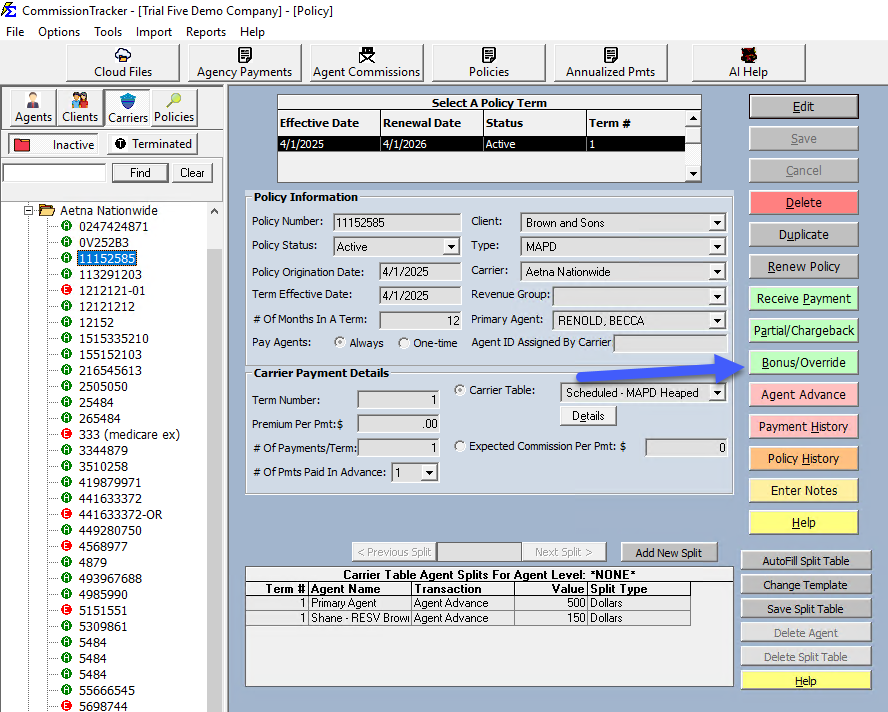
Form Fields
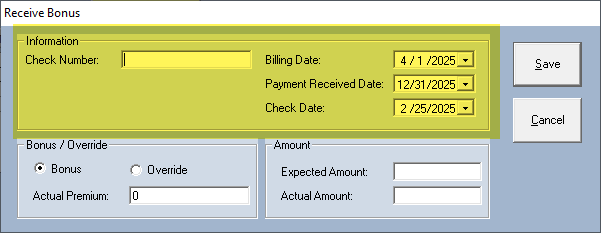
Information Section
- Check Number - The check number from the carrier (optional)
- Billing Date - The date this bonus/override applies to (defaults to policy effective date)
- Receive Date - The date you received the payment (remembered from last use)
- Check Date - The date on the check (syncs with Receive Date until manually changed)
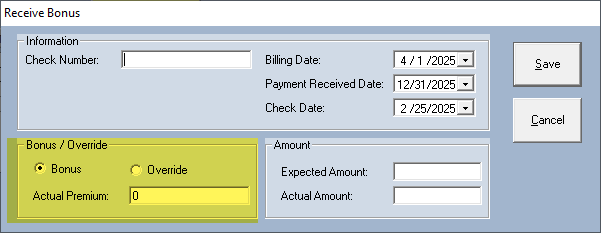
Bonus / Override Section
- Radio Buttons - Select either Bonus or Override
- Bonus = Transaction type "B" in the database
- Override = Transaction type "O" in the database
- Your selection is remembered for next time
- Actual Premium - The premium amount this payment is based on (defaults to policy's premium per payment)
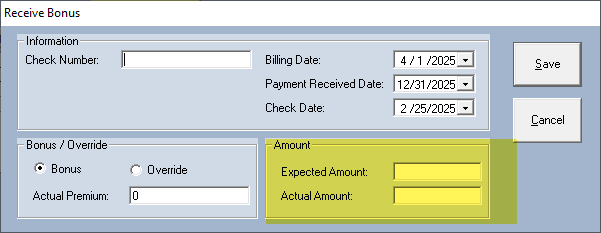
Amount Section
- Expected Amount - The commission amount you expected (enter manually)
- Actual Amount - The actual commission amount received
Important Notes
- No Paid-in-Full Check - Unlike regular commission payments, bonus/override payments can be recorded at any time, even if the policy is fully paid
- Manual Entry - All commission amounts are entered manually (no automatic calculation)
- No PPS Mode - This form does not check for Pay-Per-Subscriber policies; all amounts are treated as currency
- Date Warning - If the Receive Date is more than one year from today, you'll receive a confirmation prompt
Step-by-Step Example
- Open the policy
- Click Bonus/Override button
- Select Bonus or Override
- Enter the Actual Premium if different from default
- Enter the Expected Amount (what you thought you'd receive)
- Enter the Actual Amount (what you actually received)
- Verify dates are correct
- Click Save
What Happens When You Save
When you click Save:
- A new Receive record is created with type "B" (Bonus) or "O" (Override)
- Agent commission splits are calculated based on:
- Policy-Specific Agent Commission Split Table (if defined), OR
- Carrier Table Agent Splits (if no policy-specific splits exist)
- Commission records are created for each agent
Related Topics
- Receiving Commission Payments
- Receive Payment Button
- Partial Payments and Chargebacks
- Agent Commission Splits
- Payment History
Troubleshooting
Q: Why can't I enter a policy number?
A: The Bonus/Override form is always opened in the context of a specific policy. You must select the policy first from the Policy List.
Q: What's the difference between Bonus and Override?
A: The difference is primarily for reporting purposes. Bonuses typically go to the selling agent, while overrides typically go to managers or uplines. Both are recorded as separate transaction types in the system.
Q: Can I record negative amounts?
A: Yes, you can enter negative amounts for chargebacks or corrections.
Q: Where do I see these payments in reports?
A: Bonus and Override payments appear separately in the Agency Payments Received Report and can be filtered by transaction type.
Need help? Contact support@commission-tracker.com