Client List Report
The Client List Report is a comprehensive directory of all clients within your database. It is the primary tool for auditing client contact information, tracking enrollment statuses, and exporting mailing lists for agency communications.
When to Use This Report
Use this report when you need to:
-
Audit Client Contact Data - Verify that addresses, emails, and phone numbers are complete for all records.
-
Review Client Status - Quickly identify which clients are marked as Active, Prospect, or Terminated.
-
Generate Mailing Lists - Export client data for newsletters, renewal reminders, or holiday cards.
-
Cleanup Database - Spot duplicate entries or missing information across your entire client base.
Accessing the Report
This report is located directly within the Client management area.
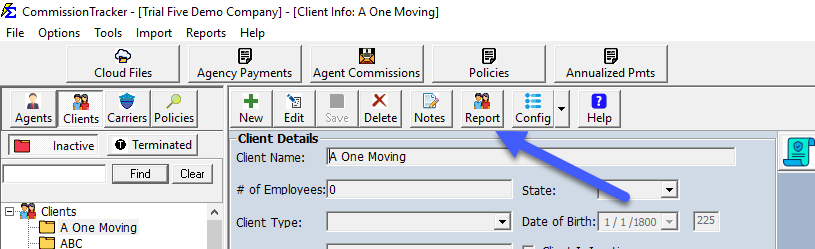
- Navigate to the Client screen from the main menu.
- Click the Report button in the toolbar.
Generating the Report
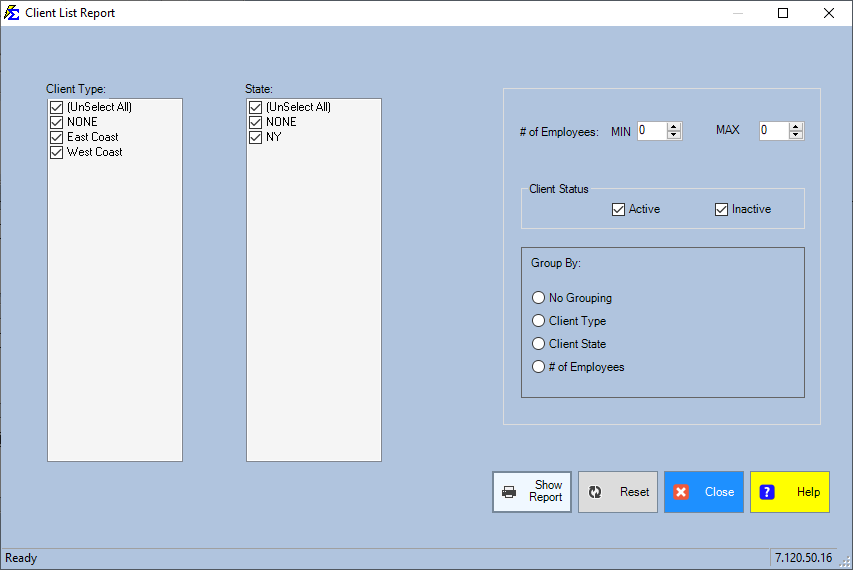
From the selection screen, you can narrow your results using several filters: - Status: Filter by Active, Prospect, Inactive, or Terminated. - Agent: View only the clients assigned to a specific agent. - Date Range: Filter based on when the client was added to the system.
Once your parameters are set, click Show Report.
Interacting with the Report Results
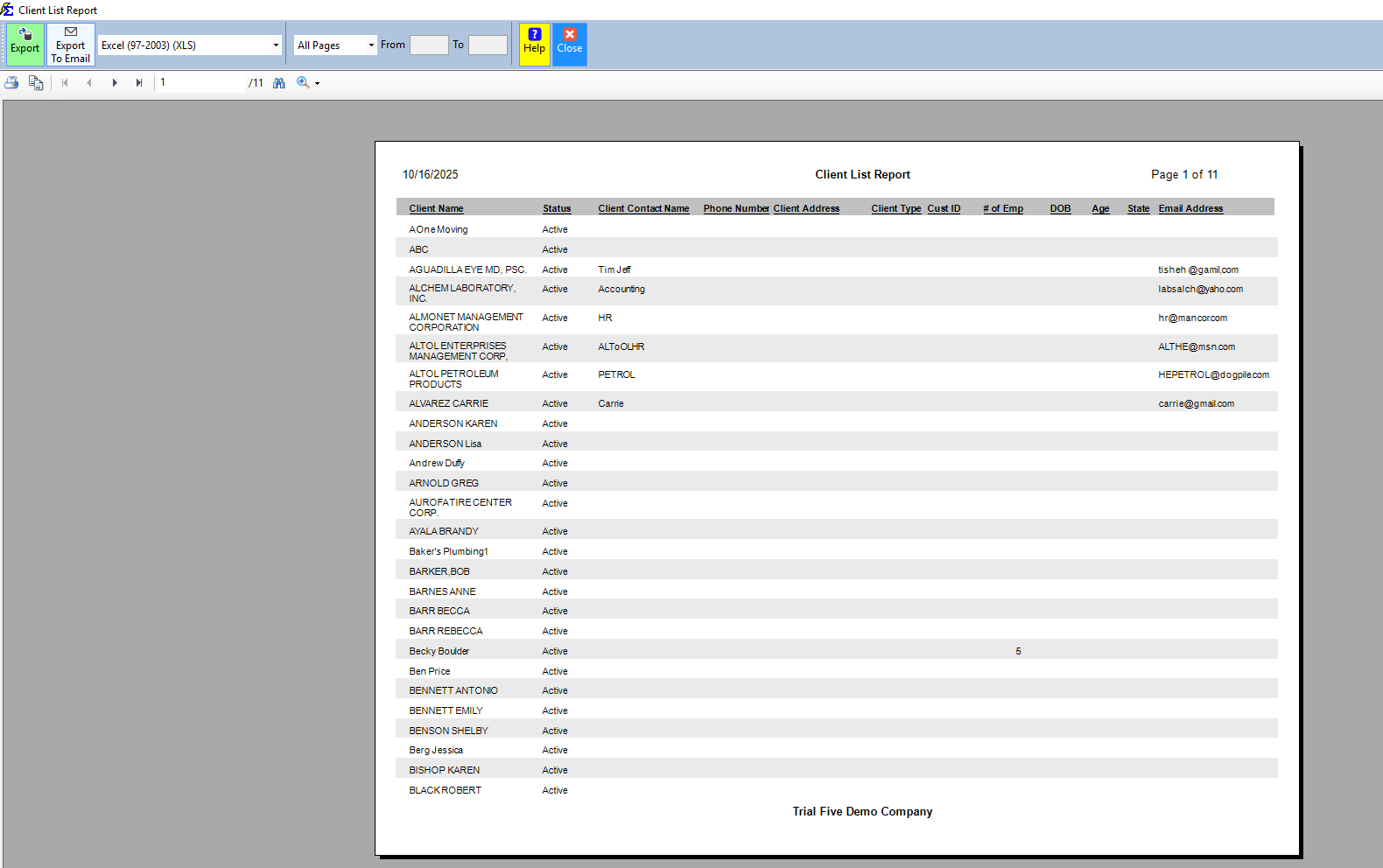
The report generates an interactive list of all client information currently in the system.
- Data Richness: This report displays the Client Status and all contact details (Address, Phone, Email) that have been inputted.
- Sorting: You can click on any column heading to sort the list (e.g., alphabetically by Name or geographically by City).
What Happens When You Export
You can export this report in various formats (PDF, Excel, CSV) directly from the preview screen.
-
PDF Export: Ideal for a "hard copy" directory; it retains all professional headers and formatting.
-
Excel/CSV Export: Best for data manipulation or importing into an email marketing tool. Note that Excel exports provide a "flat file" optimized for data handling.
Troubleshooting
Q: Why is a client missing from my report? A: Check your filters on the parameter screen. If you have the status set to "Active" and the client is marked as a "Prospect," they will not appear. Set the status to All to see every record.
Q: Can I see a client's policies on this report? A: No. This report focuses strictly on client contact data. To see client data merged with policy information, use the Book of Business report.
Next Step: To update a client's contact info found in this report, visit the Client Setup page.
Need help with client data? Contact support@commission-tracker.com