Client Report
The Client Report is a flexible analysis tool used to segment your client base. By utilizing the grouping and filtering options, you can generate specific lists for regional marketing, agent book reviews, or carrier-specific outreach.
When to Use This Report
Use this report when you need to:
-
Analyze Regional Density - Group clients by Zip Code to see where your business is concentrated.
-
Segment by Agent - View client counts and details assigned to specific Primary Agents.
-
Identify Carrier Alignment - See which clients are associated with specific carriers to prepare for network changes.
-
Monitor Data Quality - Identify records missing key fields like email addresses or phone numbers.
Generating the Report
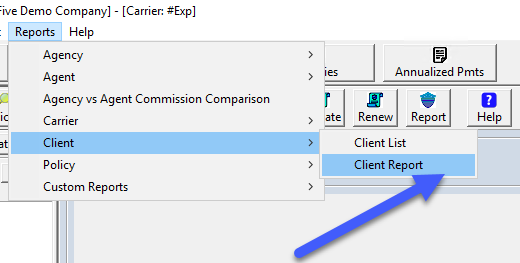
- Navigate to the Reports menu and select Client.
- Select Client Report.
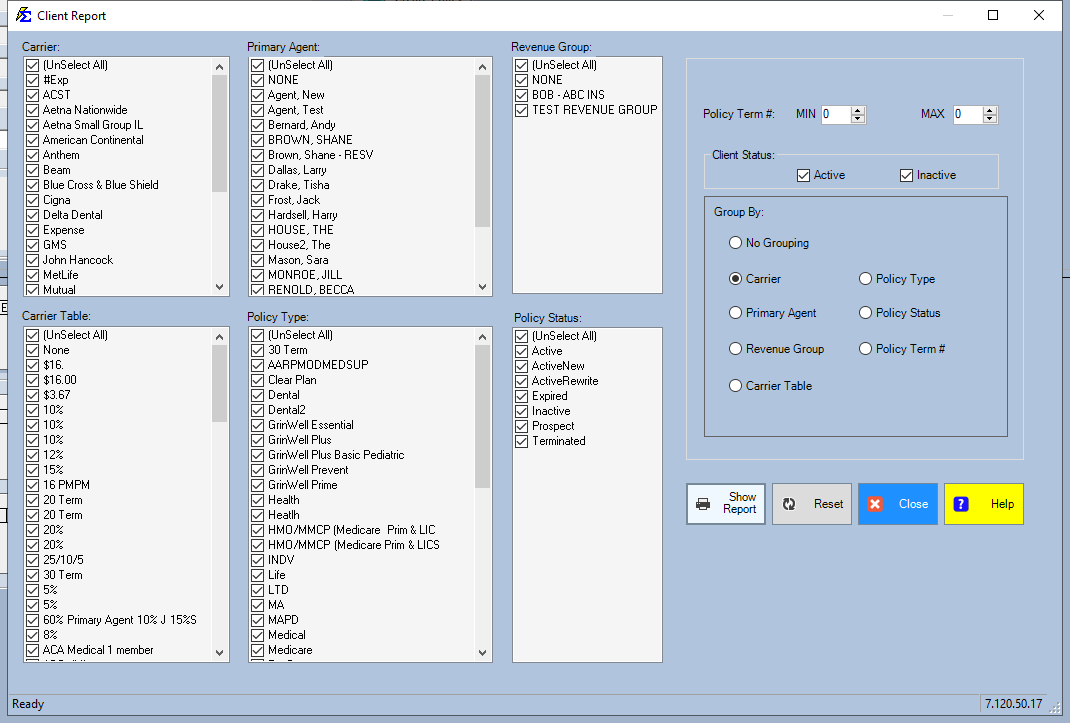
- Choose your Grouping (e.g., Group by Agent, Group by Zip) to organize the data.
Applying Filters
The power of the Client Report lies in its filtering capabilities. You can narrow your results by:
-
Effective Date Range: See clients added during a specific period.
-
Status: Isolate Active clients from Prospects.
-
Demographics: Filter by City, State, or Zip Code for localized reporting.
Understanding the Results
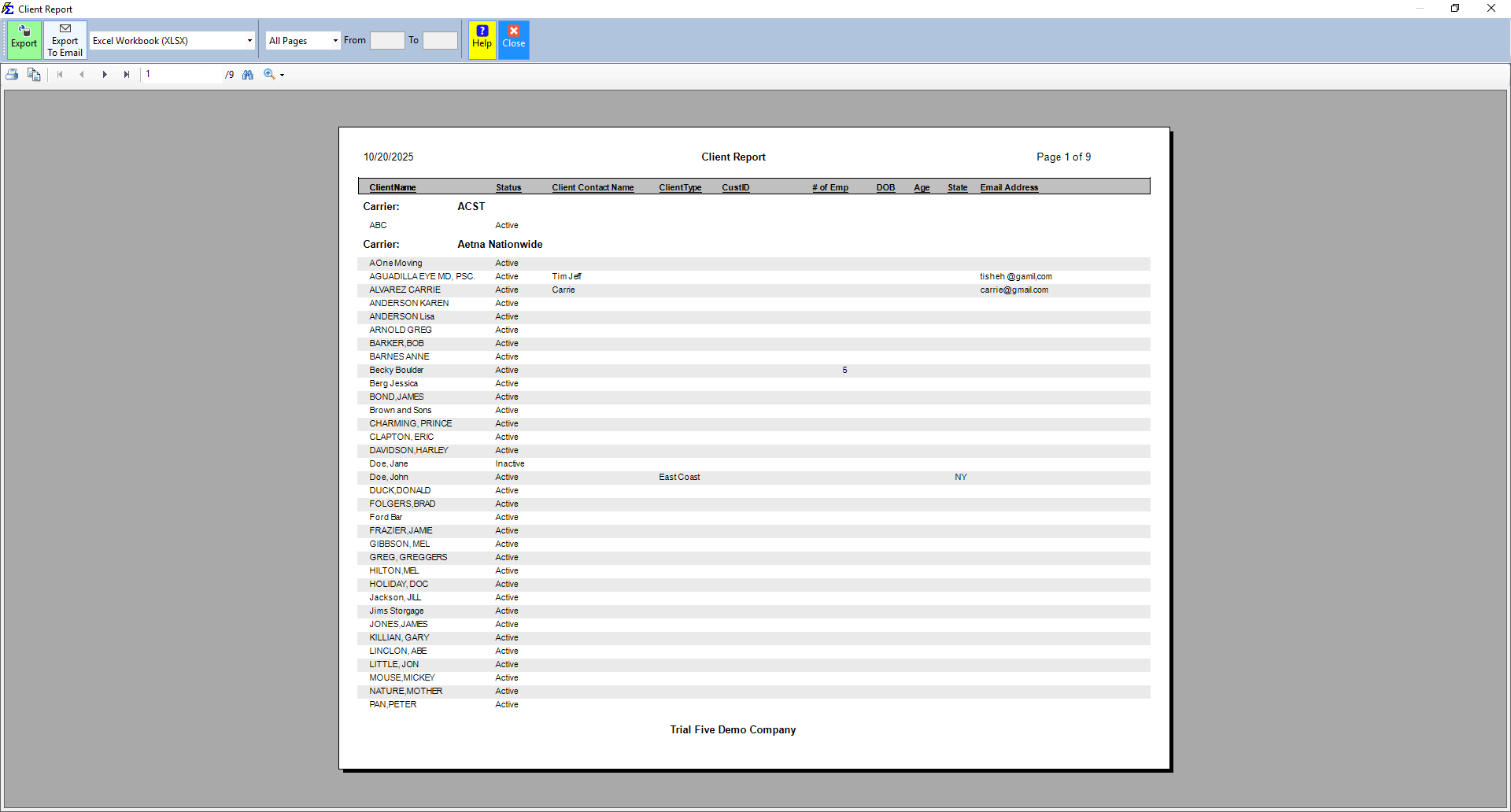
The report provides a detailed breakdown based on your selected criteria. If you chose a "Group By" option, the report will provide subtotals for each section, making it easy to see totals at a glance.
- Status Visibility: Quickly see the current standing of every client in the list.
- Contact Overview: Includes Phone, Email, and Full Address for immediate follow-up.
What Happens When the Report Runs
- The system queries the database for all client records matching your filters.
- It organizes the records into the hierarchy defined by your "Group By" selection.
- It generates a preview that can be printed or exported to PDF/Excel for external use.
Troubleshooting
Q: Can I group by a field that isn't in the dropdown? A: The grouping options are preset to the most common agency needs (Agent, Zip, State). If you need to group by a custom field, we recommend exporting the report to Excel and using the "Sort" or "Pivot Table" feature.
Q: Does this report show policy premium totals? A: No. This report is focused on client demographics. For financial valuations and premium totals, please use the Book of Business report.
Next Step: To see a simplified directory of your clients without groupings, visit the Client List Report page.
Need help segmenting your data? Contact support@commission-tracker.com