Commission Tracker Connection File Update
To maintain the highest level of security and performance, the Commission Tracker Connection File (also known as the RDP file) must be updated annually. This file contains the encrypted credentials and gateway settings required to establish a secure handshake with our Cloud Servers.
Identifying the Current Version
You can verify if you are using the most recent version by checking the filename of your desktop shortcut.
-
Current Version: The file should include
_v1at the end of the name. -
Legacy Versions: If your file does not include this suffix, you are using an outdated connection method and must update immediately to avoid security warnings.
Requesting the Updated File
Each individual user at your agency requires their own unique connection file. To receive the latest update:
- Launch the update request screen within your current Commission Tracker session or visit the support portal.
- Enter your Agency Email Address in the provided field.
- Click Submit.
- Check your inbox for the new RDP file and move it to your desktop for easy access.
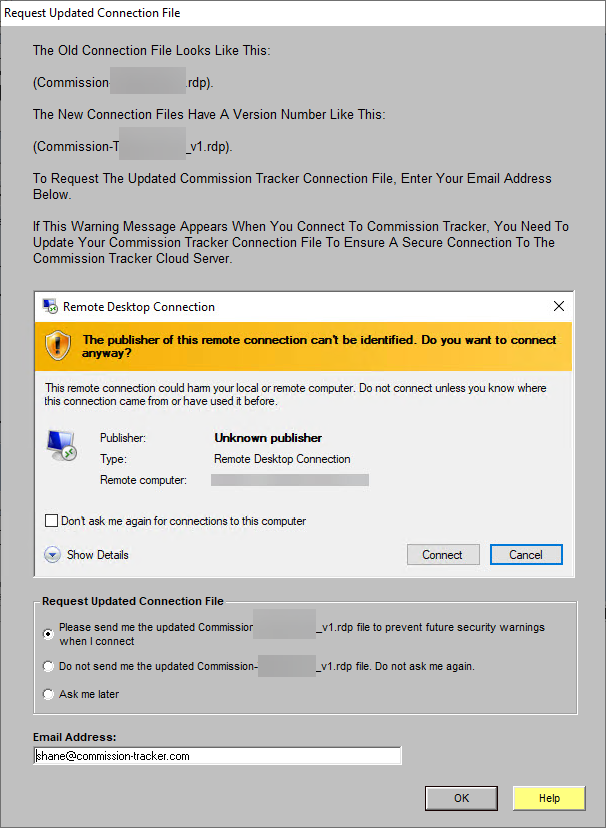
Why is this Update Necessary?
If you continue to use an outdated connection file, your operating system will trigger a security alert. This warning indicates that the certificate or connection protocols are no longer recognized as the most secure standard.
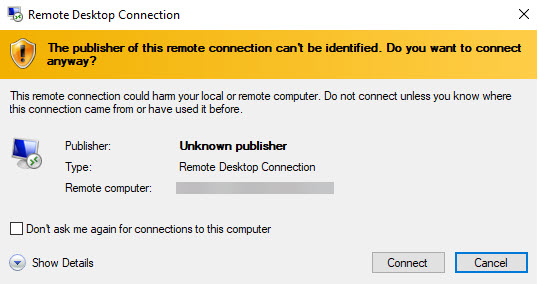
Important: Continuing to connect through an insecure file can lead to session instability, login failures, or blocked access by your local network's firewall.
Installation Tips
- Remove Old Versions: To avoid confusion, delete any old RDP shortcuts from your desktop once you have successfully logged in with the
_v1file. - Mac Users: If you are on a Mac, you will need to import this new file into the Microsoft Remote Desktop app. Refer to the Mac Connection Instructions for details.
- Permissions: If your company has restricted IT permissions, you may need your local administrator to help you save the new file to your desktop.
Next Step: Once your file is updated, proceed to the Connection Issues guide if you experience any further login difficulties.
Need the file sent manually? Contact support@commission-tracker.com