Commissions by State
The Commissions by State view (generated via the Agency Payment Received report) is an essential tool for tax preparation and regional compliance. This report allows agencies to calculate total revenue earned within specific jurisdictions, ensuring accurate state tax filings and licensing renewals.
When to Use This Report
Use this report when you need to:
-
Simplify Tax Preparation – Quickly calculate gross revenue earned in each state for annual tax filings.
-
Audit Licensing Requirements – Verify revenue levels in states where you hold non-resident licenses to ensure compliance.
-
Analyze Regional Growth – Identify which states are driving the most revenue to better target your multi-state marketing efforts.
Generating the Report
This report is a specific configuration of the Agency Payment Received report.
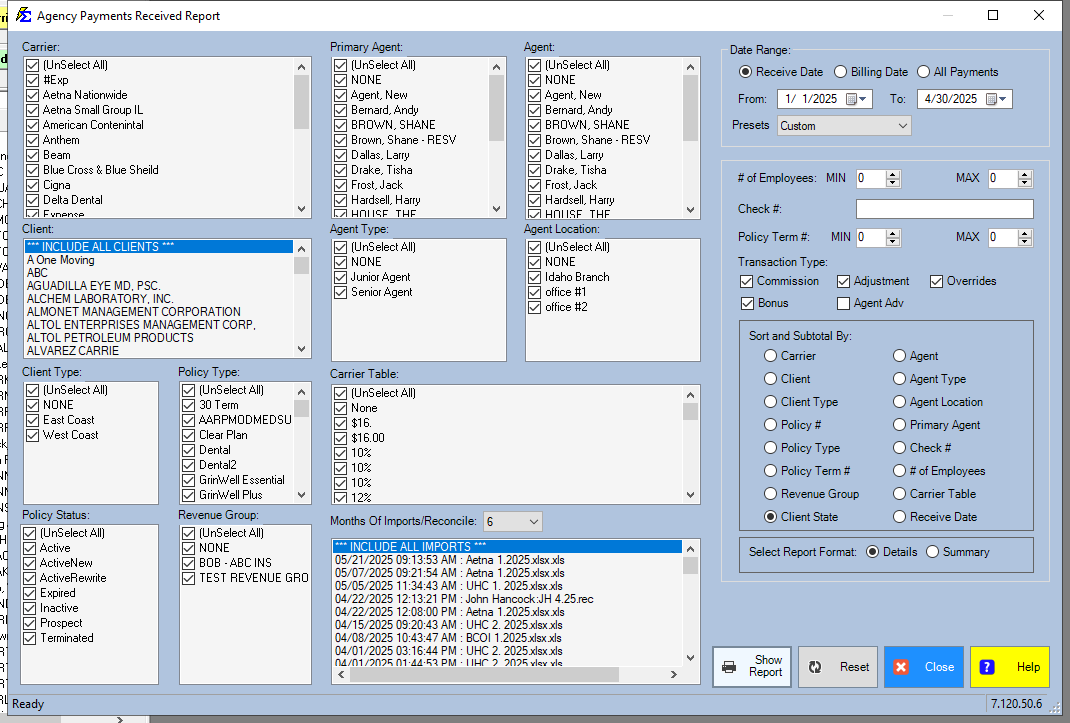
- Navigate to the Reports menu and select Carrier.
- Select Agency Payment Received.
- In the Date Range section, select the desired tax year or period.
- Set the Group By or Filter option to Client State.
- Choose between a Summary (totals only) or Detail (policy-by-policy breakdown) format.
Data Source Logic
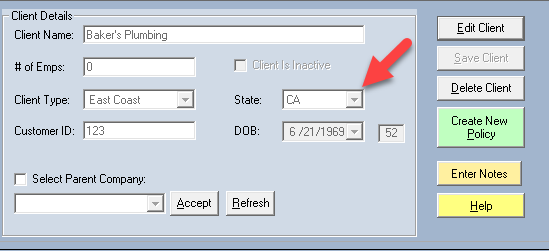
The information in this report is pulled directly from the Client screen. For the data to be accurate:
-
The State field on the Client Address screen must be populated.
-
The system associates every payment received with the state listed on the primary client record.
Understanding the Results
Summary Format
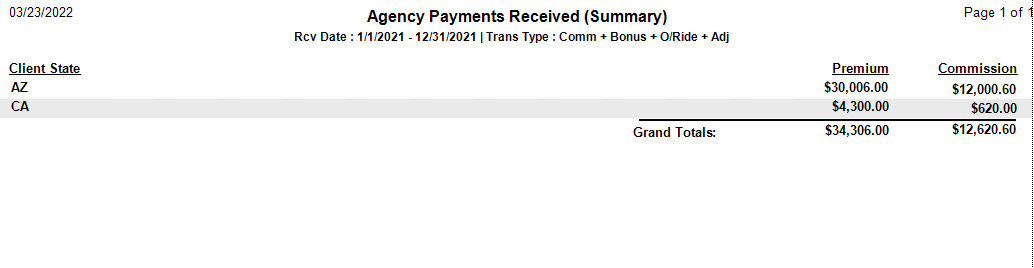
The Summary view provides a high-level total for each state. This is most effective for tax time when you only need the "bottom line" figure for each jurisdiction.
Detail Format
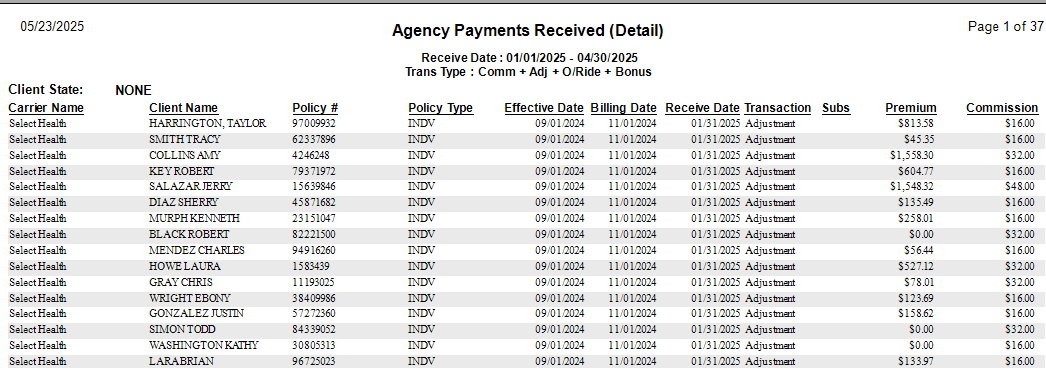
The Detail view breaks down the revenue by client and policy within each state. This is useful for auditing specific accounts or verifying which clients are contributing to your out-of-state revenue.
Troubleshooting
Q: Why is there a "None" or "Unknown" state category? A: This happens when payments are posted to a client who does not have a State selected in their Client Address profile. You must update the client record and re-run the report to clear these entries.
Q: Does this report use the Agent's state or the Client's state? A: This report uses the Client's State. If you need to report based on where the Agent is licensed, ensure your agents are assigned to the correct clients and use the Agent-based filters.
Next Step: To ensure all your clients have the correct state assigned, run a Client List Report.
Need help with tax-time reporting? Contact support@commission-tracker.com