Graded Carrier Table
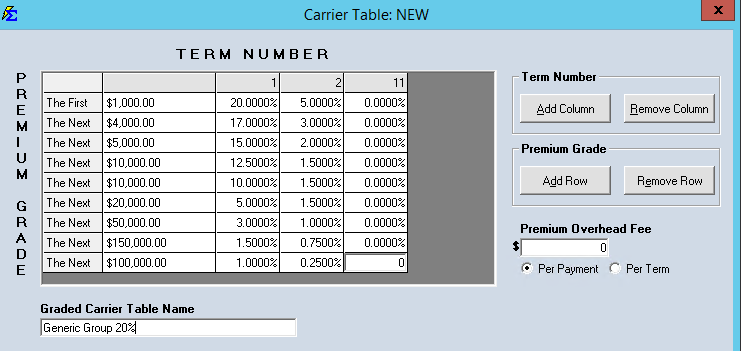
The Graded Carrier Table is used for complex contracts where commission percentages change as the accumulated premium increases during a policy term. Commission Tracker simplifies this process by providing a grid that mirrors your carrier contracts—no complex formulas required.
Key Features
-
Grid-Based Entry: Designed to look exactly like your carrier contract schedules.
-
Keyboard Optimized: You can populate the entire grid using only your numerical pad and arrow keys for maximum efficiency.
-
Multi-Year Logic: Define different rates for the initial term (Year 1) and subsequent renewal terms (Years 2–10+) within a single view.
How the Calculation Works
The system looks at the Policy Term and the Accumulated Premium to determine the correct rate for each dollar received.
Example Calculation
In the table below, we have configured a tiered structure for the first year of a policy.
Scenario:
-
Policy Term: 1 (Year 1)
-
Premium Received: $1,500
Calculation Logic:
-
Tier 1: The first $1,000 pays 20% = $200.00
-
Tier 2: The remaining $500 pays 17% = $85.00
-
Total Expected Commission: $285.00
Understanding the Columns
| Column | Purpose |
|---|---|
| Premium | Defines the "threshold" or "bucket" for the premium amount. |
| 1 | Defines the percentages used for the first term of the policy (Initial Year). |
| 2 - 10 | Defines the percentages used for policy terms 2 through 10 (Renewal Years). |
| 11 - 99 | Ensures commissions are tracked (or ceased) for policies older than 10 years. Setting this to 0% will stop expectations after Year 10. |
Step-by-Step Instructions
- Navigate to the Carrier screen and select your Carrier.
- Add a new Graded Commission Table.
- In the Premium column, enter your contract's threshold amounts.
- Enter the corresponding Percentages in the Term columns (1, 2-10, etc.).
- Click Save.
Efficiency Tip
Use the Arrow Keys to move between cells and the Enter key to save your progress. The system is designed for "heads-down" data entry so you never have to touch your mouse while building the table.
Important Considerations
- Agent Splits: After defining what the agency receives in this table, don't forget to set up your Carrier Table Agent Splits to define how these tiers are shared with your agents.
- Rate Changes: If a carrier changes these tiers mid-contract, use Carrier Table Versions to preserve your historical data.
Next Steps:
Need help setting up a complex graded schedule? Contact support@commission-tracker.com