Create Policies
The Create Policies utility is a high-speed tool designed to resolve "Policy Does Not Exist" errors encountered during Carrier Statement Imports. Instead of manually entering new business one by one, this screen allows you to convert raw data from a carrier statement directly into active policies within Commission Tracker.
Overview of the Interface
The screen is divided into two primary sections:
-
Lower Grid: Displays raw data exactly as it appeared on the carrier statement.
-
Upper Grid: Displays "Pending Policies." This is the workspace where you map, edit, and validate data before it is officially committed to the system.

The 4-Step Creation Process
1. Mapping Data
You must tell the system which columns in the carrier statement (Lower Grid) correspond to policy fields (Upper Grid).
-
Light Blue Columns: Indicate data you have mapped manually.
-
Grey Columns: Indicate system-mapped data that cannot be changed.
-
Fixed Values: Use the "Fixed Value" column in mappings to automatically assign static data (like Carrier Table or Term Length) to every pending policy.
2. Validating & Editing
Before a policy can be created, it must be "Valid." Any issues are displayed in the Errors column.
-
Double-Click a row to edit a single policy.
-
Multi-Select (CTRL+Click) to edit multiple policies at once (e.g., setting the same Policy Type for 10 rows).
-
Green Highlight: Indicates a new Client name that will be created along with the policy.
3. Creating Aliases
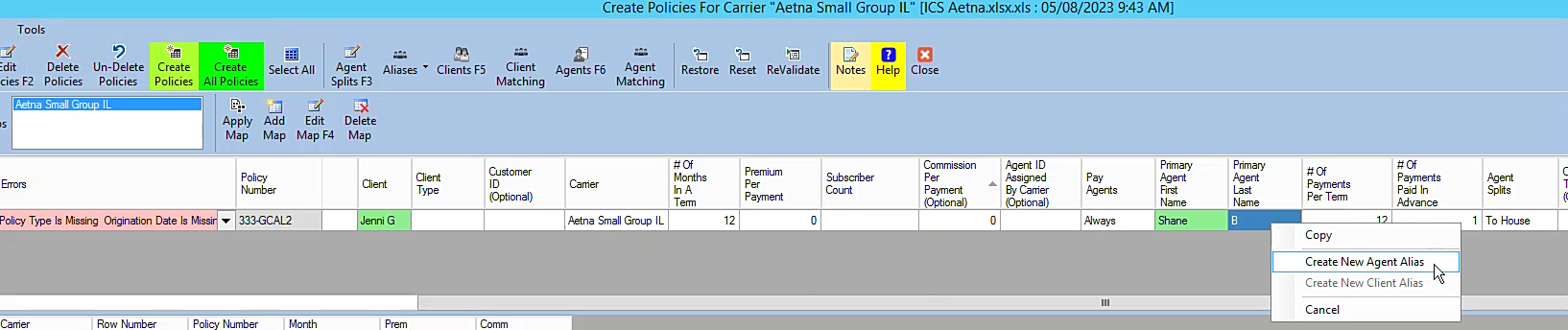
If an Agent or Client name on the statement doesn't match your database, you can right-click their name to quickly create an Alias. This ensures future imports map correctly without manual intervention.
4. Committing the Policies
Once the Errors column is clear, select your rows and click the Create Policies button. This officially converts the pending data into real, active policies in your system.
Toolbar & Color Key
| Button | Function |
|---|---|
| Edit (F2) | Opens the editing window for selected pending policies. |
| Agent Splits (F3) | Allows for Policy-Specific Agent Splits if not using global tables. |
| Restore | Brings back policies that were previously created or deleted in the current session. |
| Reset | Clears all manual edits and mappings to start fresh (use with caution). |
| ReValidate | Refreshes the error list to confirm your edits resolved the issues. |
Grid Color Meanings:
-
Green: New Client/Entity will be created.
-
Yellow: The raw data row corresponding to your selected pending policy.
Troubleshooting Common Errors
Error: Cannot have both Carrier Table and Commission Per Payment
You must decide how to track revenue. You can either use a Carrier Table for automated auditing or a manual Commission Per Payment value, but not both.
Tips for Success
- Sort & Rearrange: Click column headers to sort, or drag and drop headers to customize your workspace view.
- Bulk Updates: Use Multi-Select to apply a single Carrier Table to all pending policies at once to save time.
Next Steps:
Struggling with a specific import error? Contact support@commission-tracker.com