Create New Policy
The Policy record is the heart of Commission Tracker. It connects the Client to the Carrier and defines exactly how commissions are calculated and split.
Prerequisites
Before you can create a new policy, ensure the following records already exist in your system. This "checklist" approach ensures that your reporting and auditing remain accurate:
- Agents – To define who receives the commission split.
- Carriers – To define who is providing the coverage.
- Carrier Commission Tables – (Optional) To automate the "Expected" commission math.
- Policy Types – To categorize the product (e.g., Dental, Vision).
- Client – The individual or group purchasing the coverage.
Getting Started
A policy must be attached to a client. To begin: 1. Locate the Client in your navigation tree. 2. Navigate to the Policies tab. 3. Click the Create New Policy button.
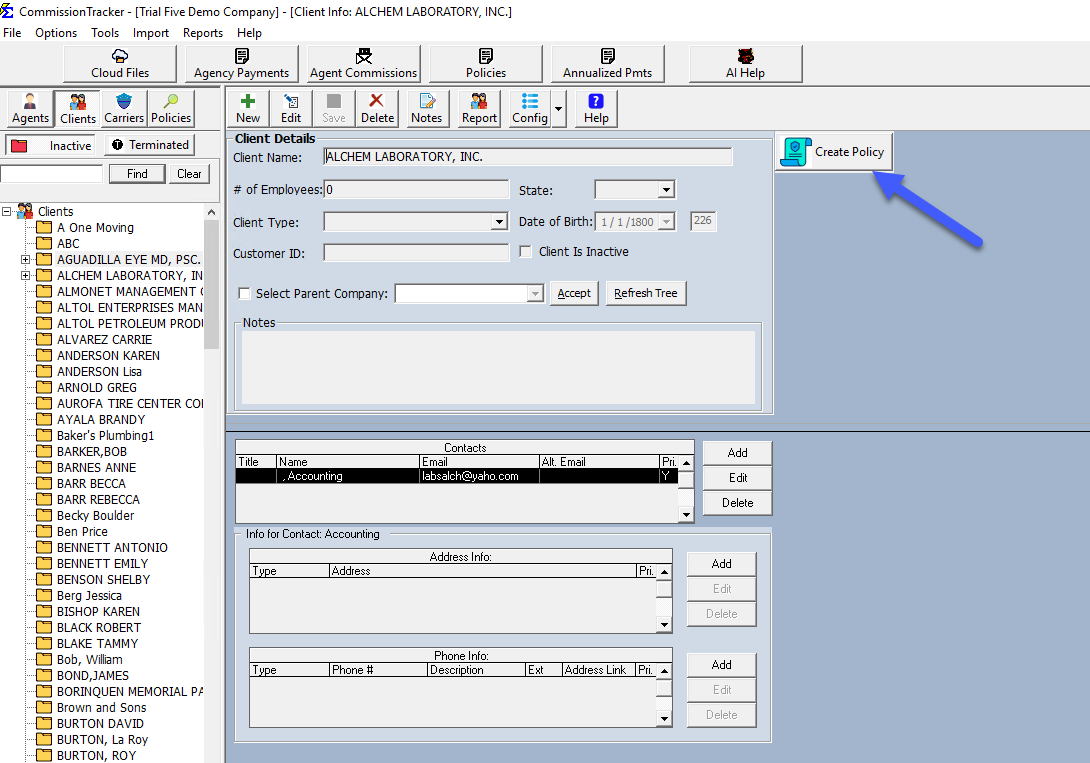
Essential Setup Sections
The policy creation screen is divided into two critical functional areas. You must configure both to ensure accurate revenue tracking:
1. Policy Information Section
This section captures the administrative details of the policy, including the Policy Number, Effective Date, Status, and the Agents assigned to the account.
2. Carrier Payment Details Section
This section defines the "Math Engine" for the policy. Here you will link a Carrier Table or set a manual Commission Per Payment to define what the agency expects to earn.
Additional Features & Troubleshooting
- Duplicate Policy Numbers: Learn how the system handles identical policy numbers across different carriers or clients.
- Auto Receive Payments: Speed up your workflow by setting the system to automatically post payments for consistent, flat-rate accounts.
- Policy Examples: View step-by-step configurations for common policy types like Life, Group Health, and Medicare.
Troubleshooting
Q: Why is my "Expected" commission zero? A: Check the Carrier Payment Details section. If the Carrier Table is set to "System - None" and the manual override is $0, the system has no math to perform.
Q: Can I change the Agent on a policy after it has been created? A: Yes. You can update the agent splits at any time, but note that changes typically apply to future payments unless you perform a historical recalculation.
Next Steps:
Need help configuring a complex policy? Contact support@commission-tracker.com