Disable Policy Edit Warning Message
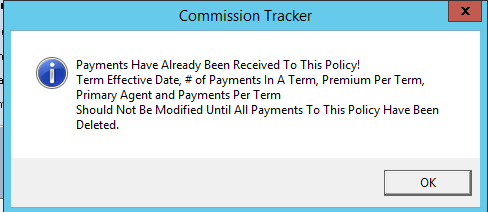
When you manually edit a policy that already has a Payment History, Commission Tracker normally displays a warning. This safety feature ensures you are aware that changes to policy details (such as Effective Dates or Carrier Tables) may impact historical auditing or future expectations.
However, if you are performing routine administrative updates across multiple policies, this recurring pop-up can become a bottleneck in your workflow.
The Purpose of the Warning
The standard alert is designed to prevent accidental changes that could lead to discrepancies in your Carrier Reconciliation. It serves as a "speed bump" to ensure the data remains accurate.
How to Disable the Warning
If you are confident in your bulk editing process and wish to remove this extra confirmation step:
- Navigate to the Options menu.
- Locate the checkbox labeled "Disable Policy Edit Warning Message".
- Check the box to silence the alert.
- Click Save or Apply.
When to Use This Setting
| Best Used For... | Benefit |
|---|---|
| Bulk Administrative Cleanup | Speed up the process when updating non-financial fields (like Notes or Custom Fields) across many policies. |
| Status Updates | Useful when manually changing policy statuses from "Prospect" to "Active" in large batches. |
| Expert Users | Recommended for experienced administrators who are already familiar with how policy edits affect payment history. |
Caution
Disabling this warning means you will no longer be prompted to confirm changes on policies with existing payments.
Troubleshooting
Q: If I disable this, will the system still track who made the changes? A: Yes. All changes to policy records are still logged in the system's background audit trails, regardless of whether the warning message is displayed.
Q: Does this affect the "Policy Does Not Exist" errors during imports? A: No. This setting only applies to the manual editing of existing policies within the Client or Policy screens. It does not affect the Import Carrier Statement workflow.
Q: Can I re-enable the safety prompt? A: Yes. Simply return to the Options menu and uncheck the box to restore the warning message.
Next Steps:
Need help streamlining your administrative workflow? Contact support@commission-tracker.com