Edit Agent Splits
The Edit Agent Splits utility is used to create Policy-Specific Agent Splits. This is ideal for one-off scenarios where a policy does not follow your standard Carrier Table Agent Splits, or when you need to manually define a complex multi-agent split for a batch of pending policies.
When to Use Policy-Specific Splits
There are three ways the system determines who gets paid. You can track which method is active by looking at the Agent Splits column in the policy grid:
- Carrier Table: Automatically calculates splits based on the Primary Agent and the linked Carrier Table.
- Policy Specific: You have manually defined the splits for this specific policy using the steps below.
- To House: No agent splits are defined; 100% of the revenue is allocated to the agency (House account).
Step-by-Step Instructions
To create or edit a custom split for one or more policies:
- Select Policies: From the upper grid, select one or more policies (hold
Ctrlto select multiple). - Open Editor: Click the Edit Agent Splits button.
- Add Rows: Click the Add Split button to create a new row.
- Define Agent: * Select an existing agent from the dropdown.
- Tip: You can type a new name directly; it will highlight in Green, indicating a new agent record will be created automatically.
- Set Start Date: This is the date the split becomes active. By default, the system uses the Term Effective Date.
- Configure Math:
- Commission: Enter the value (e.g., "50" or "15.00").
- Commission Type: Select if the value is a % of Commission, % of Premium, or a flat Dollar Amount.
- Add House Split: Unlike Carrier Tables, Policy-Specific tables do not calculate the House split for you. You must add a row for "The House" to account for the agency's portion.
Toolbar Commands
Use these buttons to manage your custom split table:
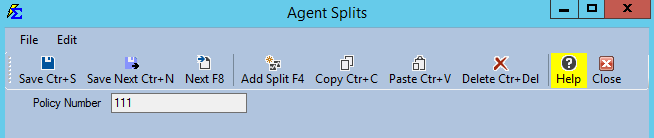
- Save: Commits the current split configuration to the selected policies.
- Add Split: Creates a new blank row for an additional agent.
- Copy / Paste: Standard tools to move data between cells for faster entry.
- Delete: Removes the highlighted split row.
Best Practices
| Recommendation | Why? |
|---|---|
| Batch Editing | Select multiple policies at once to apply the same custom split to an entire group or family. |
| Verify the "House" | Always ensure your total percentages equal 100%. If you pay an agent 40% and forget the House row, the other 60% may sit in an unallocated state. |
| Use Start Dates | If a split changes mid-year, create a new row with a new Start Date to preserve historical accuracy while automating future payments. |
Troubleshooting
Q: Why is my agent's name highlighted in green? A: This means the agent name you typed does not match any existing record. Commission Tracker will create a new Agent profile for you once you save.
Q: Can I use this for policies that are already active? A: Yes, but keep in mind that changing splits on active policies only affects future payments unless you perform a historical recalculation.
Next Steps:
Need help balancing your custom split table? Contact support@commission-tracker.com