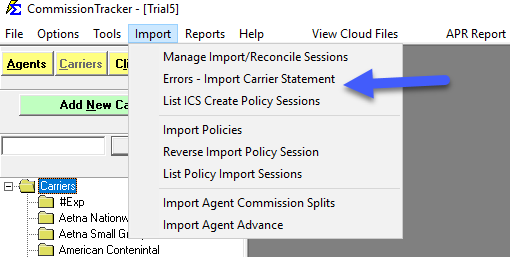
Errors - Import Carrier Statement (ICSE)
The Import Carrier Statement Errors (ICSE) screen is your command center for resolving payments that could not be automatically posted. Whether a policy is missing, expired, or has a date mismatch, this screen provides the tools to correct the data and finalize your revenue entry.
Navigating the Error Screen
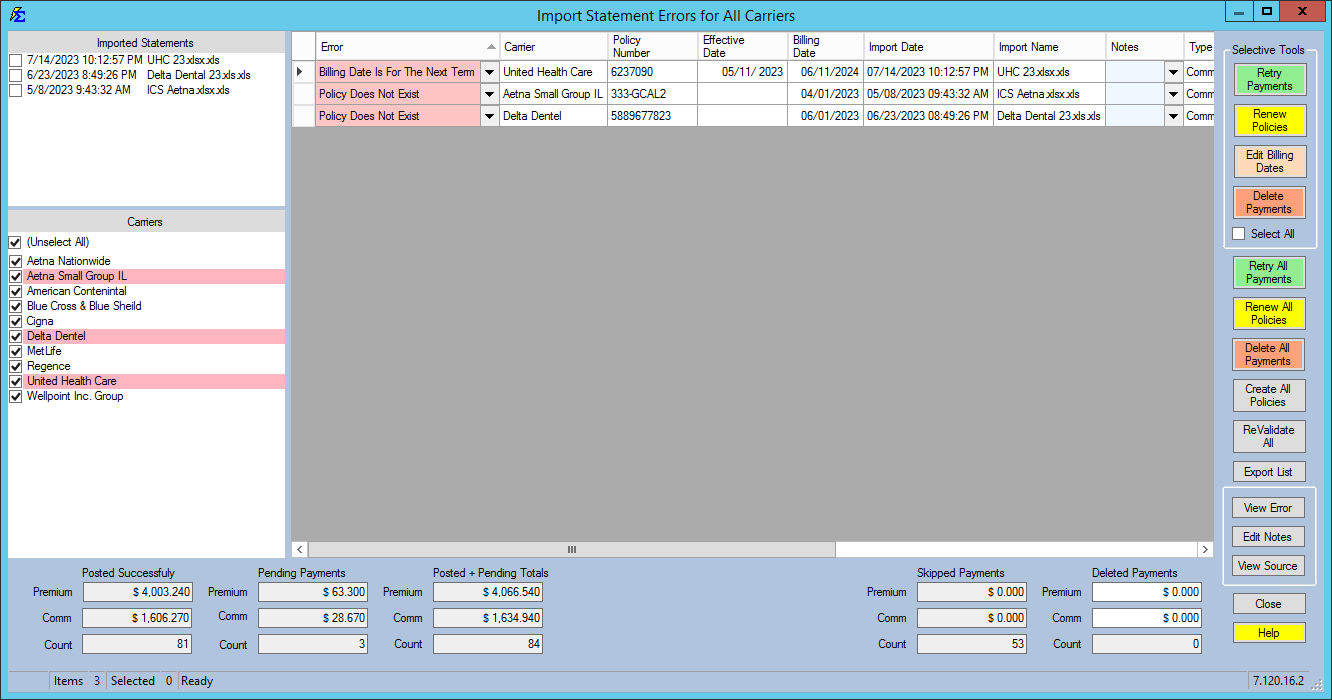
By default, the screen displays errors for ALL carriers. Use the filter on the left to narrow your focus to specific carriers or import sessions.
Common Error Statuses and Resolutions
| Status | Meaning | Resolution |
|---|---|---|
| Blank | No errors detected. | Select the row and click Retry Payments to post. |
| Policy Does Not Exist | The policy number isn't in your system. | Click Create Policies to launch the bulk creation utility. |
| Billing Date: Next Term | The current term is exhausted. | Select the rows and click Renew Policies. |
| Billing Date: Older Term | Payment predates policy start. | Use the Edit Billing Date tool to move the date forward. |
| Billing Month: NA / Closed | Warning: Unexpected or duplicate date. | Review the record. If valid, click Retry Payments to override. |
| No Date Range Match | System synchronization error. | Run Update Payment Table in the Tools menu. |
Detailed Audit Tools
Use the row-level dropdowns to investigate why a payment failed:
- View Error: Displays the full technical reason for the failure if multiple errors exist.
- Edit Notes: Document your research or actions taken for other team members to see.
- View Source: Displays the original row from the Excel/Carrier file to verify the raw data provided by the carrier.
Processing Actions
Once you have performed the necessary "fixes" (like creating a policy or renewing a term), use these buttons to clear the queue:
- Retry Payments: Re-validates the selected rows. If the error is fixed, the payment moves to Payment History.
- Delete Payments: Removes the error from the list. Use this if you decide to post the payment manually or if the data is a duplicate.
- Reverse Session: If an entire import was a mistake, use Reverse Import Session to wipe both the posted payments and these errors simultaneously.
Pro Tips for Efficiency
- Multitasking: You do NOT have to close ICSE to work in other parts of Commission Tracker. If you have two monitors, keep the Error list on one and your Client/Policy screens on the other.
- Select All: You can check the "Select All" box and click Renew Policies; the system is smart enough to only open policies that specifically have the "Next Term" error.
- Zero Premium: If your agency allows $0 premium payments, ensure the "Allow Policy With Zero Premium" is checked in the Options Menu.
Stuck on a specific error code? Contact support@commission-tracker.com