EXAMPLE: Importing an Excel Carrier Statement
This walkthrough demonstrates how to import a carrier statement that uses the same policy number for multiple coverage types (Health, Life, and Dental). To follow this example, ensure the Duplicate Policy Numbers feature is enabled in your options.
Step 1: Initialize the Import
- Select your carrier from the list.
- Click the Import Carrier Statement button.
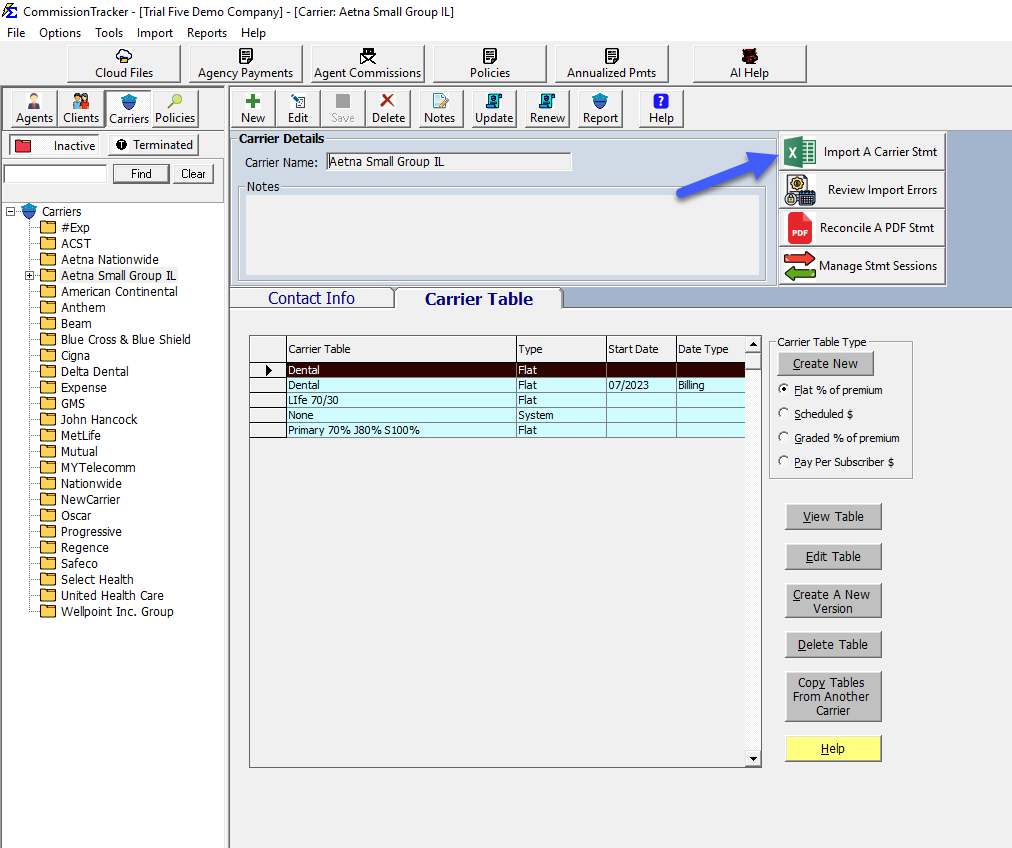
- Upload your statement by selecting an existing file or clicking Paste to upload from your clipboard.
- See Special Instructions for CT Cloud Users for more detail.
Step 2: Mapping the Statement
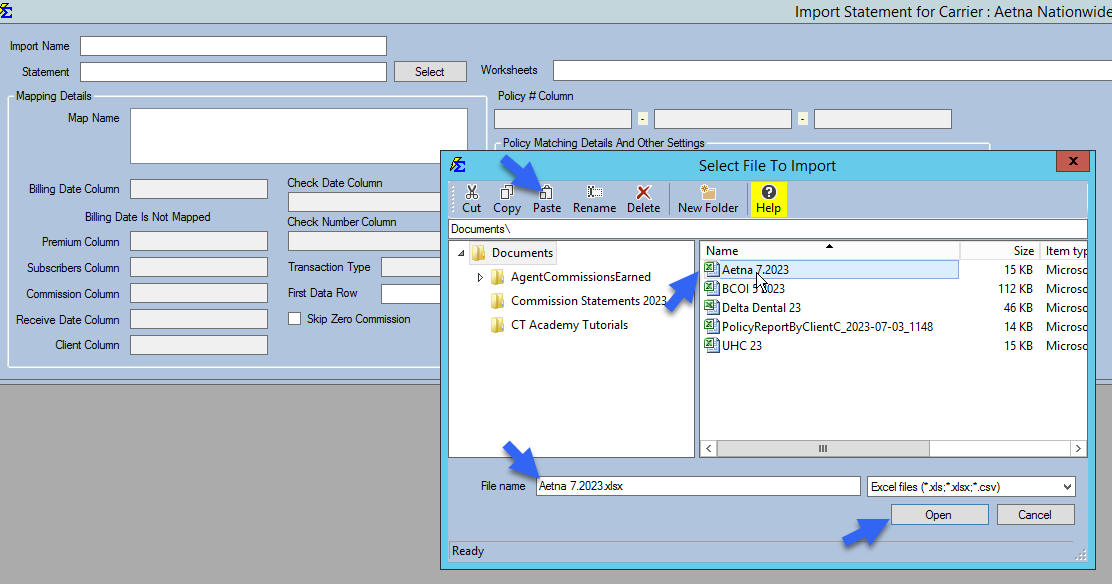
Once the file is loaded into the lower grid, you must "teach" the system how to read the columns.
- Click Add Map.
- Policy Matching: Map the "Policy #" and "Policy Type" columns. This tells the system to look for both values to distinguish between duplicates.
- Financials: Map the Billing Date, Premium/Subscribers, and Commission columns.
- Click Accept.
Step 3: Validating and Processing
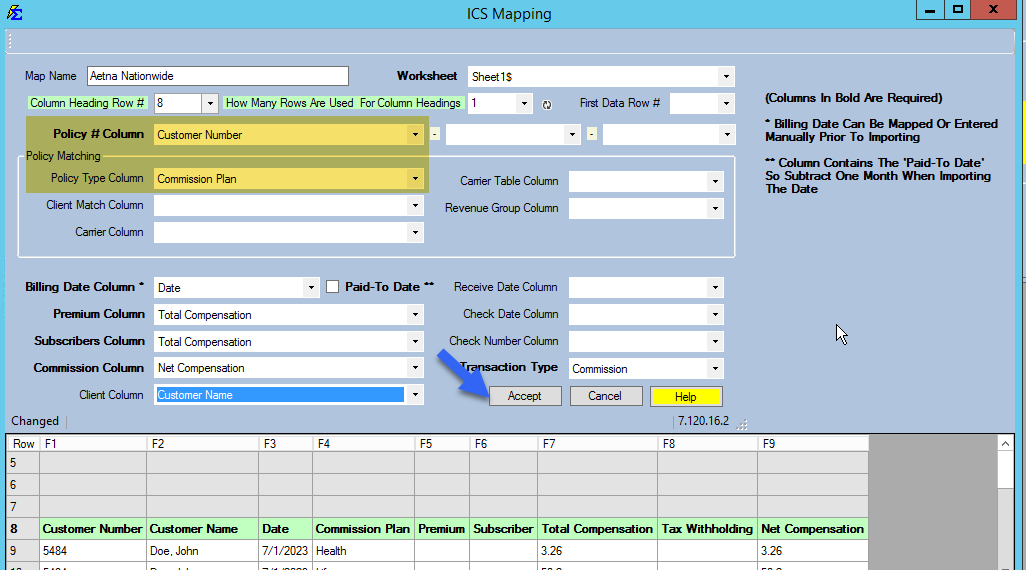
- Enter a Receive Date, Check Date, and Check Number.
- Click Import.
- Summary Review: A summary will appear. In this example, 3 payments will fail because the policies do not exist in the database yet.
- Click Write Payments to proceed to the error resolution screen.
Step 4: Resolving "Policy Does Not Exist" Errors
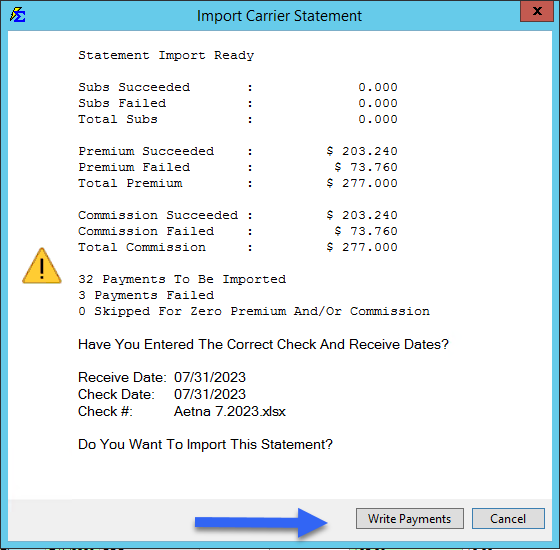
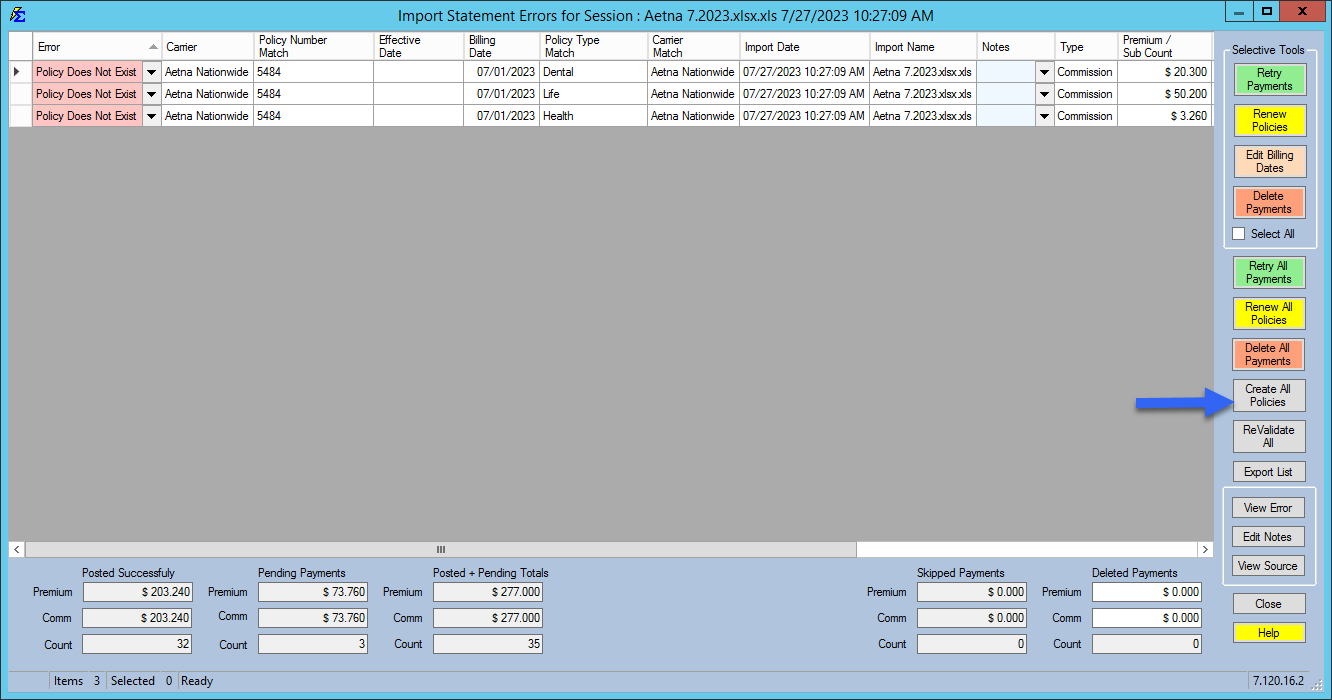
On the Import Statement Errors screen, you will see the failed payments.
- Review the error codes (they will show "Policy Does Not Exist").
- Click Create All Policies to launch the automated creation utility.
- Select your current import session and click OK.
Step 5: Mapping for Policy Creation
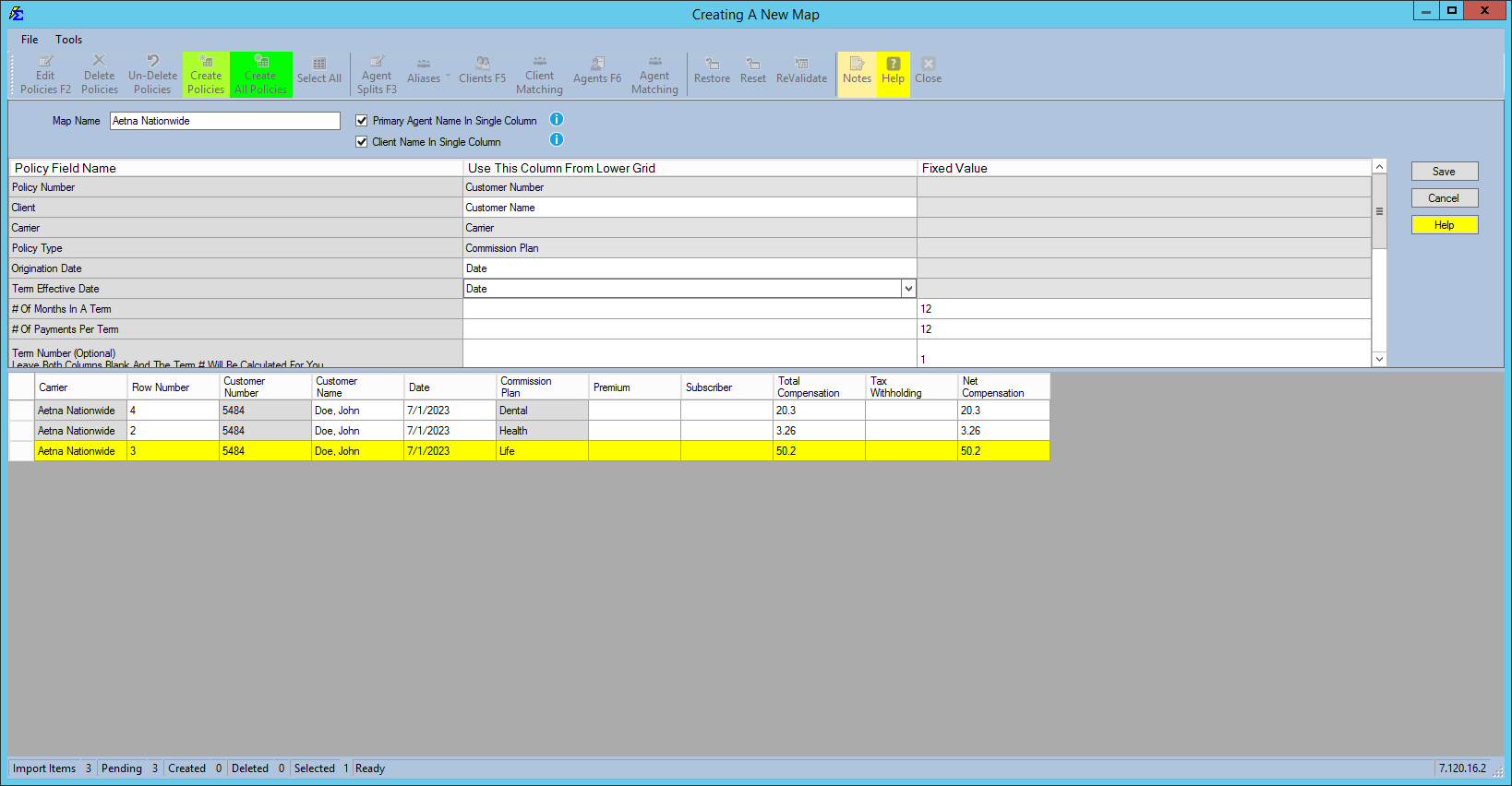
The Create Policies screen opens. You must now map columns needed to build a permanent policy record.
- Click Add Map.
- Map the Client Name, Origination Date, and Term Effective Date.
- Click Save. The data will populate the upper grid.
Step 6: Refining and Finalizing
Before clicking create, you must ensure the administrative details are correct.
- Edit Policy: Double-click a row or click Edit Policies.
- Correct Dates: Adjust the Effective Date to match the current active term.
- Assign Agent: Set the Primary Agent (e.g., "Larry Dallas"). If left blank, it defaults to "The House."
- Save Changes.
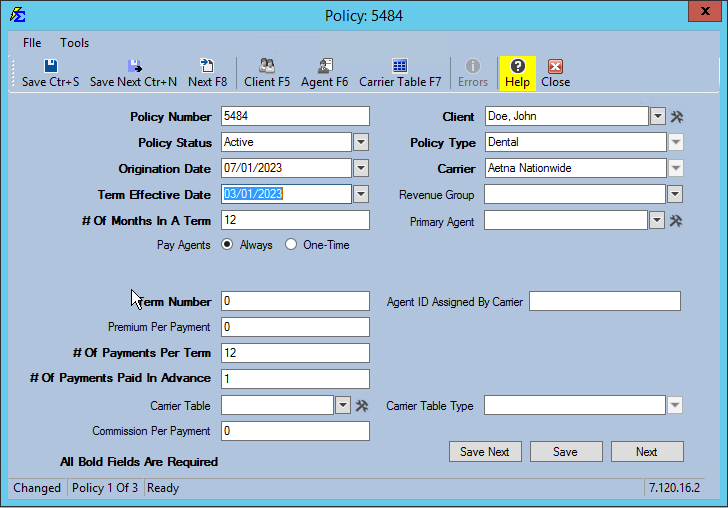
- Once satisfied, click Create All Policies. The records will move from the "Pending" grid into your permanent database.
Step 7: Finalizing Payments
Now that the policies exist, the system can post the money.
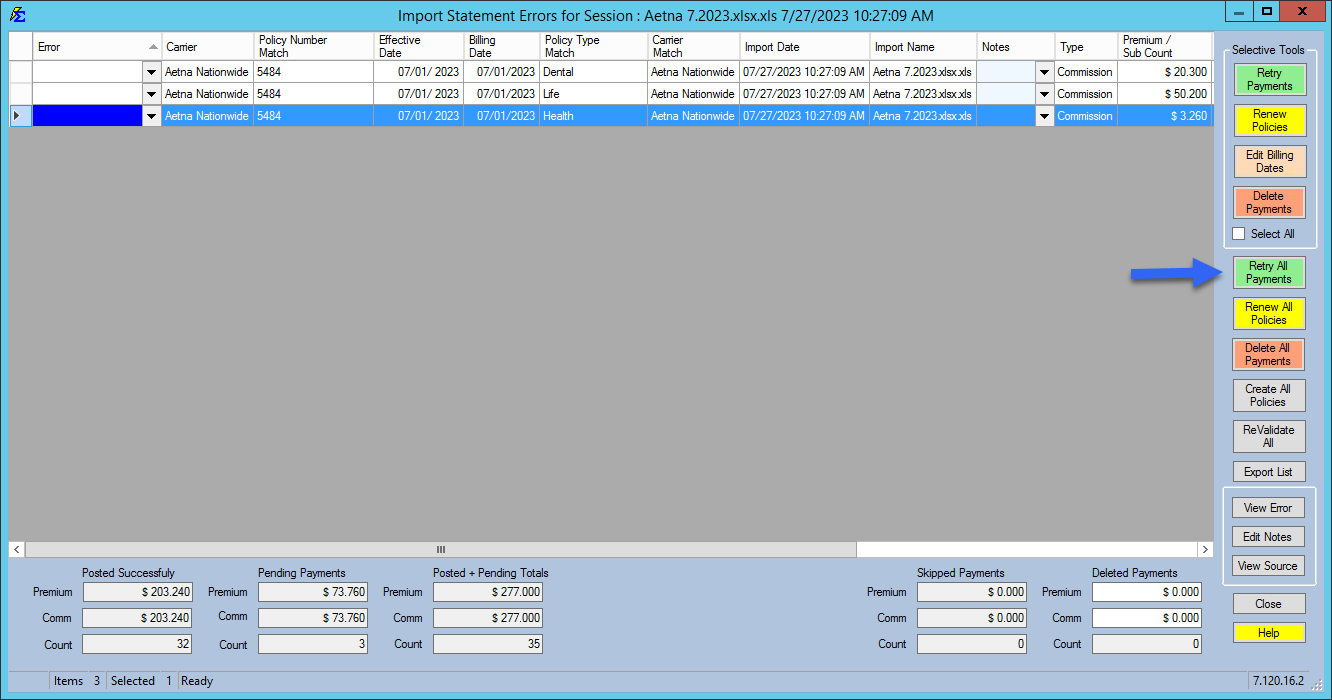
- Return to the Import Statement Errors screen.
- The "Policy Does Not Exist" error will now be gone.
- Click Retry All Payments.
Success!
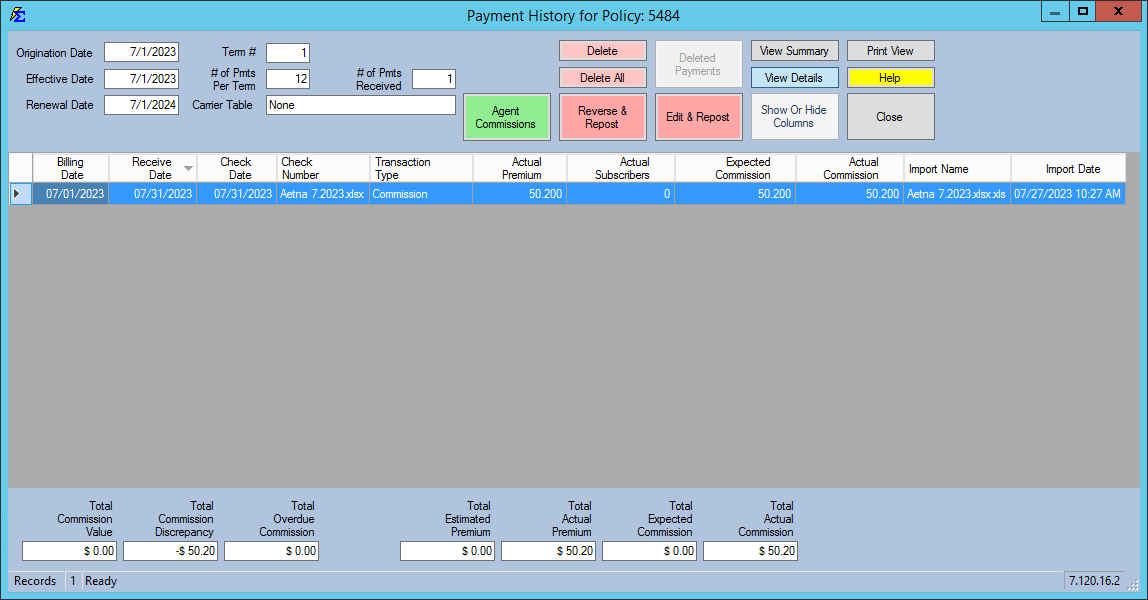
The payments move to the Posted Successfully column. You can now verify the new policy and its payment history on the main Client screen.
Next Steps:
Need help with a specific carrier format? Contact support@commission-tracker.com