Email or Export Reports (Excel, PDF, & More)
All reports within Commission Tracker can be exported for external analysis or emailed directly to stakeholders. Depending on whether you are using a standard report or an older legacy format, the process differs slightly.
Working with Newer Reports (Recommended)
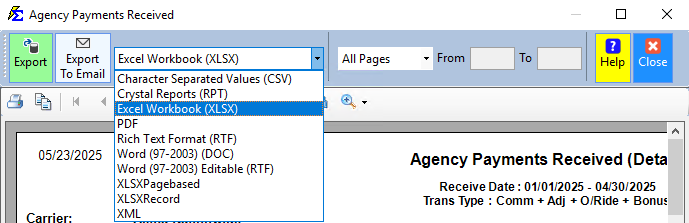
The modern report interface provides a streamlined "Save and Copy" feature designed specifically for Cloud environments. You have two primary methods for extracting your data:
Method 1: Emailing (Best for Efficiency)
You can deliver a report directly to an inbox without saving it to your hard drive first.
-
Select your desired file format (PDF, Excel, etc.).
-
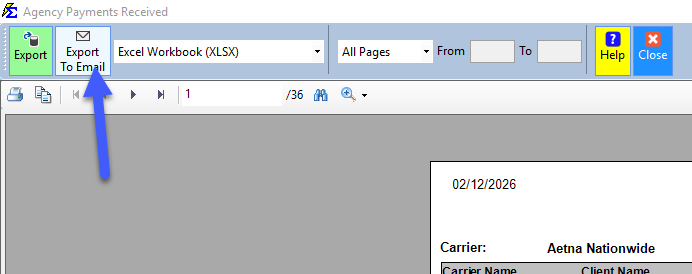
Click the Email button.
-
Enter the recipient's details and click Send.
Many email providers block messages where the From and To addresses are identical. If your email fails to arrive, ensure these two addresses are different.
Method 2: Exporting to your Local Hard Drive
To save a file directly to your own computer:
-
Select your file format and click Export.
-
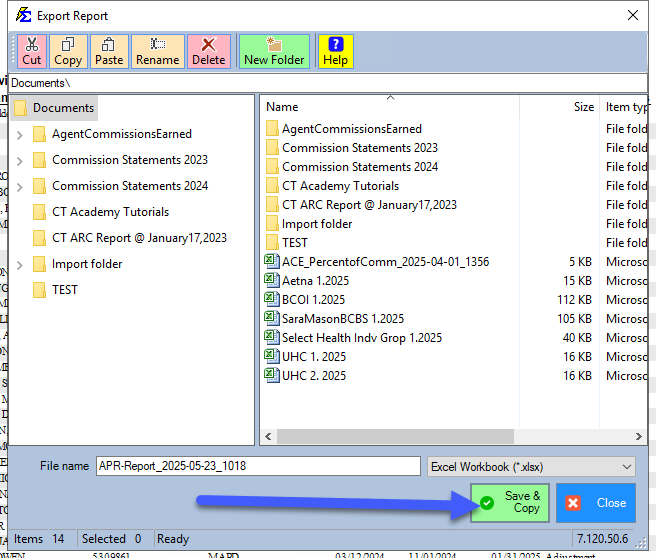
A default filename is generated; you can rename it if desired.
-
Click Save and Copy. This action places the file into your local computer's clipboard.
-
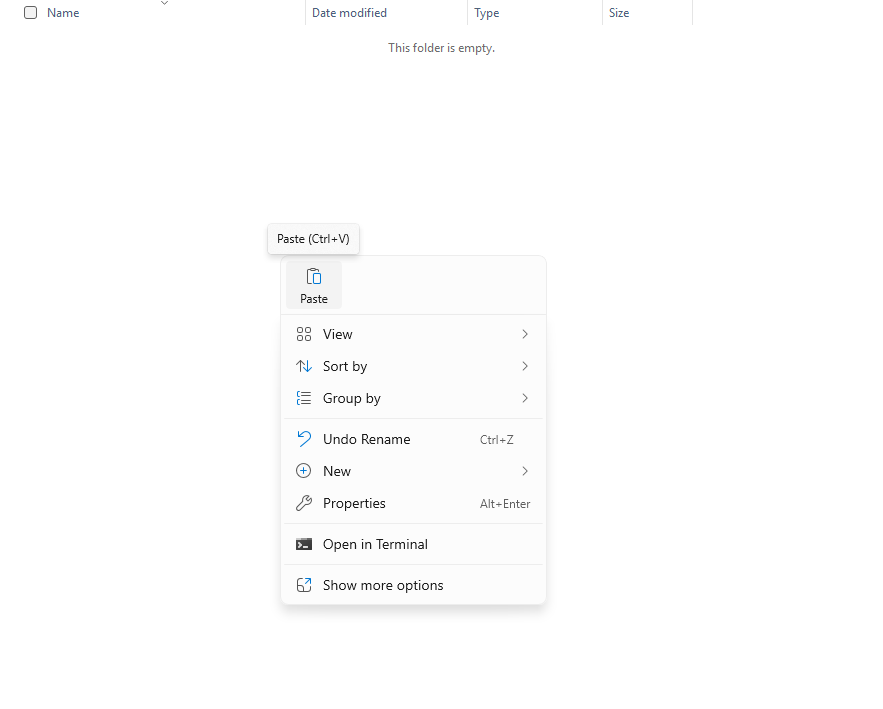
Go to a folder on your local computer, right-click, and select Paste.
Working with Older Reports
For legacy reports, the export process follows a standard "Disk File" workflow.
-
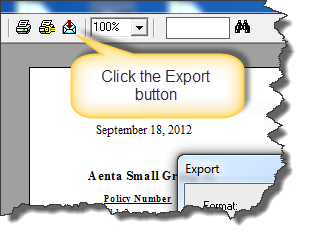
Open the report and click the Export (Envelope/Arrow) icon.
-
Select your Format (e.g., Excel or PDF) and set the Destination to Disk File.
-
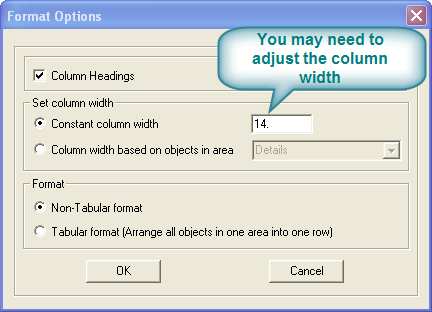
Excel Settings: When exporting to Excel, use the settings shown below for the best data alignment.
Saving to the Right Location
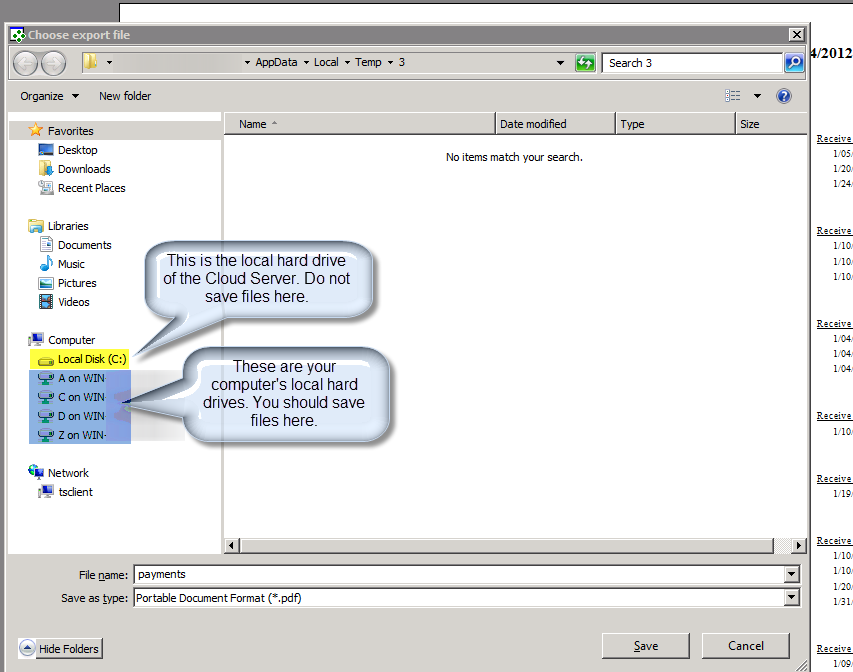
When the "Save As" dialog appears, you must navigate to your local machine. In a Cloud environment, your local drives appear as Network Redirected Drives. Look for:
-
Mapped Drives: Drives labeled with your computer name (e.g.,
C on YOUR-PC). -
TSClient: Found under the "Network" path.
Format Comparison
| Format | Best For... |
|---|---|
| Printing, archiving, or emailing to agents (prevents editing). | |
| Excel | Pivoting data, advanced filtering, and custom agency math. |
| CSV | Importing data into other software (Accounting, CRM). |
Troubleshooting
Q: I clicked "Save and Copy" but I can't find the file. A: The file is in your "Clipboard" (like when you copy text). You must go to your desktop or a folder on your computer and physically Paste (Ctrl+V) the file there.
Need help locating your local drive in the Cloud? Contact support@commission-tracker.com