Import Agent Advances
The Import Agent Advances utility allows you to bulk-load advance payments or draws for your agents directly from an Excel file. This is an efficient alternative to manually entering individual advances on the policy screen.
Getting the Template
To ensure your data is formatted correctly for a successful import, you must use our standardized Excel template. * Action Required: Please email support@commission-tracker.com to request the latest version of the Import Agent Advances template.
How to Import
Once you have populated the template with your agent and policy data:
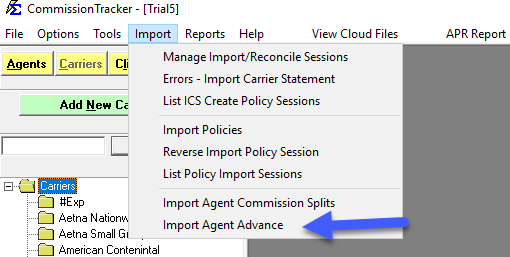
- Navigate to the Import menu and select Import Agent Advances.
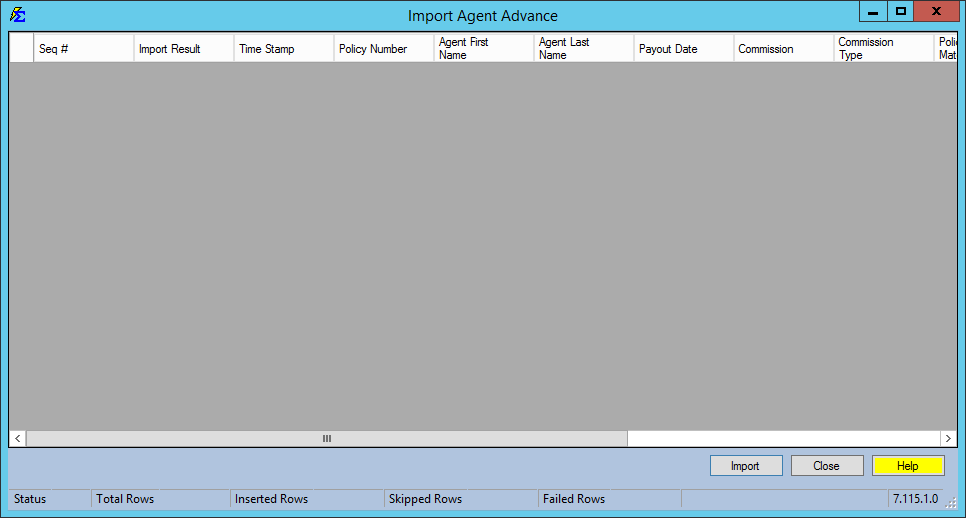
- Click the Select File button to locate your completed Excel template.
- Review the data in the grid to ensure Agent names and dollar amounts are correct.
- Click Import to commit the advances to the system.
Important Compatibility Warning
[!CAUTION]
Duplicate Policy Numbers: This import utility may not function correctly if you have enabled the "Allow Duplicate Policy Numbers" setting in the Options Menu.
Because the import uses the Policy Number as the primary identifier to link the advance, having multiple policies with the same number can cause the advance to attach to the wrong record. If your agency uses duplicate policy numbers, please contact support for guidance before attempting a bulk import.
Understanding the Import Fields
| Field | Description |
|---|---|
| Agent Name | Must match the Agent Name exactly as it appears in your Manage Agents list. |
| Policy Number | The unique identifier used to link the advance to a specific client record. |
| Advance Amount | The total dollar amount being advanced to the agent. |
| Date | The effective date for the advance transaction. |
Troubleshooting
Q: My import failed with "Agent Not Found." A: Ensure the agent names in your Excel file match the names in Commission Tracker character-for-character. If the agent doesn't exist yet, you must Create the New Agent before importing.
Q: Can I import negative amounts to correct an overpayment? A: Yes. Entering a negative value in the amount column will create a deduction against the agent's next commission run.
Q: How do I see these advances after they are imported? A: You can view all imported records by navigating to the specific agent's profile and clicking the Advances tab, or by running an Agent Commission Earned Report.
Need help formatting your import file? Contact support@commission-tracker.com