Import Agent Commission Splits
Overview
The Import Agent Splits tool allows you to import agent commission split data from Excel spreadsheets into Commission Tracker. This is particularly useful when you have multiple commission splits to add and want to avoid manual data entry.
Before You Begin
Important Prerequisites
- Policies MUST already exist in Commission Tracker - The import will return an error if a policy is not found
- Policies should be newly created - This import is designed for policies that have not received payments yet
- Duplicate Policy Numbers - If your system has "Allow Duplicate Policy Numbers" enabled (Options menu), this import uses advanced matching. See the Policy Matching section below for details.
When to Use This Import
This import is ideal for:
- Adding splits to newly created policies
- Bulk importing multiple agent splits at once
- Policies that have not yet received any commission payments
This import has limitations for:
- Policies that already have commission payments posted
- Adding splits that start before the most recent payment date
Setting Up Your Excel File
Required Columns (Must Be Present)
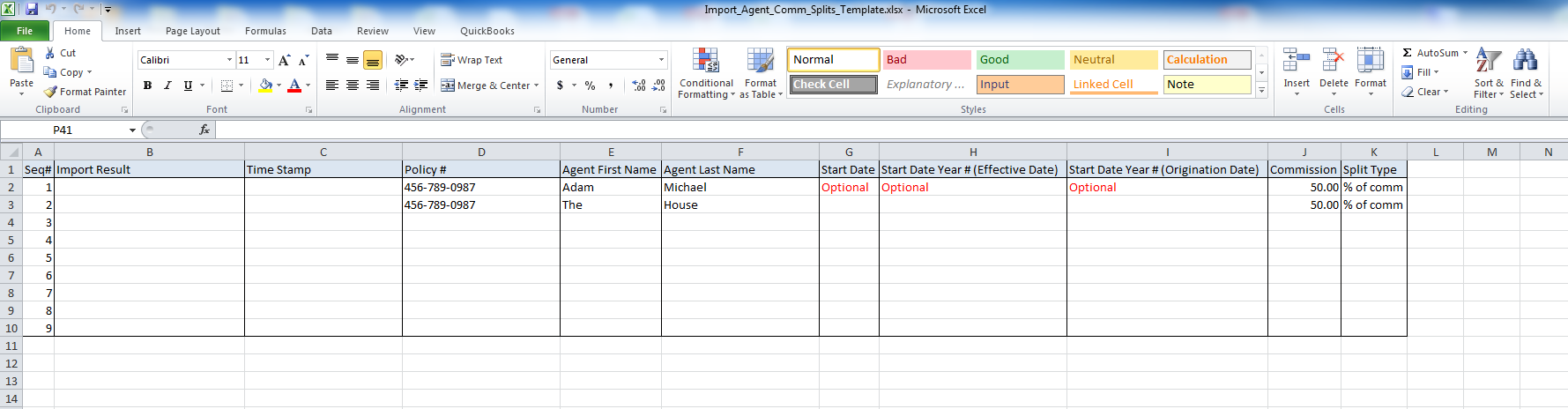
Your Excel file must include these 11 columns in this exact order:
| Column # | Column Name | Description | Example |
|---|---|---|---|
| 1 | Seq# | Sequence number for tracking | 1, 2, 3... |
| 2 | Import Result | Status field (leave blank initially) | |
| 3 | Time Stamp | Status field (leave blank initially) | |
| 4 | Policy # | The policy number to match | POL-12345 |
| 5 | Agent First Name | The agent receiving the split | John |
| 6 | Agent Last Name | The agent's last name | Smith |
| 7 | Start Date | When the split begins (optional - see note below) | 1/1/2024 |
| 8 | Start Date Year # (Effective Date) | Term number based on effective date (optional) | 1, 2, 3... |
| 9 | Start Date Year # (Origination Date) | Term number based on origination date (optional) | 1, 2, 3... |
| 10 | Commission | The split amount or percentage | 10 (NOT 10%) |
| 11 | Split Type | How the split is calculated | % of comm, % of prem, or dollars |
Optional Columns (Can Be Added After Required Columns)
Commission Detail Columns
- Override - Override amount (if applicable)
- Bonus - Bonus amount (if applicable)
Policy Matching Columns (For Duplicate Policy Numbers)
If your system allows duplicate policy numbers, you can add these columns to help identify the correct policy:
- Policy Type Match - Helps identify the exact policy type
- Carrier Match - Helps identify the correct carrier
- Client Match - Helps identify the correct client
- Carrier Table Match - Helps identify which commission table to use
- Revenue Group Match - Helps identify the revenue group
See the "Policy Matching" section below for more details on when and how to use these.
Understanding Start Date Columns
The three start date columns (columns 7-9) are all optional and give you flexibility in how you specify when the agent split begins:
If ALL THREE columns are empty:
- The Agent Split Start Date will default to the Policy Effective Date
- If multiple terms exist for the policy, it uses the earliest term's Effective Date
If MORE THAN ONE column contains data:
- The import uses only the FIRST column with data (in order: Start Date → Effective Date → Origination Date)
- Other columns are ignored
Column Options Explained:
- Start Date (Column 7)
- Lets you specify the exact Agent Split Start Date
- Example: Enter "6/1/2024" to start the split on that exact date
- Start Date Year # (Effective Date) (Column 8)
- Specify a term number based on the Policy Effective Date
- Example: If Policy Effective Date is 6/1/2014:
- Enter "1" → Agent Split Start Date = 6/1/2014 (first term)
- Enter "2" → Agent Split Start Date = 6/1/2015 (second term)
- Enter "3" → Agent Split Start Date = 6/1/2016 (third term)
- Start Date Year # (Origination Date) (Column 9)
- Specify a term number based on the Policy Origination Date
- Example: If Policy Origination Date is 6/1/2014:
- Enter "1" → Agent Split Start Date = 6/1/2014 (first term)
- Enter "2" → Agent Split Start Date = 6/1/2015 (second term)
- Enter "3" → Agent Split Start Date = 6/1/2016 (third term)
Critical Rules and Warnings
⚠️ Commission Percentage Entry - DO NOT USE "%" SIGN
This is extremely important:
- ✅ CORRECT: If an agent receives 10% commission, enter "10" in the Commission column
- ❌ WRONG: Do NOT enter "10%" - this will make your rates 100 times too low!
- The "%" sign will cause your commission rates to be off by a factor of 100
⚠️ Payments Already Received Restriction
Critical limitation for existing policies:
- If a policy has already received commission payments, new splits MUST start AFTER the most recent payment date
- Otherwise, you'll receive the error: "Payments Already Received" and the split won't be created
Example Scenario:
Policy has received payments for:
- January 1, 2019
- February 1, 2019
- March 1, 2019

✅ You CAN create a new split starting: April 1, 2019 or later
❌ You CANNOT create a split starting: March 1, 2019 or earlier
Why this matters: This import is designed primarily for new policies without payments. For policies with existing payments, plan your split start dates carefully.
How Policy Matching Works
Understanding Policy Matching Modes
The system uses different matching strategies depending on your configuration:
Standard Mode (Duplicate Policy Numbers NOT Allowed)
- Uses only the Policy Number to find policies
- The optional matching columns are hidden and not used
- This is the simpler, traditional method
- Works when policy numbers are guaranteed unique in your system
Enhanced Mode (Duplicate Policy Numbers Allowed)
- Uses Policy Number PLUS any additional fields you provide
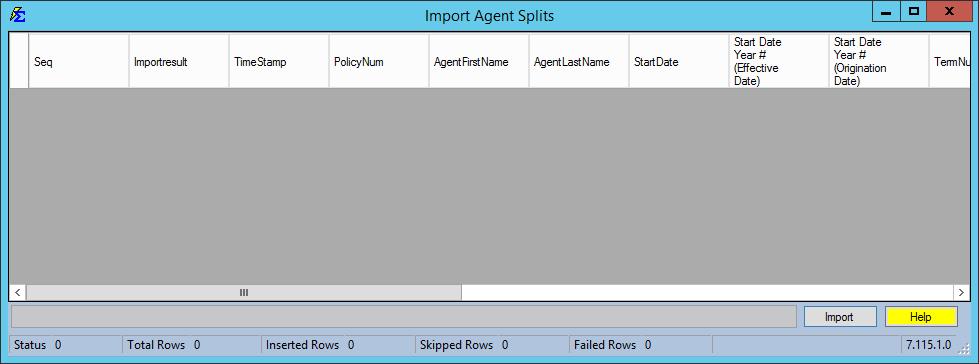
- The optional matching columns become visible in the import grid
- Provides precise matching when policy numbers aren't unique
- Essential when multiple carriers might use the same policy number
What Information Can Be Used to Find Policies?
When you import agent splits, the system can use up to six pieces of information to locate the correct policy:
| Field | Required? | Purpose |
|---|---|---|
| Policy Number | ✅ Yes | The policy's identification number |
| Carrier | Optional | The insurance carrier/company name |
| Client | Optional | The client/policyholder name |
| Policy Type | Optional | The type of policy (e.g., Life, Health, Annuity) |
| Carrier Table | Optional | The commission table used by the carrier |
| Revenue Group | Optional | The revenue category for reporting |
How Matching Works Step-by-Step
- You prepare your Excel file with the policy information and agent split details
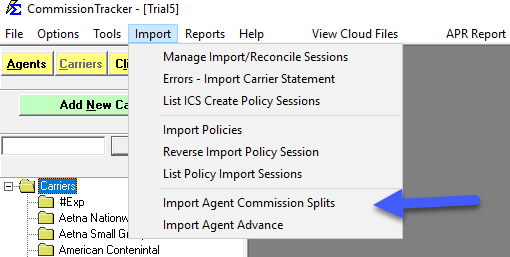
- You select and import the file using the Import Agent Splits tool
- For each row, the system:
- Reads the Policy Number (required)
- Reads any optional matching fields you provided (Carrier, Client, etc.)
- Searches the database for policies that match ALL the information you provided
- The system then:
- ✅ If ONE policy matches: Proceeds to create the agent split
- ❌ If NO policies match: Reports an error "Policy # Not Found"
- ⚠️ If MULTIPLE policies match: Reports an error "More Than One Policy Found"
- After validation, successfully matched splits are imported into the system
Error Messages You Might See
| Error Message | What It Means | What To Do |
|---|---|---|
| "Policy # Not Found" | No policy in the system matches the information provided | • Verify the policy number is correct • Make sure the policy exists in CT • Check optional matching fields if provided |
| "More Than One Policy Found" | Multiple policies match your criteria | • Add more matching fields (Carrier, Client, etc.) • Be more specific in your matching criteria • Contact support if duplicates are unexpected |
| "Payments Already Received" | Policy has payments posted after the split start date | • Change the split start date to after the last payment • Consider if this split should be on a newer policy term |
| "Warning: Policy Number In Use For Other Carriers" | The policy number exists but for a different carrier | • This is informational only • Verify the match is correct • Add Carrier matching field if needed |
| "Agent Split Already Exists" | A split for this agent and date already exists | • Check if split was previously imported • Verify the agent name and start date • Remove duplicate from import file |
Best Practices
For Standard Systems (No Duplicate Policy Numbers)
- ✅ Only fill in the required columns
- ✅ Policy Number alone is sufficient to find each policy
- ✅ Keep your Excel file simple
- ✅ Verify policy exists before importing
For Enhanced Systems (Duplicate Policy Numbers Allowed)
- ✅ Always include Policy Number
- ✅ Include Carrier when possible (highly recommended)
- ✅ Include Client when multiple carriers have the same policy number
- ✅ Add other fields (Policy Type, Carrier Table, Revenue Group) if still getting duplicates
- ✅ The more information you provide, the more accurate the matching
Commission Entry Best Practices
- ✅ Never use the "%" symbol in the Commission column
- ✅ Enter percentages as whole numbers (10 for 10%, not 0.10 or 10%)
- ✅ Double-check commission values before importing
- ✅ Test with a small sample first to ensure calculations are correct
For Policies With Existing Payments
- ✅ Verify the date of the most recent payment before importing
- ✅ Set split start dates to AFTER the last payment date
- ✅ Consider whether you should be adding to a renewal term instead
- ⚠️ Remember: This tool is designed for NEW policies without payments
Tips for Success
- Start Small
- Test with a few records first to ensure your column setup is correct
- Verify commission calculations are accurate
- Check that dates are being interpreted correctly
- Check Your Data
- Make sure policy numbers exist in Commission Tracker
- Ensure carrier names, client names match exactly what's in the system
- Spelling and spacing must be exact (e.g., "ABC Insurance" ≠ "ABC Ins.")
- Review Import Results
- After importing, check the "Import Result" column in your Excel file
- Identify which records succeeded and which had errors
- Fix errors and re-run the import if needed
- Verify Policies Exist First
- Run a report to confirm policies exist before importing
- Create missing policies before running the import
- Double-check policy numbers for typos
- Contact Support When Needed
- If you consistently get "More Than One Policy Found" errors
- If you're unsure about your system's duplicate policy settings
- For help setting up imports for policies with existing payments
- When you need guidance on the optional matching columns
Summary
The Import Agent Splits tool provides a powerful way to bulk-import commission split data into Commission Tracker. By following these guidelines, you can:
- Efficiently import splits for new policies
- Use simple matching with just Policy Number (standard systems)
- Use advanced matching with multiple fields (when duplicate policy numbers are enabled)
- Avoid common errors like incorrect percentage entry or conflicts with existing payments
- Leverage flexible start date options to match your business needs
The system provides clear error messages and validates all data before committing changes, ensuring your commission split data remains accurate and consistent. When in doubt, start with a small test import and contact support for assistance with complex scenarios.
You can get the latest import template files by emailing support@commission-tracker.com