Key Features & Commission Entry Methods
Overview
Commission Tracker is built around flexibility. There are three primary ways to record commissions in the software, ranging from high-speed bulk imports to manual entry for single items.
💰 The Three Ways to Get Paid
Choosing the right method depends on the format of your statement and the number of line items.
| Method | Best For... | File Format | Speed |
|---|---|---|---|
| Import Carrier Statement (ICS) | Large statements with many line items | Excel or CSV | ⚡ Fastest |
| Reconcile Carrier Statement | Statements not available in Excel | 🟢 Moderate | |
| Receive Payment | Single payments or one-off checks | Manual Entry | 🟡 Best for small tasks |
1. Import Carrier Statement (ICS)
The Import Carrier Statement tool is the most efficient way to process data. By mapping an Excel or CSV file to Commission Tracker, you can process hundreds of payments in seconds.
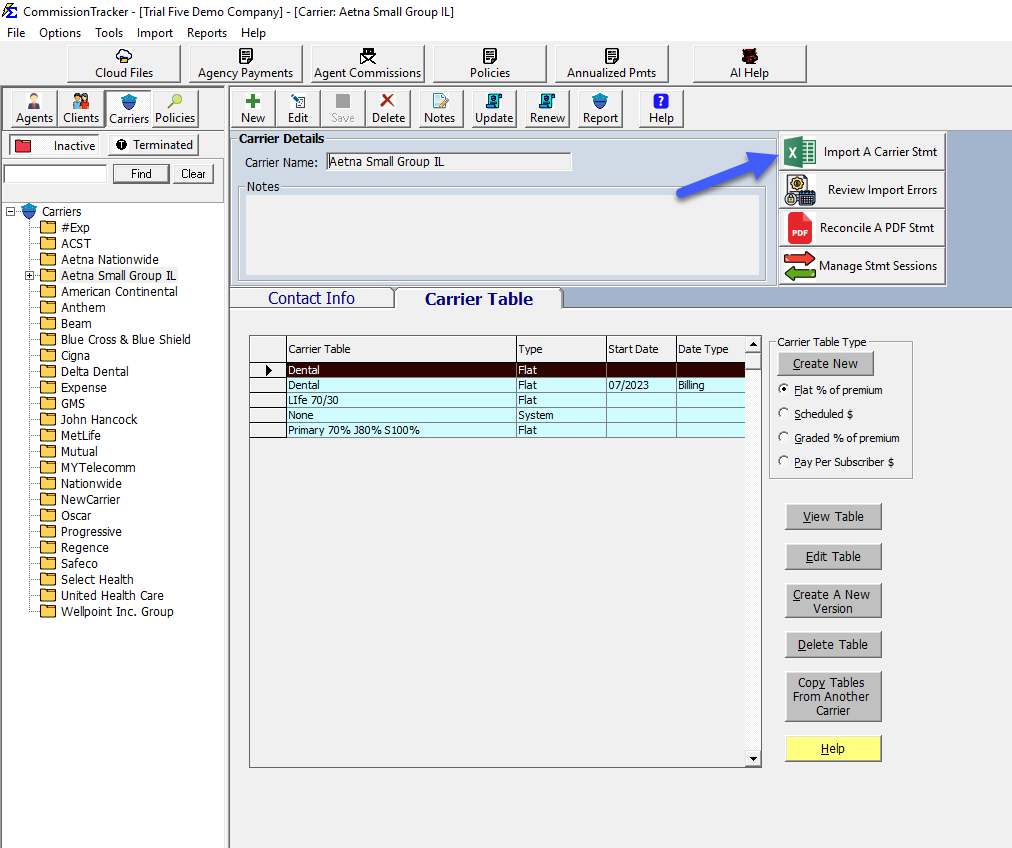
- ✅ Ideal for: Large monthly statements from major carriers.
- ⚠️ Requirement: Files must be in
.xlsxor.csvformat.
2. Reconcile Carrier Statement
If your carrier only provides a PDF statement first use the PDFx converter it can handle any PDF then import, however this tool is ideal for small PDF's and allows you to view the PDF side-by-side with your database to "check off" payments as you find them.
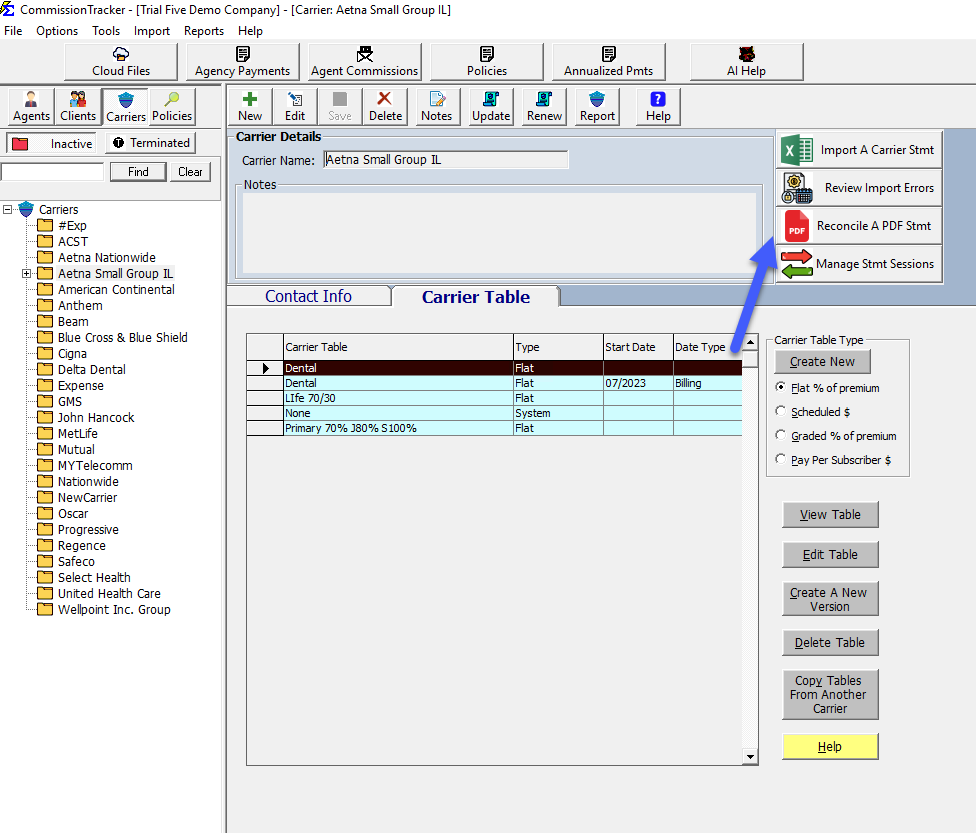
- ✅ Ideal for: Carriers without digital data exports or small boutique carriers.
- 💡 Pro-Tip: Always check the carrier portal first; most carriers provide Excel versions upon request.
3. Receive Payment
The Receive Payment tool is designed for individual entry. We do not advise using this for full statements, as it is significantly slower than ICS or Reconcile.
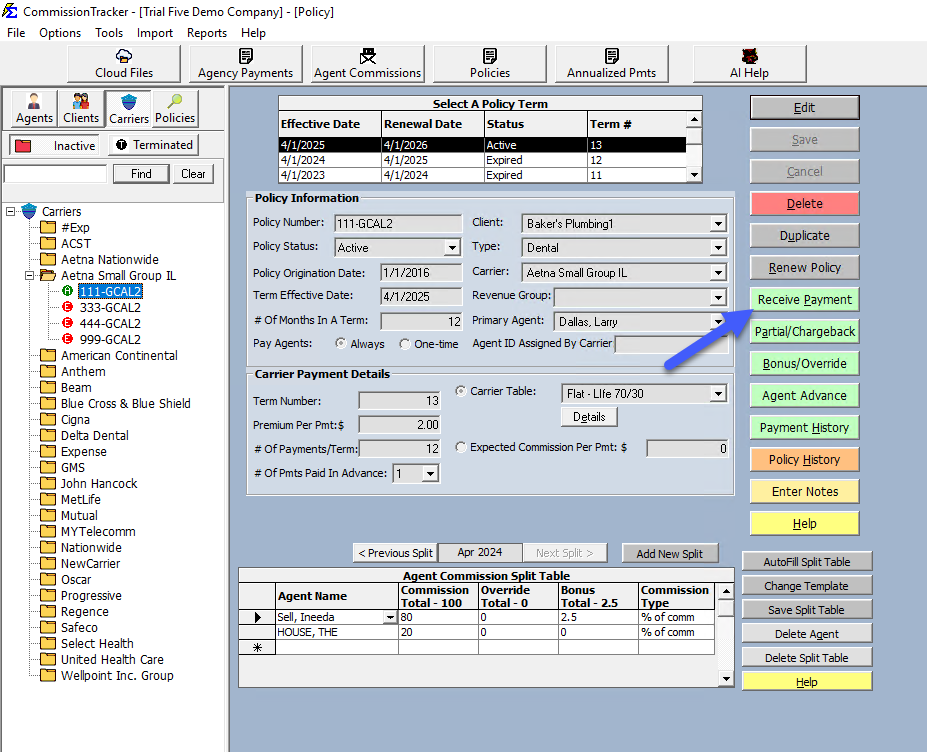
- ✅ Ideal for: A single commission check or a "one-off" payment for a specific client.
- ❌ Avoid for: Statements with more than 5-10 line items.
🏗️ Carrier Tables: The Logic Engine
Carrier Tables are the "brain" of Commission Tracker. They calculate what you are owed (Agency Revenue) and what you owe your agents (Agent Payouts).
Why use Carrier Tables?
- Calculate Expected Revenue: Tables define the percentage or dollar amount you expect from the carrier.
- One-Time Setup: You only create a table once; you then assign multiple policies to that same table.
- Automated Logic: When a payment is posted, the table determines the correct rate based on the policy year (New vs. Renewal).
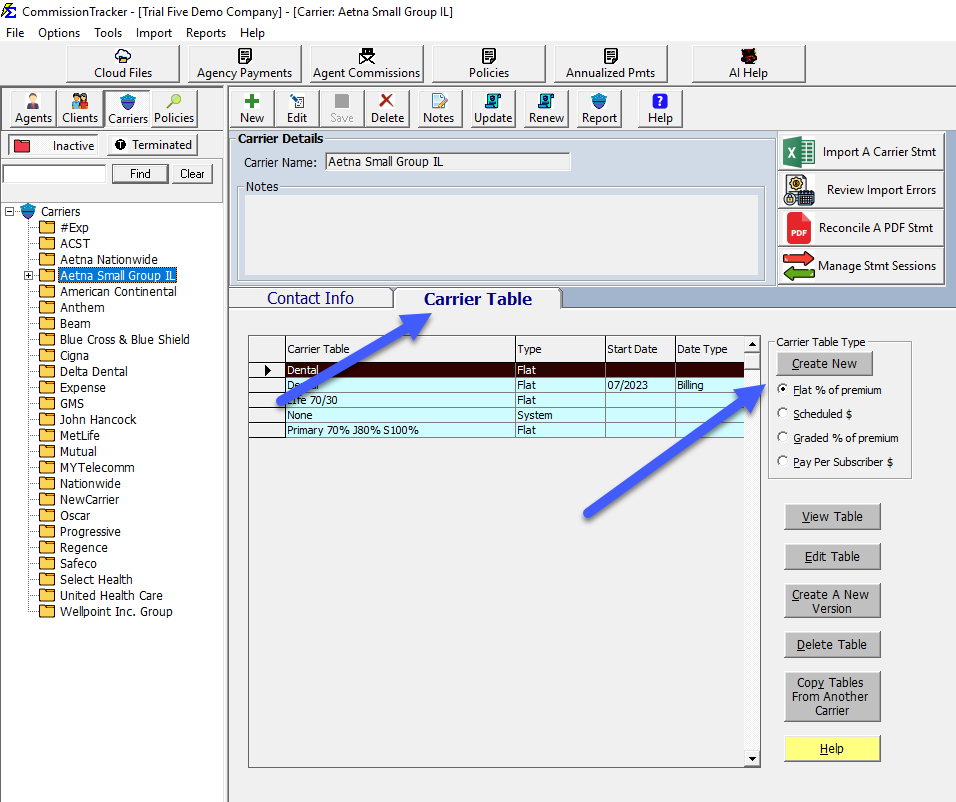
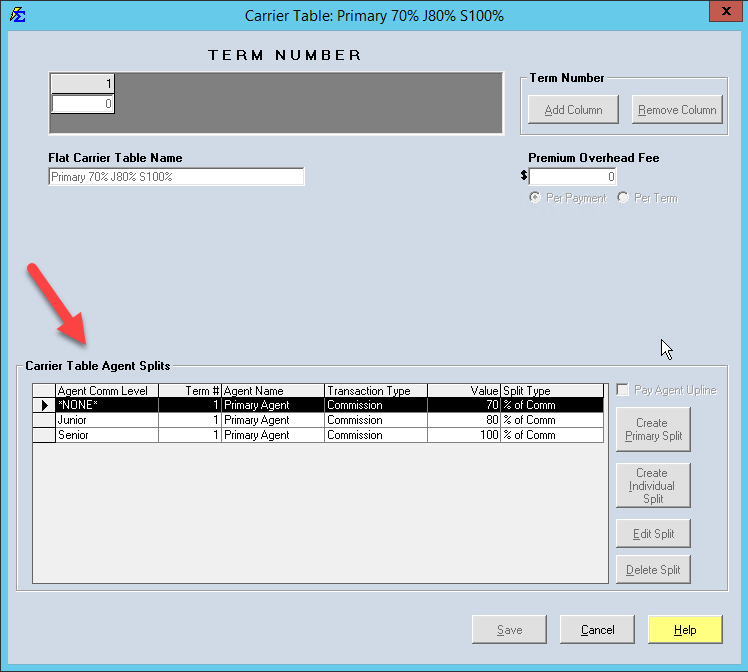
Global Agent Splits
When you define Agent Splits directly on a Carrier Table, you are setting a "Global Rule." Every policy attached to that table will automatically pay the assigned agents at those specific rates. This eliminates the need to manually add splits to every single policy.
Tips for Success
- Prioritize ICS: Always try to get an Excel file from your carrier first to save time.
- Standardize Tables: Use clear names for Carrier Tables (e.g., "UHC Medicare 2024") to ensure policies are linked correctly.
- Verify Splits: Double-check your Agent Splits on the table level to ensure everyone is paid accurately across all associated policies.
Ready to start importing?
Check out our Importing Carrier Statements Guide for a step-by-step walk-through.