Agent Change History
Overview
Commission Tracker maintains a complete audit trail of modifications made to your agent records. The View History tool allows you to track exactly when changes occurred, what data was altered, and which user performed the action.
Accessing Agent History
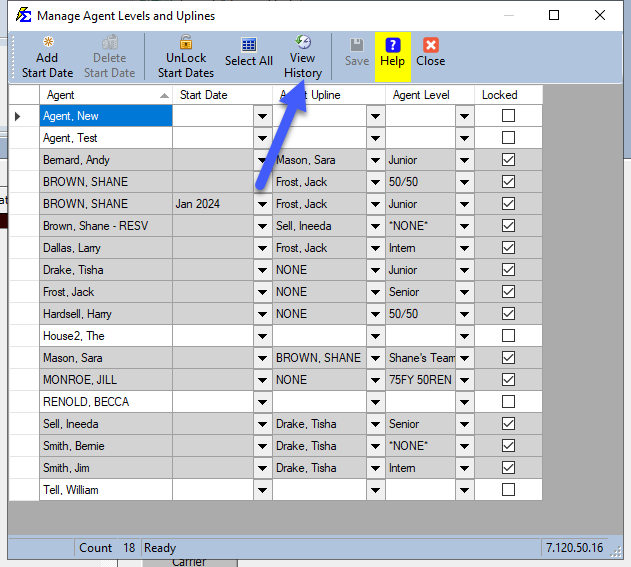
To view the historical log for a specific agent:
- Navigate to the Agent Management screen.
- Select the agent you wish to review.
- Click the View History button located in the top menu bar.
Understanding the History Log
Once the log populates, you can review the chronological history of that agent. This is particularly useful for resolving discrepancies in agent levels or upline assignments.
Key Data Tracked:
- Time Stamp: The exact date and time the change was saved.
- User: The username of the person who made the modification.
- Field Altered: Which specific piece of information was changed.
- Original vs. New Value: A side-by-side comparison of the data before and after the update.

💡 Why Use View History?
- Audit Compliance: Maintain a record of all commission level changes for internal or external audits.
- Troubleshooting: Identify when an agent's upline was modified if a commission payment was distributed incorrectly.
- Accountability: See which staff member updated an agent's contact info or licensing status.
Tips for Success
- ✅ Check History First: Before contacting support regarding an agent's payout change, check the history log to see if a level was recently updated.
- ✅ Verify Users: If you see "Admin" as the user for every change, consider getting additional licenses to better track team activity.