Manage Agent Levels and Uplines
Overview
While standard Carrier Table Agent Splits define rules by product, Agent Levels and Uplines allow you to create sophisticated commission hierarchies. By grouping agents into levels (e.g., Junior vs. Senior) or assigning them to an Upline, you can manage complex payouts without editing every single policy.
🏗️ Hierarchy Concepts
| Feature | Description | Example |
|---|---|---|
| Agent Levels | Assigns agents to a specific commission group. | Junior Agents get 10%, Seniors get 20%. |
| Agent Uplines | Creates a "Reporting To" structure for overrides. | Agent Smith is the Upline for Agent Jones. |
| The House | The default entity for all remaining commission. | The House is automatically in every agent's Upline. |
📈 Agent Promotions (Future-Dated Changes)
If an agent receives a promotion (e.g., moving from "50/50" to "Junior"), you can schedule this change so it only affects New Business moving forward.
How to add a Promotion:
- Select the Agent and click the dropdown arrow to enter a New Start Date.
- Select the date the promotion takes effect (e.g., 01/01/2024).
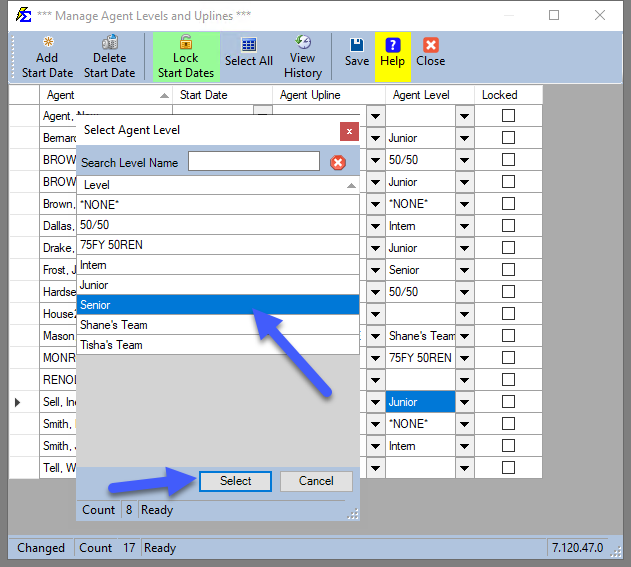
- Under the Agent Level column, select the new level and click Save.
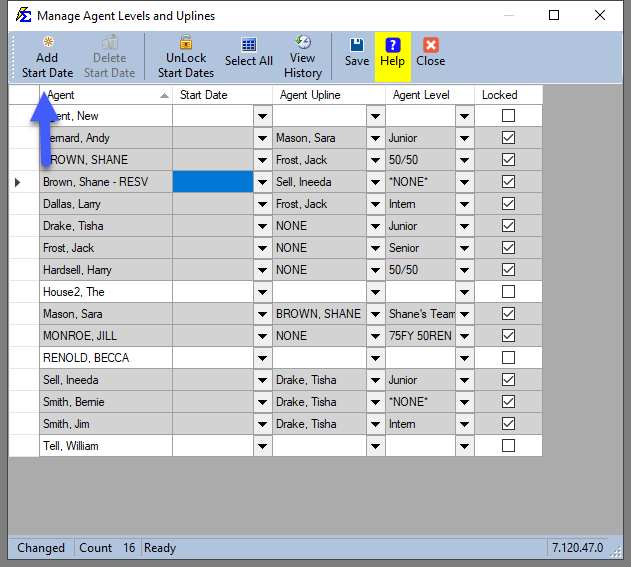
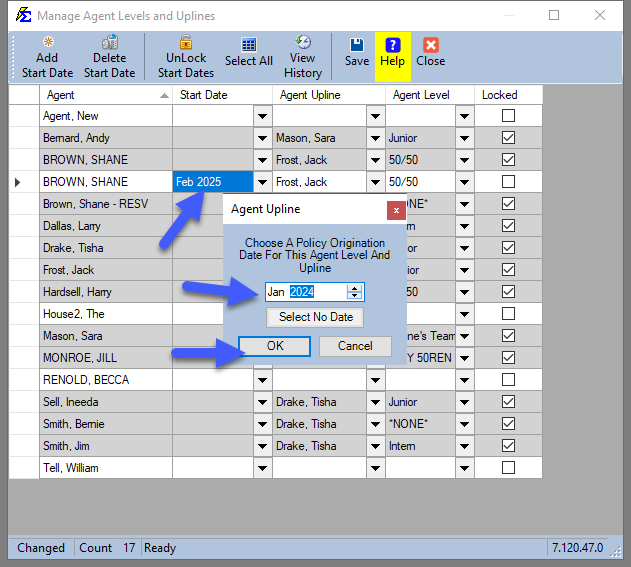
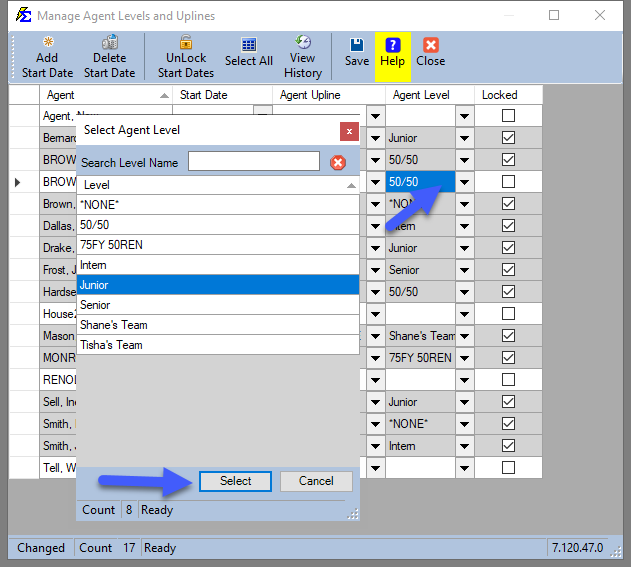
Result: Policies written before the start date pay at the old rate. Policies written on or after the start date pay at the new rate. This includes renewals for those respective policies.
⚠️ Global Changes (Unlock Start Dates)
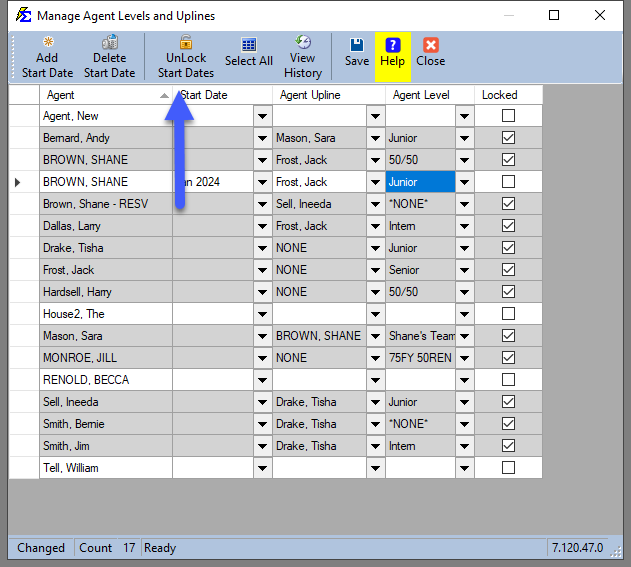
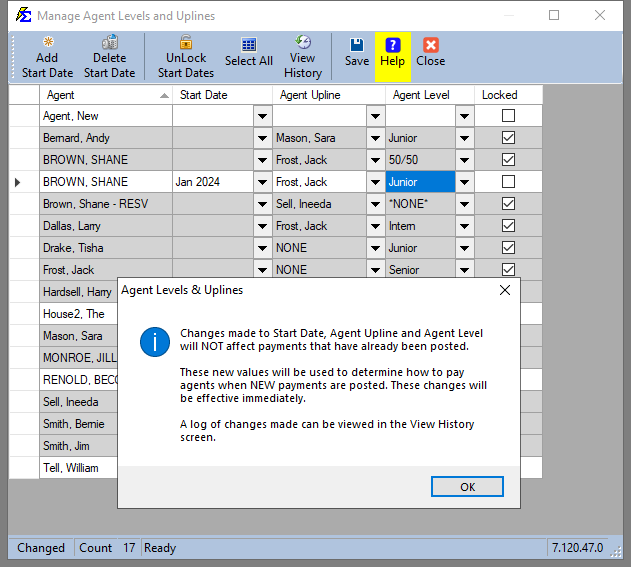
If you need to change an agent's payout structure on ALL past, present, and future policies, you must use the "Unlock" feature.
WARNING: This action is immediate and affects all history for that agent within the software.
- Click Unlock Start Dates.
- Review the warning pop-up explaining the global impact.
- Select the agent, change their level, and click Save.
🛠️ Managing Records
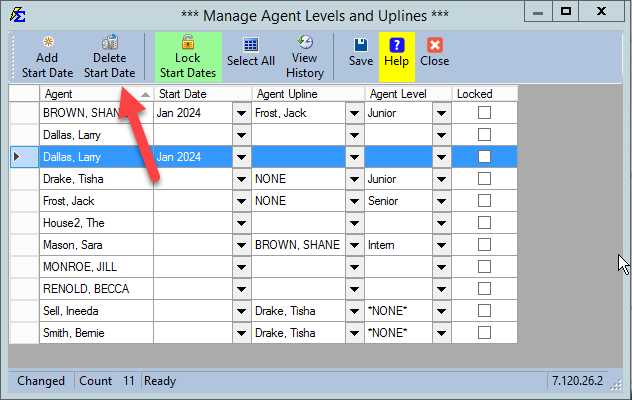
Deleting a Start Date
If a promotion or level change was entered in error, you can remove it: 1. Select the Agent. 2. Click Delete Start Date.
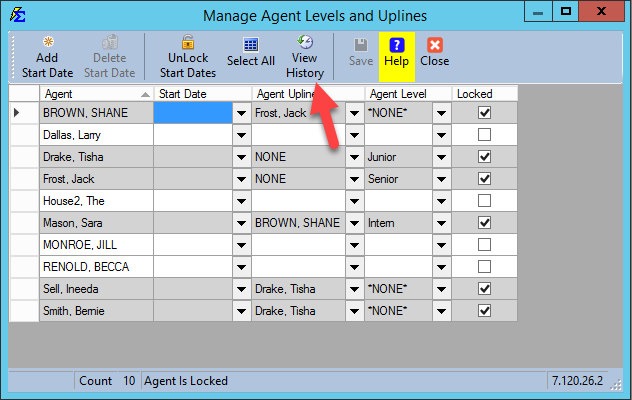
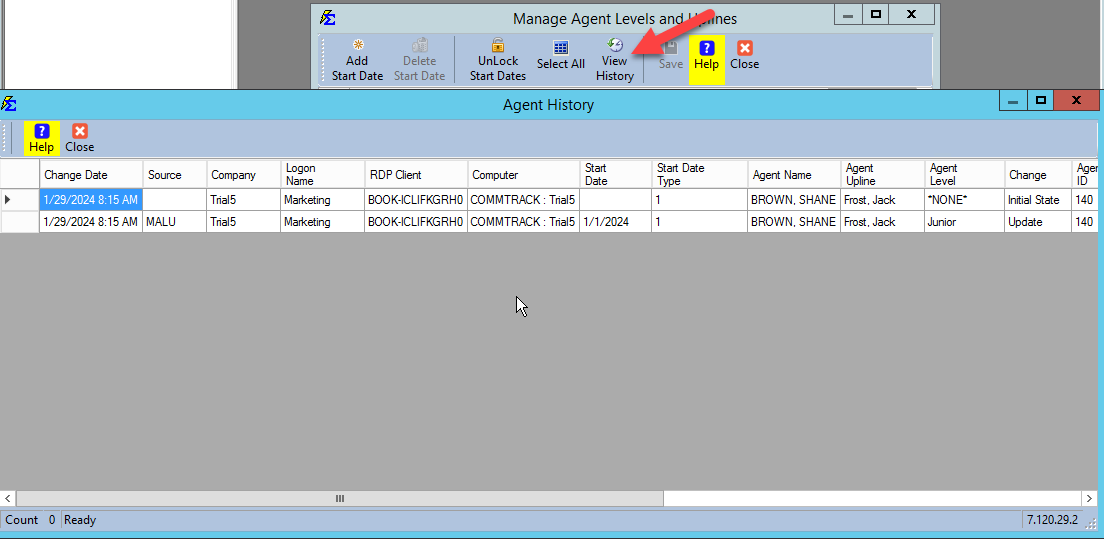
View Change History
To see a comprehensive log of who changed an agent's level and when, use the View History tool.
💡 Best Practices
- ✅ Use Start Dates for Promotions: This preserves your historical data so past commissions remain accurate.
- ✅ Standardize Levels: Keep your level names simple (e.g., Level 1, Level 2) to avoid confusion when mapping carrier tables.
- ❌ Unlock with Caution: Only use "Unlock Start Dates" if you are correcting an error that applies to the agent's entire history in your database.