Reconcile Carrier Statement (PDF Statements)
Overview
When a carrier does not provide an Excel or CSV file, the Reconcile tool provides a high-speed alternative to manual entry. This application lists all outstanding commissions for a carrier, allowing you to quickly "check off" and verify payments against a PDF or physical statement.
🎥 Video Tutorial
If the video below does not play, you can watch it on YouTube here.
🚀 The Reconciliation Workflow
1. Start a Session
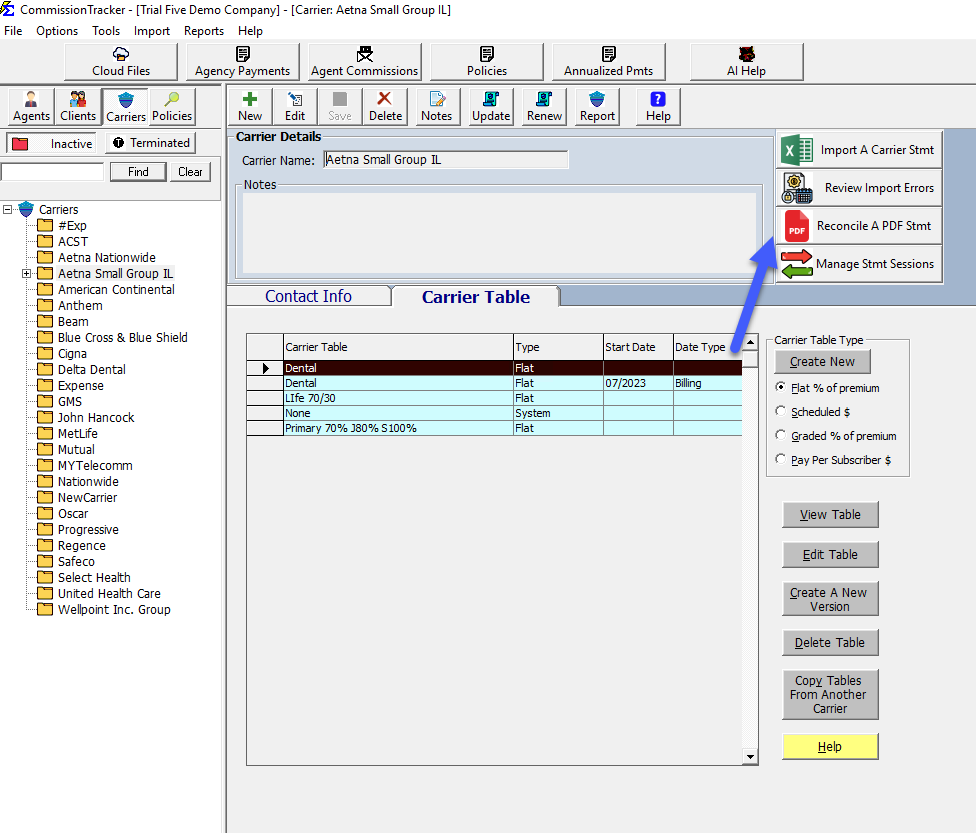
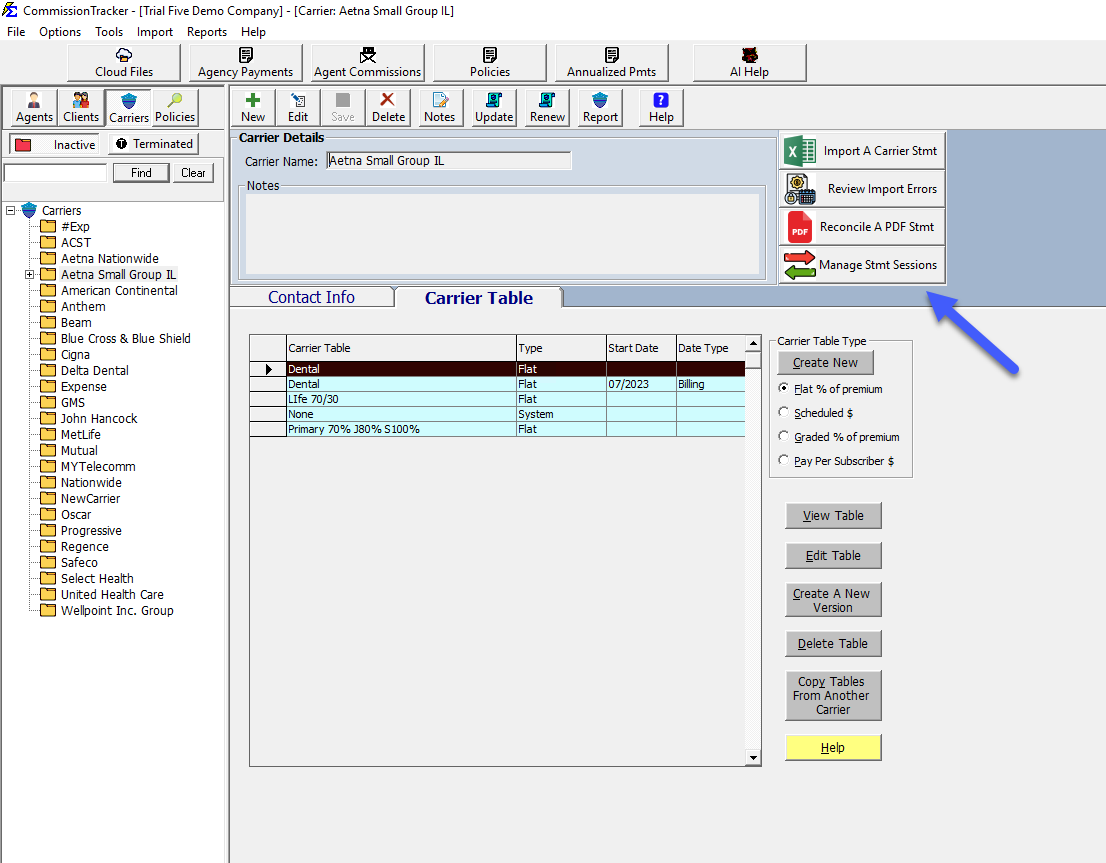
Select a Carrier from the list and click Reconcile Carrier Statement.
2. Show Outstanding Commissions
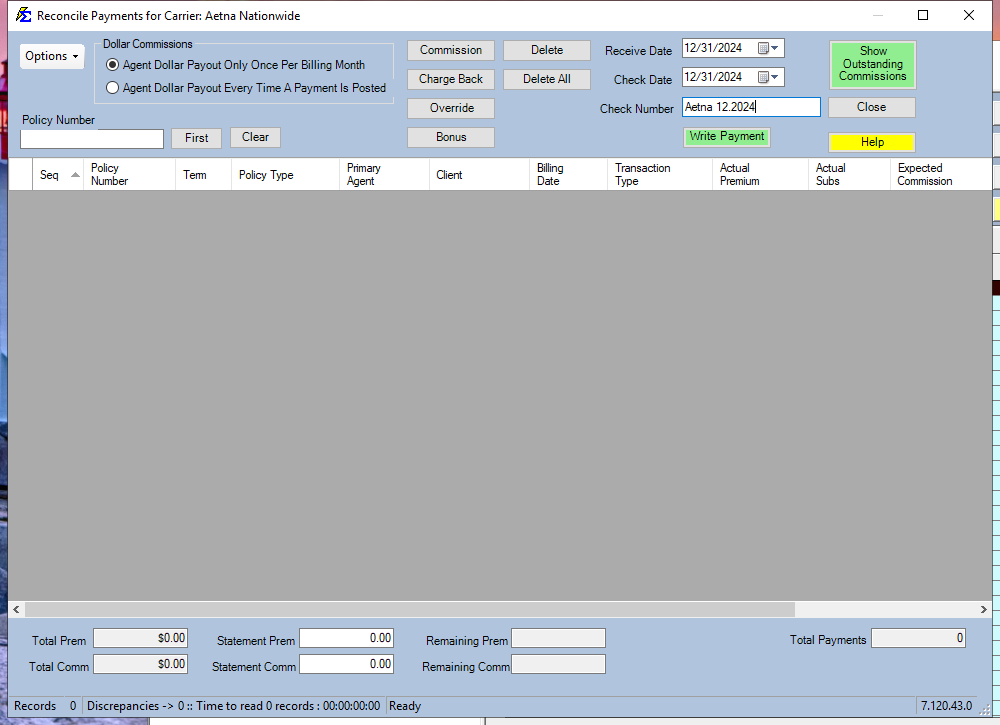
Click the Show Outstanding Commissions button to pull a list of all expected payments based on your Billing Date filters.
3. High-Speed Entry (The "No-Mouse" Workflow)
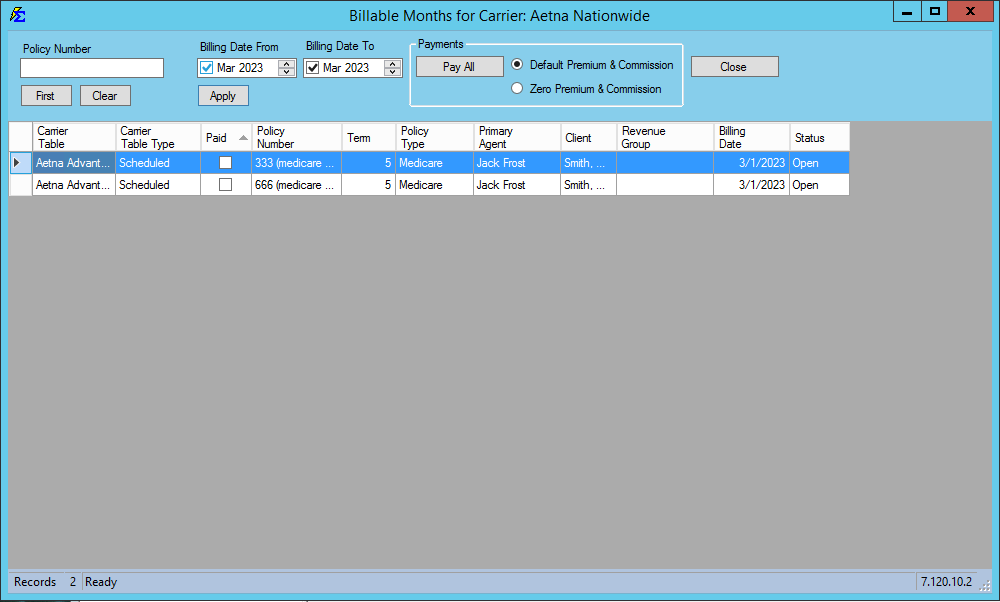
This screen is designed for speed. You can process rows without ever touching your mouse:
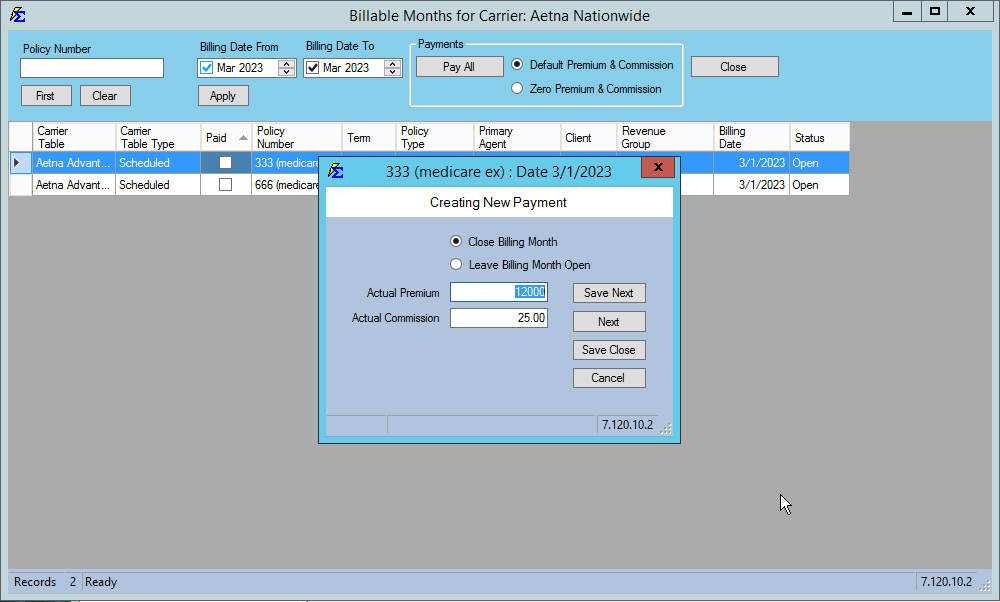
* Manual Entry: Use the arrow keys to navigate, press <Enter> on a row, and type the actual Premium/Commission.
* Bulk Action: Use the Pay All button to process all visible rows instantly using either the Estimated values or Zero values.
🛠️ Managing Your Session
Saving Progress
If you close the main screen before finishing, your session is automatically saved. You can return to it at any time. * Sessions are saved per-carrier, allowing you to manage multiple statements simultaneously.
Verification (Reconciling)
Enter the Statement Totals from your PDF into the boxes at the bottom of the screen. This allows you to see if your pending total matches the carrier's total exactly.
⚠️ The Final Step: Write Payments
Simply entering the data does not save it to your permanent database. You MUST complete the following to post the money:
- Return to the main screen.
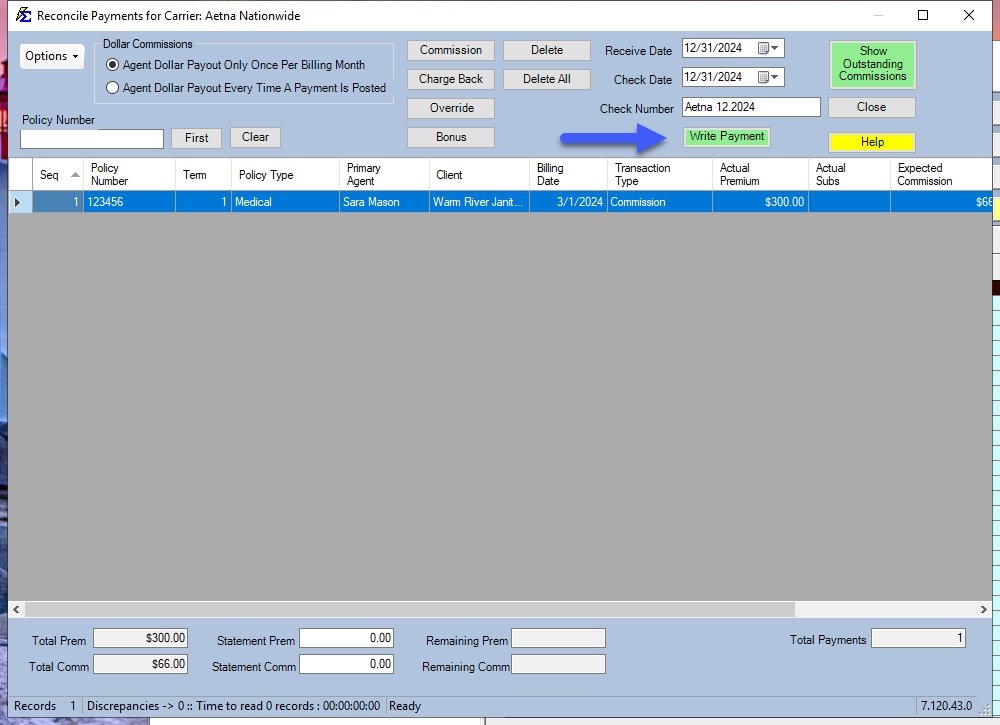
- Enter the Receive Date, Check Date, and Check Number.
- Click Write Payments.
🌐 Advanced: "All Carrier" Mode
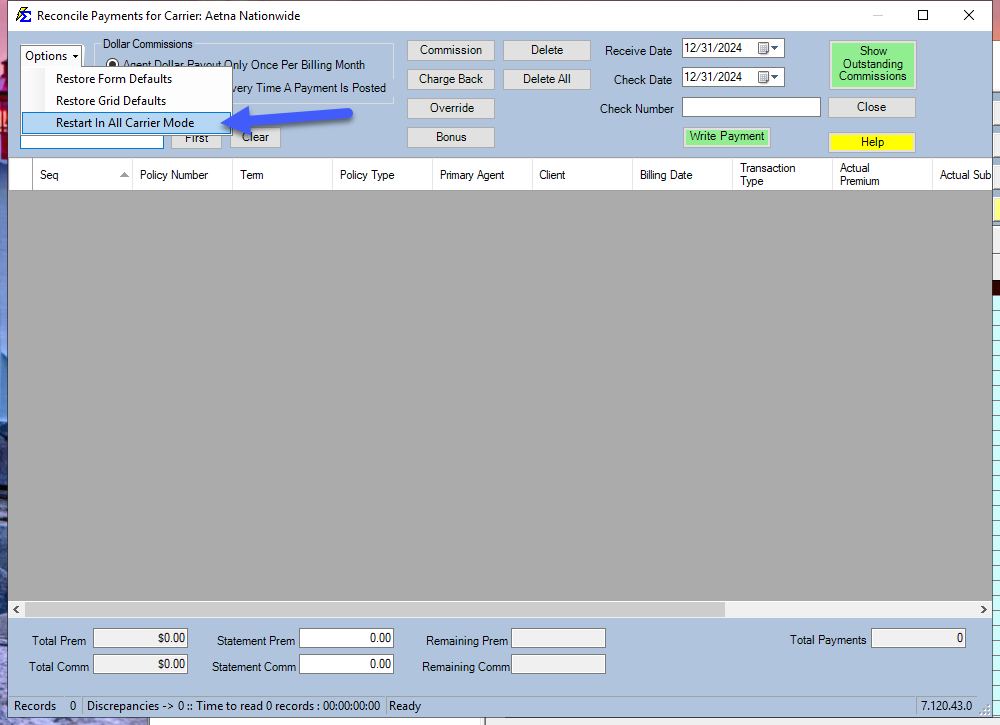
If you have a single PDF or check that includes commissions for multiple carriers, you can use All Carrier Mode.
- How to Enable: Under Options, click Restart In All Carrier Mode.
- Benefit: When searching by policy number, the system will search across your entire database regardless of the carrier.
🔄 Post-Session Actions
| Feature | Action |
|---|---|
| View Report | See a summary of all payments successfully posted in the session. |
| Reverse Session | If a major mistake was made, you can reverse the entire batch of payments. |
💡 Tips for Success
- ✅ Use Keyboard Shortcuts: Training yourself to use
<Enter>and arrow keys will make PDF reconciliation significantly faster. - ✅ Sort Columns: Click any column heading to resort the list to match the order of your PDF statement.
- ✅ Drag and Drop: You can reorder columns to put the "Commission" field right next to the "Policy Number" to reduce eye strain.