Payment History
Overview
Accessed directly from the Policy screen, Payment History is the definitive record of every expected and received payment for a specific policy term. This screen allows you to audit carrier accuracy, manage agent splits, and delete incorrect entries.
🚦 Status Definitions
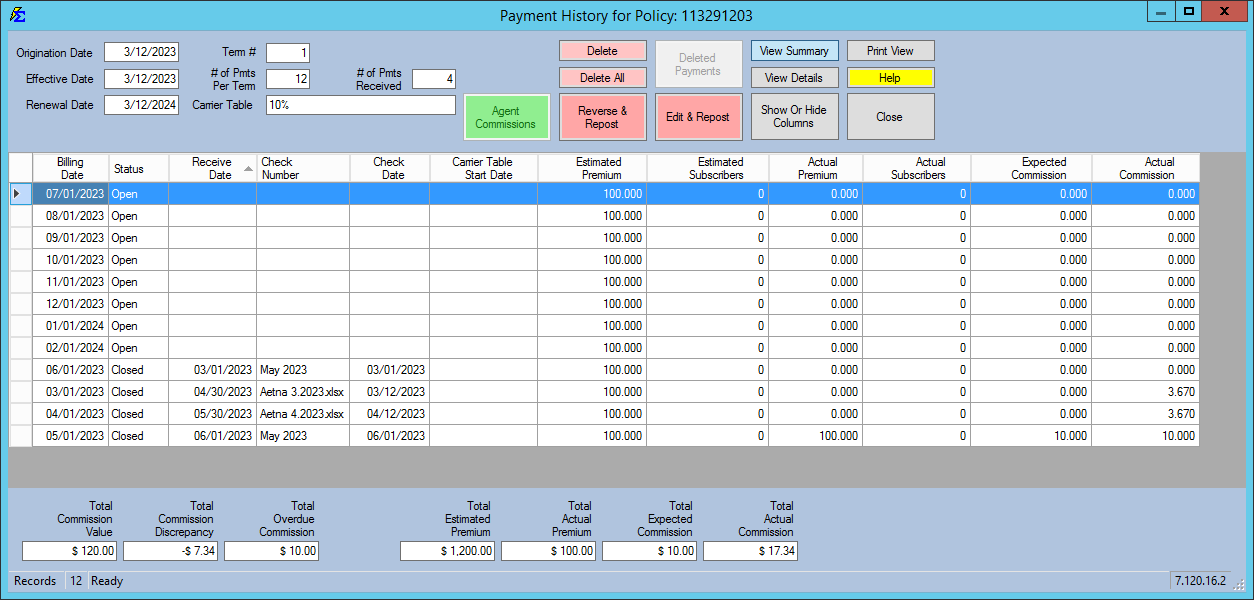
Each billing month is assigned a status that determines how it appears on your agency’s financial reports.
| Status | Meaning | Report Impact |
|---|---|---|
| Open | No payments have been posted yet. | Appears in Accounts Receivable. |
| Partial | Some money was received, but more is expected. | Stays in Accounts Receivable. |
| Closed | Commission has been received and the month is "Paid." | Appears in Payment Discrepancy. |
| Orphan | Payment date falls outside the Policy Effective/Renewal dates. | Hidden from most standard term reports. |
Note on Orphans: Orphans usually occur if you change policy dates after posting a payment. To fix this, delete the payment in Detail View and re-enter it with the correct Billing Date.
🔍 Summary vs. Detail View
Summary View
Provides a clean, high-level look at each billing month. If a month shows "Multiple Payments" in the Check Number column, you must switch to Detail View to see the breakdown.
Detail View
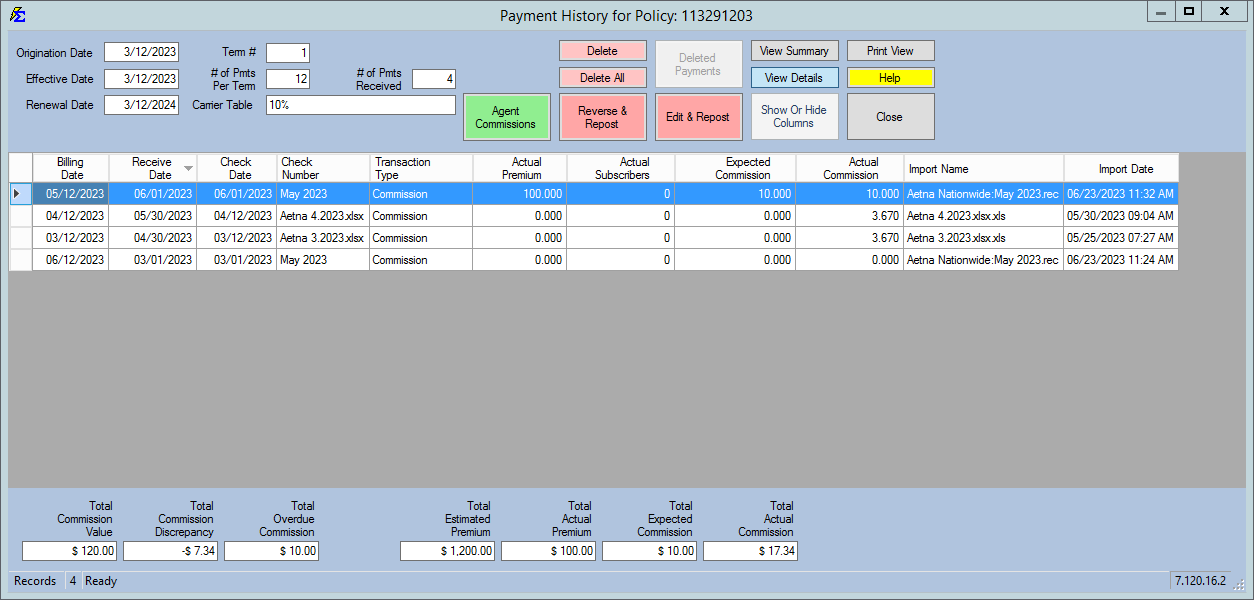
Shows every individual transaction, including chargebacks and adjustments. Use this view to track the source of the data: * .xls / .csv: Imported via Carrier Statement Import. * .rec: Entered via the Reconcile tool. * Username: Indicates the payment was entered manually by that specific user.
📊 Understanding Total Values
The bottom of the screen provides a "snapshot" of the policy's financial health:
- Total Commission Value: The total "Book Value" of the policy based on your Carrier Table estimates.
- Commission Discrepancy: The difference between what you expected and what you actually received for Closed months.
- Overdue Commission: The total dollar amount currently sitting in "Open" status for dates in the past.
🔄 Correcting Payments: Reverse vs. Edit
If a payment was posted incorrectly, you have two primary ways to fix it without starting from scratch.
| Feature | Action |
|---|---|
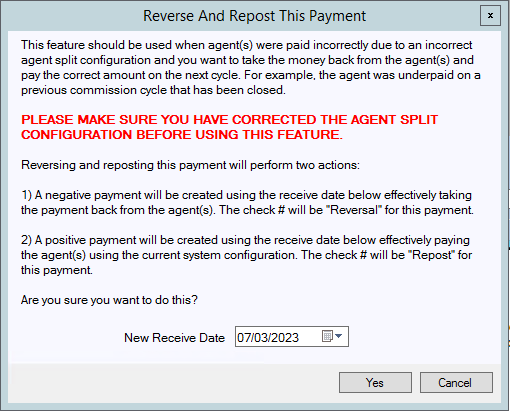
| Reverse & Repost | Automatically deletes the payment and re-opens the billing month for you to enter new data. |
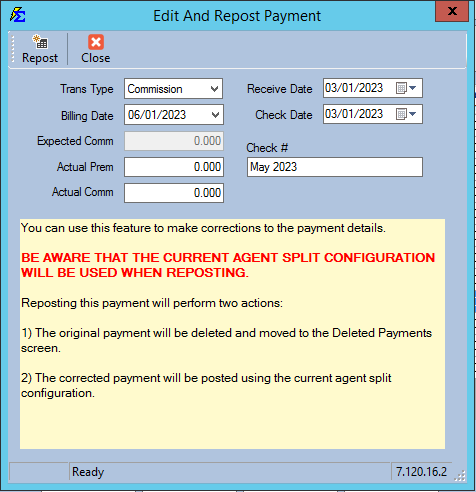
| Edit & Repost | Keeps the current payment but allows you to modify amounts or dates before saving again. |
👥 Agent Splits
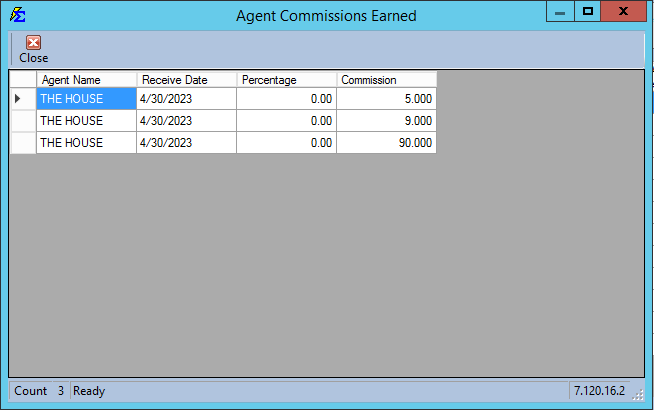
To see exactly how a specific payment was distributed to your team, double-click any payment row or click the Agent Commissions button.
💡 Tips for Success
- ✅ Check Detail View for Splits: Always ensure you are in Detail View when verifying agent commissions to see the most granular data.
- ✅ Delete with Caution: Payment History is the only place in the software where payments can be deleted. Once deleted, they must be manually re-entered or re-imported.
- ✅ Print for Audits: Both Summary and Detail views can be printed if you need to provide a payment ledger to a client or carrier.
Still Need Help?
Are you seeing discrepancies in your history? Visit the Payment Discrepancy Report guide.