Selecting A File For Import
Overview
Commission Tracker uses a "Copy and Paste" upload system to move files from your local computer to the cloud environment for importing.
🛠️ Step-by-Step Upload
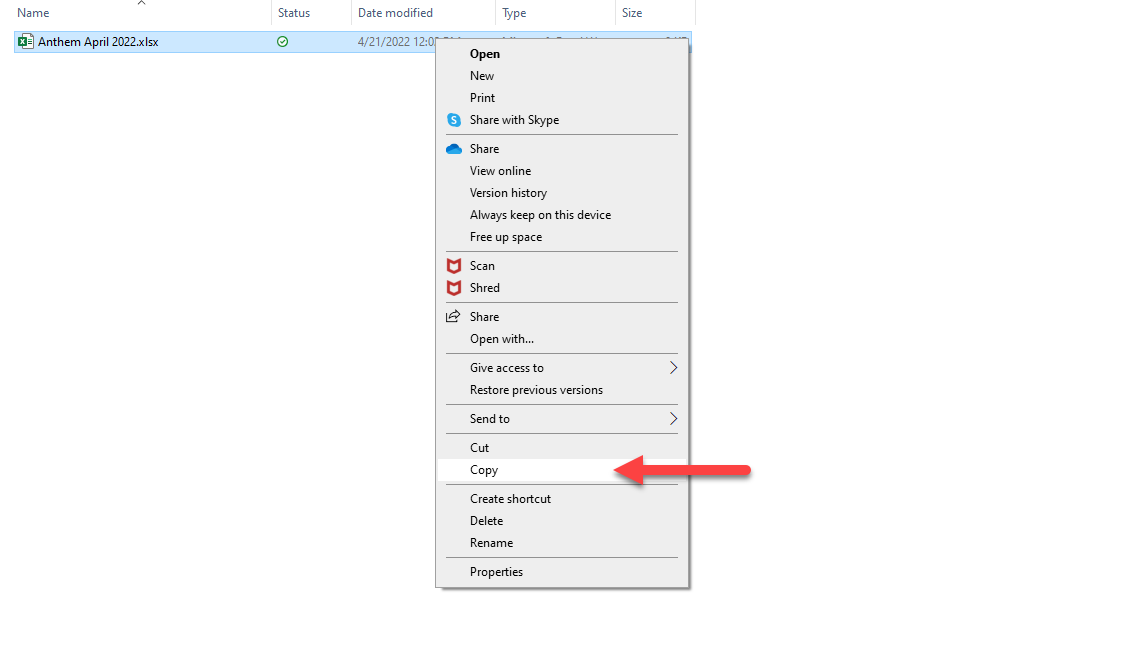
- Copy: Right-click your file on your computer and select Copy.
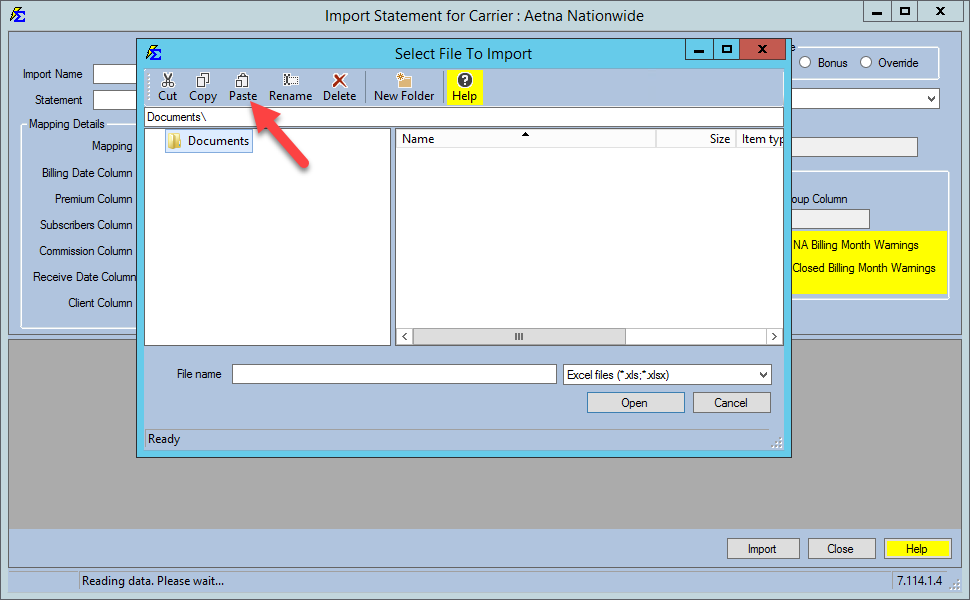
- Paste: In the CT Import screen, click Paste to upload to the cloud.
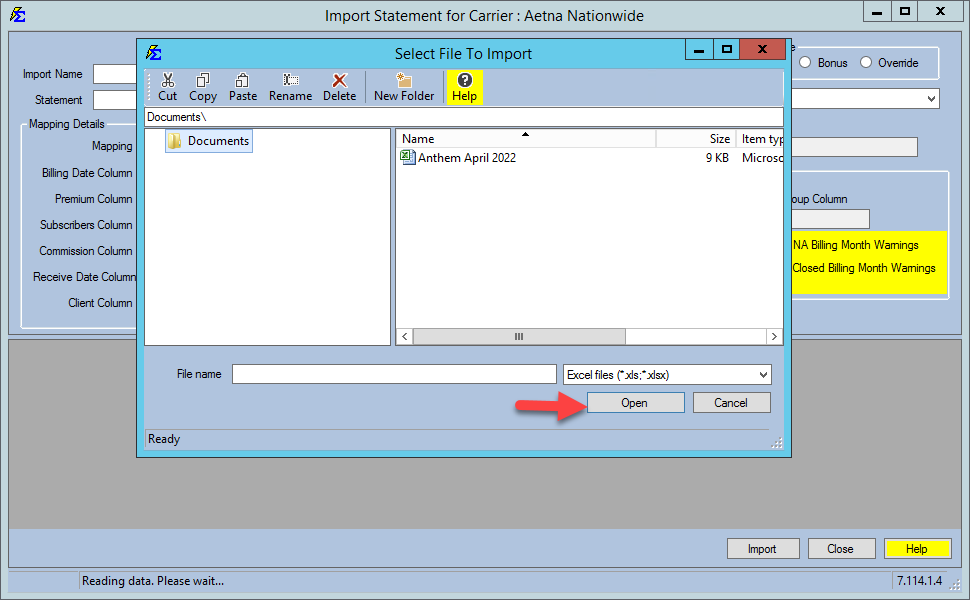
- Open: Select the file from the list and click Open.
💡 Best Practices
- ✅ File Extensions: Ensure your file is
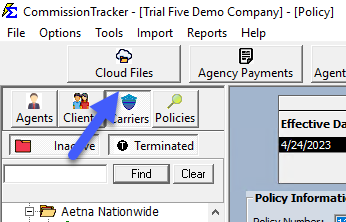
.xls,.xlsx, or (for statements).csv. - ✅ Cloud Management: Use the View Cloud Files menu to manage your uploaded documents.