Agent Portal Configuration
The Agent Portal is a secure, web-based platform where your agents can log in to view their own commission statements and production reports. This reduces administrative overhead by providing agents with 24/7 self-service access to their data.
Activation Required
The Agent Portal is a premium feature included with your Agent Licenses. Please reach out to support@commission-tracker.com to enable this feature in your software before proceeding with the configuration below.
Phase 1: Accessing Agent Management
Once the feature is enabled, you can manage portal access directly through the Agent profile.
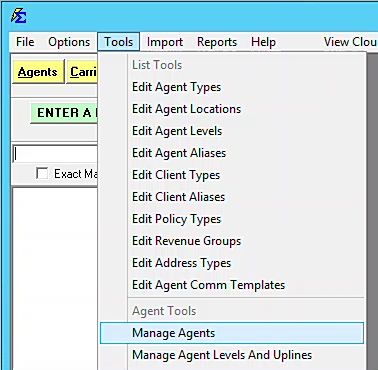
- Navigate to the Tools menu.
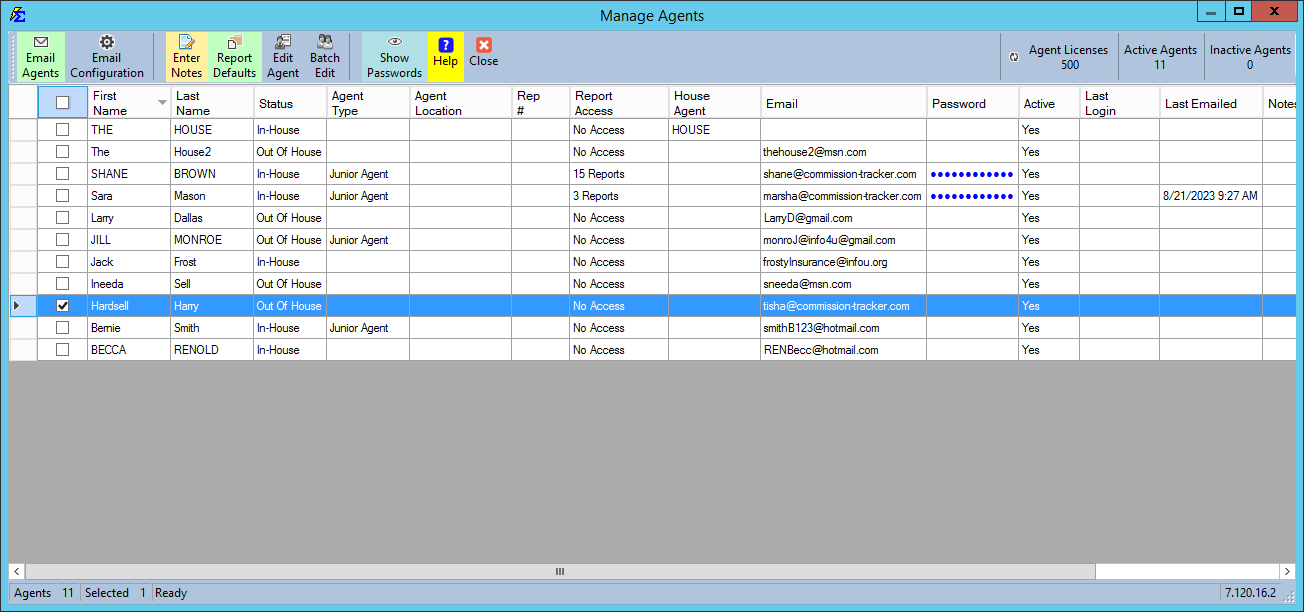
- Select Manage Agents.
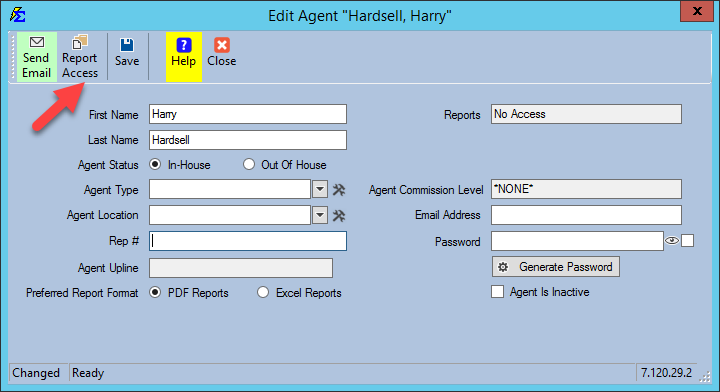
- Select the specific agent from the list and click Edit Agent.
Phase 2: Configuring Report Access
You have full control over exactly which reports an agent can see. This ensures they only view data relevant to their own book of business.
- Click the Report Access button.
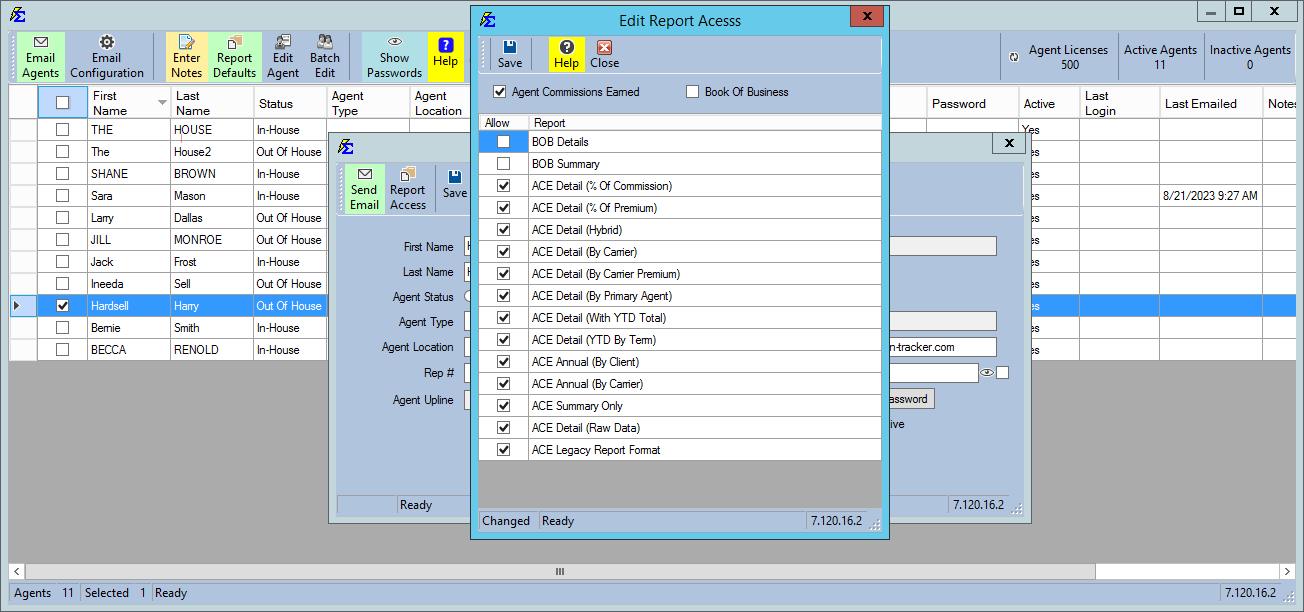
- Select the reports you wish to make available to this agent within their portal.
- Click Save and Close.
Setting the Preferred Format
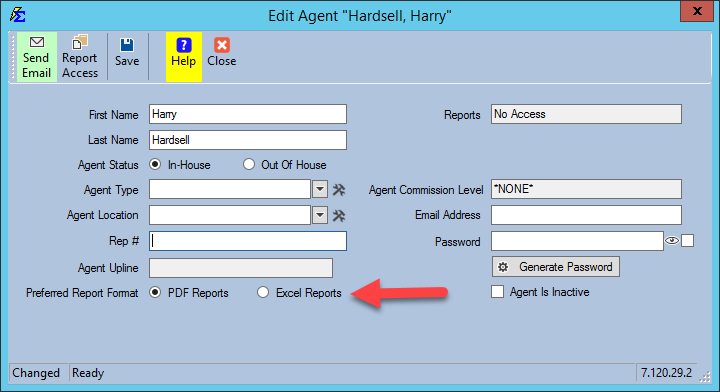
While the software can email various formats, the Agent Portal is designed to produce reports in PDF format only. Ensure you select the agent's preferred layout in the portal settings.
Phase 3: Security and Onboarding
To protect your data, each agent must have a unique password and a secure invitation to the portal.
1. Generate Password
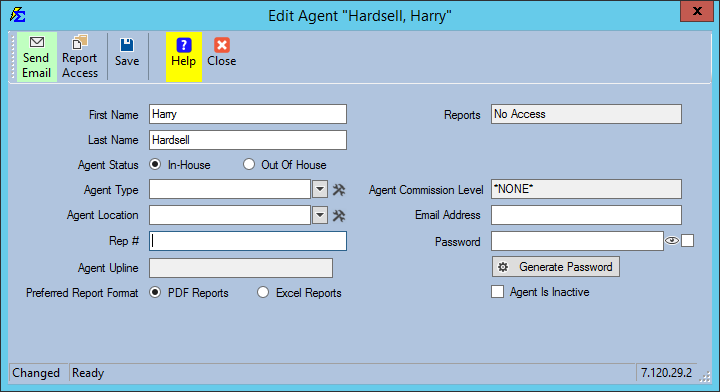
Click the Generate Password button. The system will create a secure temporary password for the agent.
2. Send Invitation Email
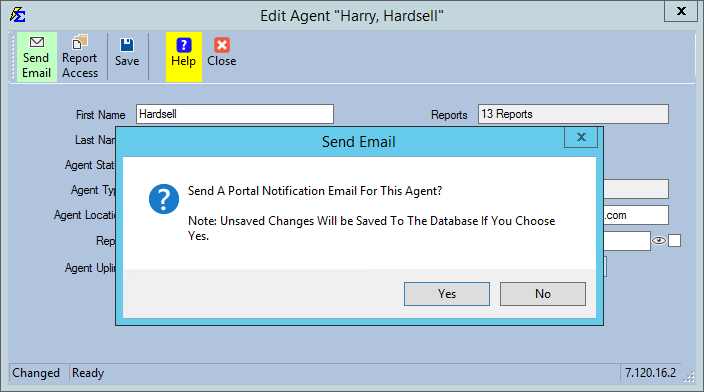
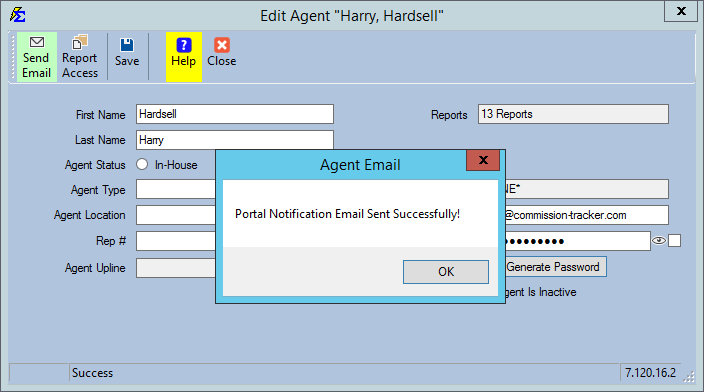
Click the Send Email button to invite the agent to the portal. This email contains their login credentials and the portal URL.
What the Agent Sees
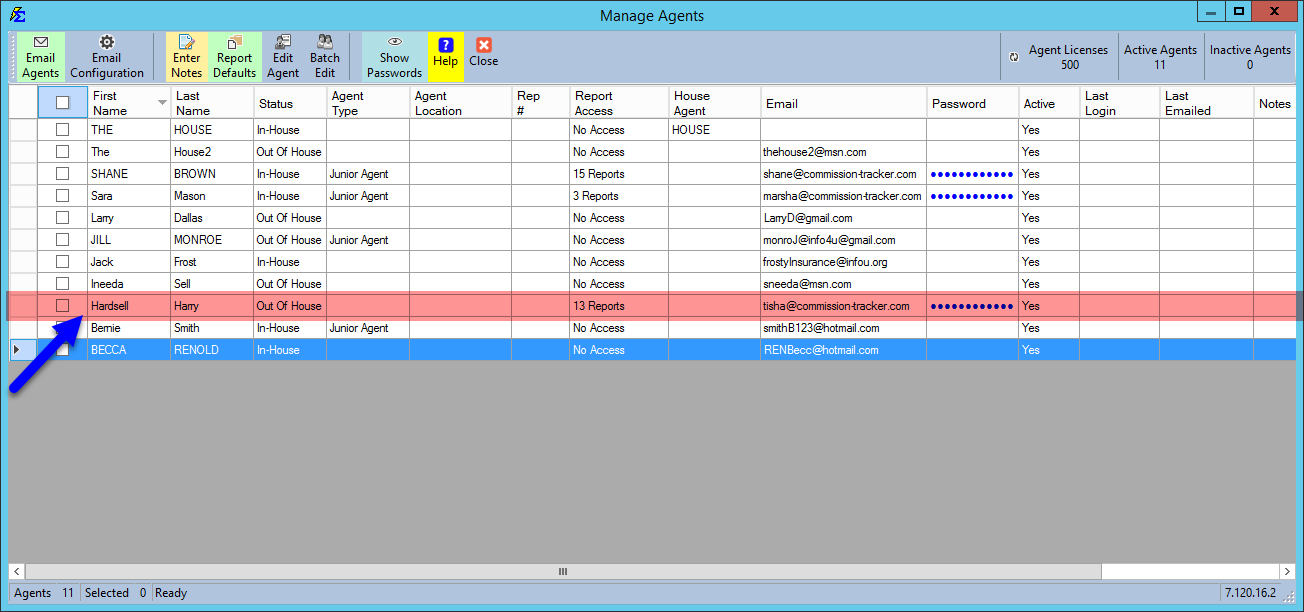
Once configured, you can verify the agent's access level. In the example below, the agent now has access to 13 specific reports.
Agent Onboarding Email
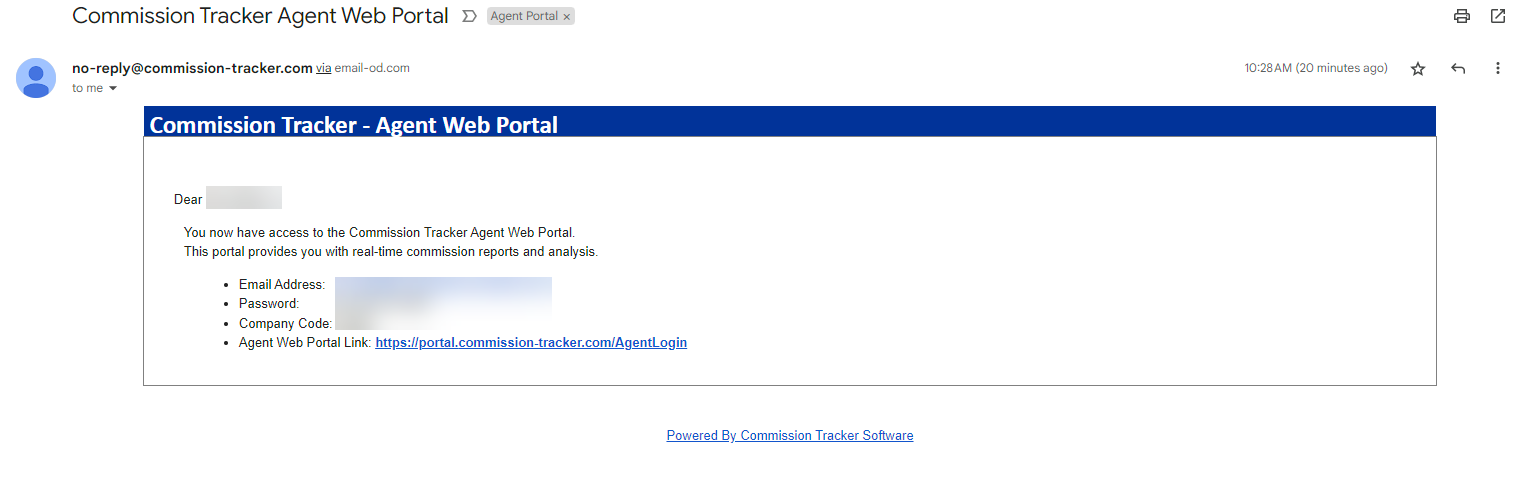
The agent will receive an automated email (shown below) containing their username, temporary password, and a link to the portal. They must follow the instructions in the email to complete their setup.

Troubleshooting
Q: The agent says they didn't receive the email. A: Verify the agent's email address in the Agent Contact Info section and check their spam folder. You can re-send the invitation at any time.
Q: Can I revoke access? A: Yes. Simply return to the Report Access screen and uncheck all reports, or mark the agent as Inactive to disable their portal login entirely.
Q: Does the portal show real-time data? A: Yes. Once a payment is posted and reconciled in your system, it becomes available for the agent to view in their portal reports.
Next Step: Learn how to customize the report layouts shown in the portal on the ACE Report Formats page.
Need technical support? Contact support@commission-tracker.com