Agent Web Portal Guide
The Agent Web Portal is a secure, 24/7 self-service platform where you can view your active policies, track earnings, and generate commission reports without needing to contact the agency office.
Phase 1: Logging In
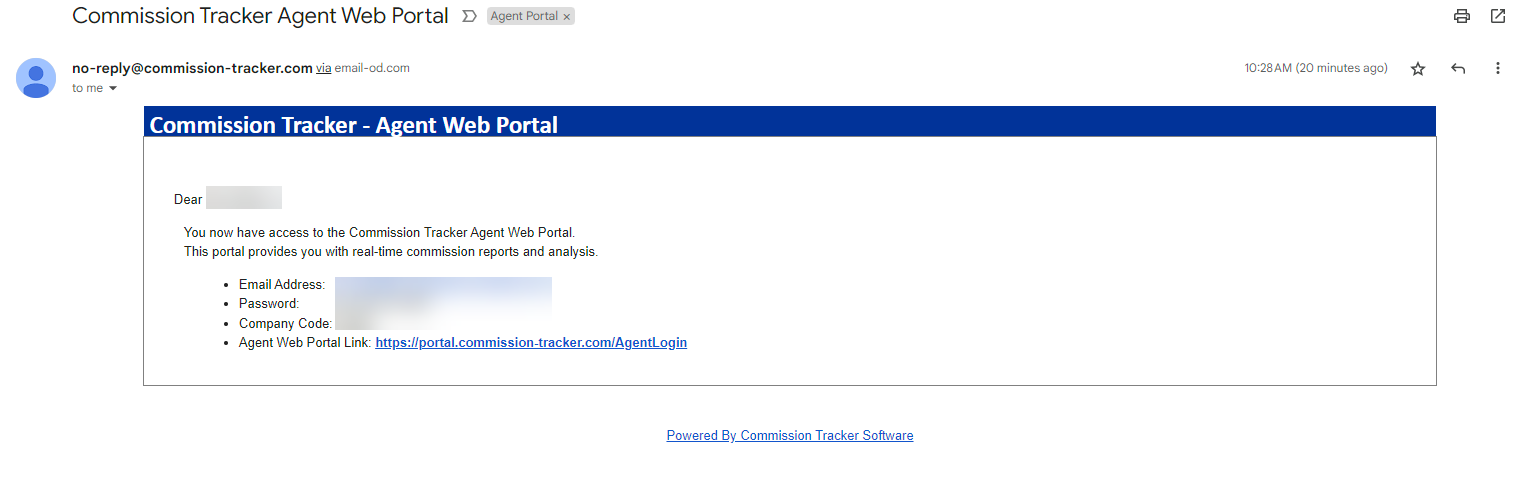
Your access begins with an invitation email from your agency. This email contains your Username, Temporary Password, and your Company Code.
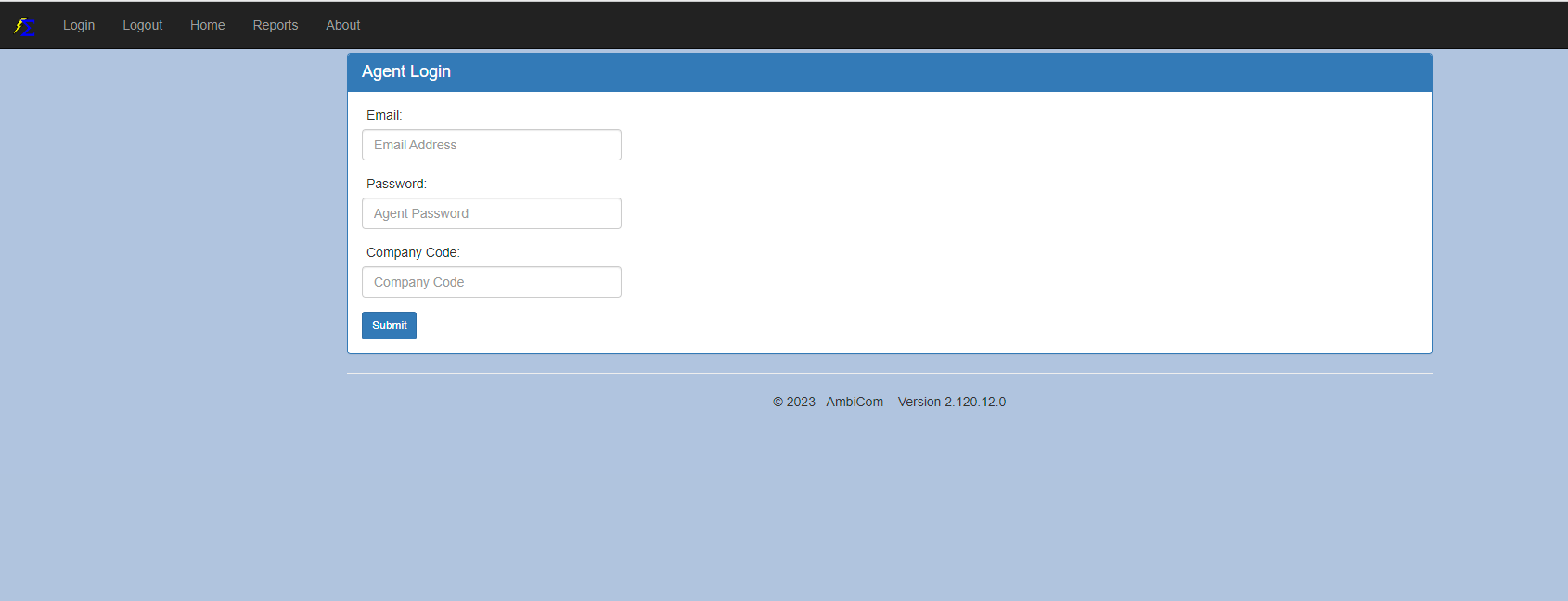
- Click the link provided in your invitation email.
- Enter your Email Address, Password, and Company Code exactly as they appear in the email.
- Click Login.
Your Dashboard (Home Page)
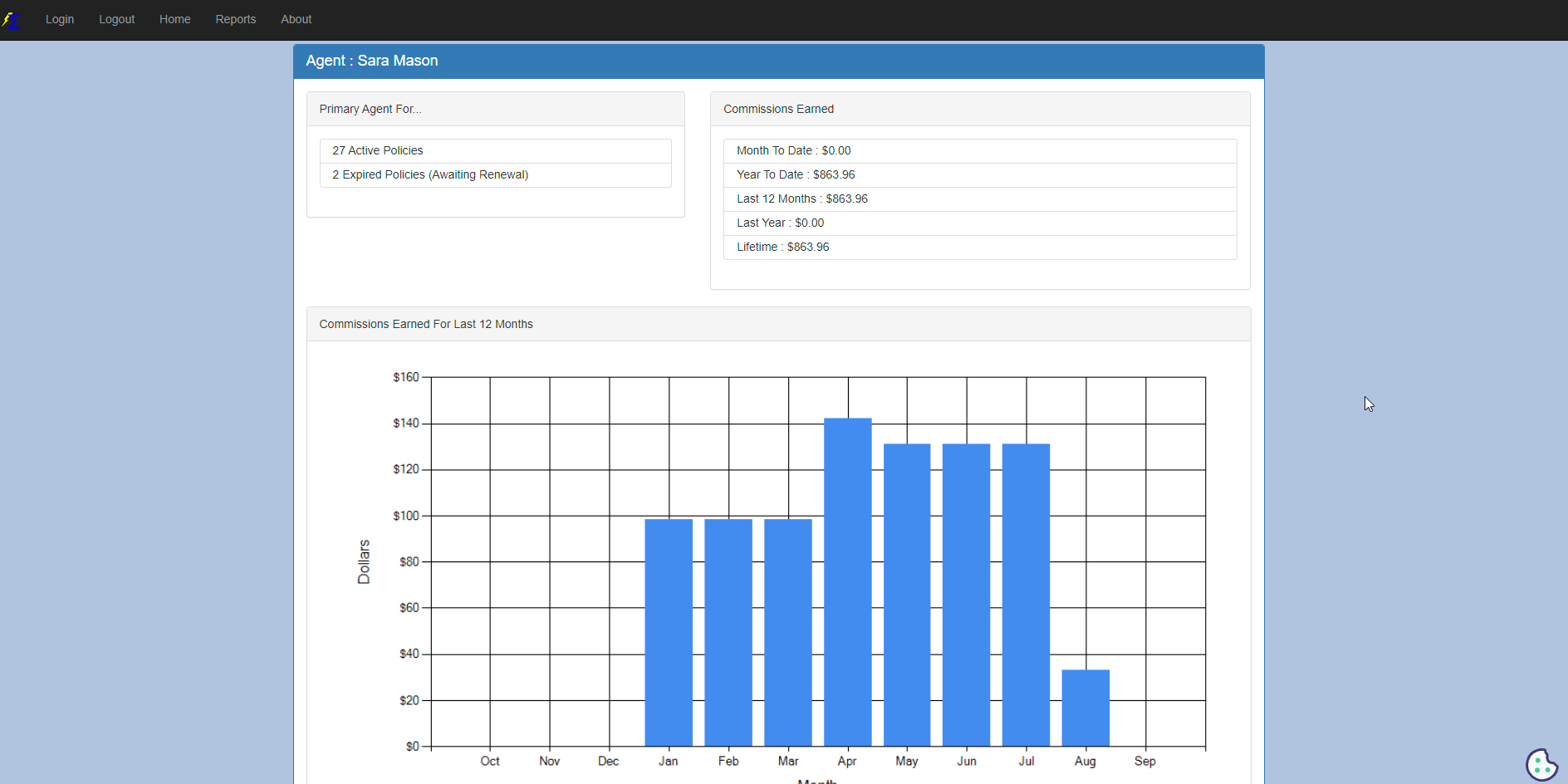
Once logged in, the Home page provides a high-level overview of your book of business and recent performance:
- Active Policies: The current count of policies assigned to you.
- Expired Policies: Policies that have reached their term end date.
- Commissions Earned: A snapshot of your total earnings.
- Performance Graph: A visual trend of your commissions earned over the last 12 months.
Phase 2: Generating Reports
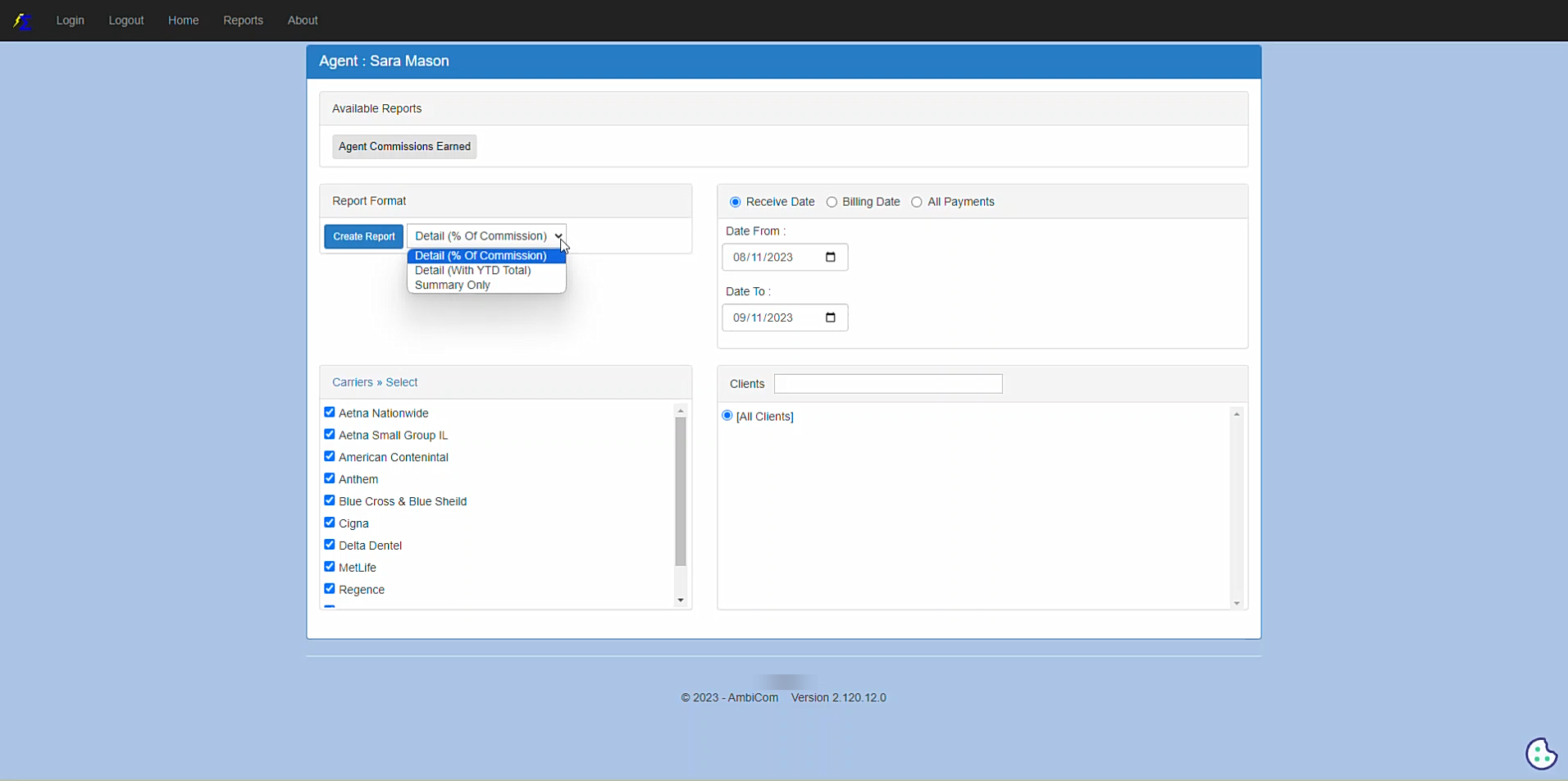
The Reports page allows you to view and download detailed statements for your records.
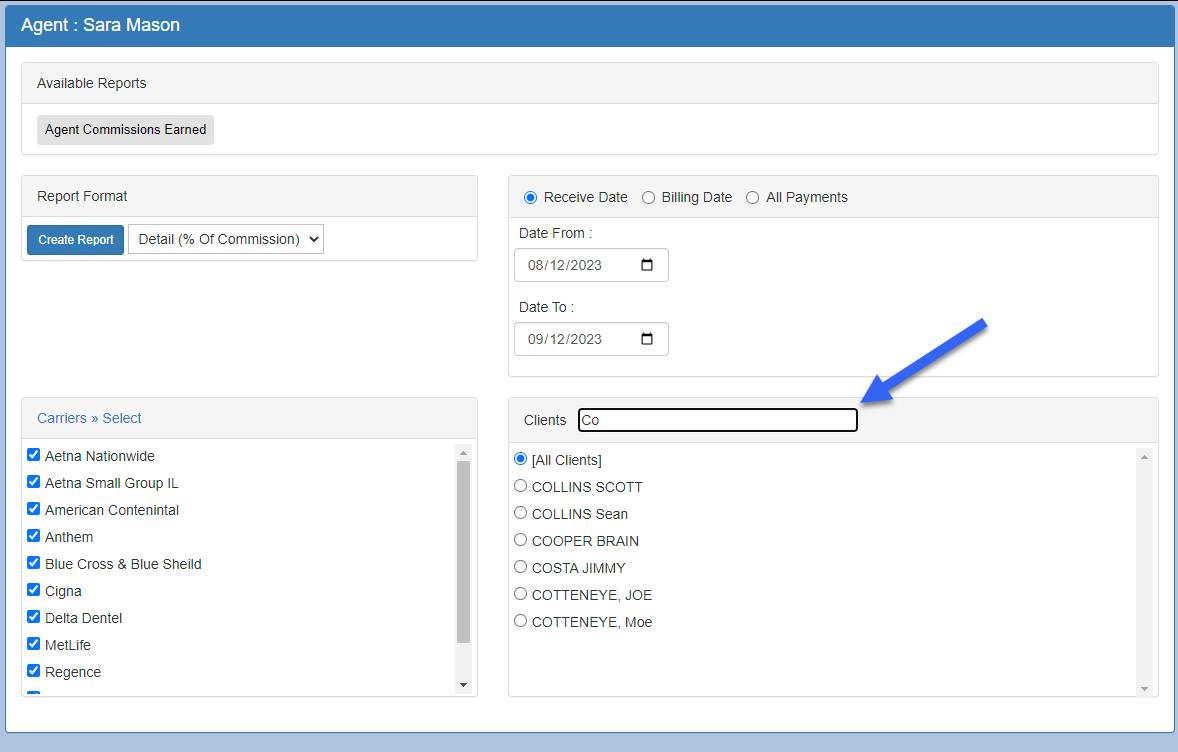
1. Select Your Filters
You can narrow down your data using several filters to find exactly what you need:
-
Date Type: Choose between Receive Date or Billing Date.
-
Payment Filter: View All Payments or filter by specific Carriers or Clients.
2. Finding a Specific Client
To run a report for a single client, simply begin typing their name in the search field. A list of matching clients will generate; select the correct one from the list.
3. Viewing the Report
After setting your filters, click the button to generate the report.
Browser Pop-up Blockers
Your report will open in a new browser tab. If the report does not appear, please check your browser's address bar and ensure you have allowed pop-ups for the Agent Portal website.
What Happens After Downloading
- Print or Save: Once the PDF report opens in the new tab, you can use your browser's built-in tools to print the document or save it to your local computer for permanent storage.
- Security: Always remember to Log Out of the portal if you are using a shared or public computer to protect your client and commission data.
Troubleshooting
Q: My password isn't working. A: Ensure you are copying the password from the email without any extra spaces. If it still fails, contact your Agency Administrator to have your password reset.
Q: I don't see a specific report I need. A: Your Agency Administrator controls which reports are visible in your portal. Please contact them to request access to additional report types.
Q: The dashboard graph is empty. A: The graph displays data based