Client Address
The Client Address section stores the primary physical or mailing location for the client. Accurate address data is critical not only for correspondence but also for regional segmentation within your Client Report.
When to Use This Section
Input or update the address during the initial client intake or when:
-
Updating Records: Ensuring the client's newest location is recorded for renewal notices.
-
Regional Marketing: Populating the data used to filter reports by City, State, or Zip Code.
-
Data Integrity: Maintaining a complete profile to prevent "Missing Data" flags in agency audits.
Adding or Editing the Address
The address fields are located on the main Client profile screen.
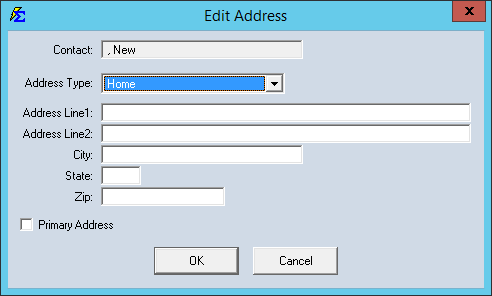
Step-by-Step Instructions
- Navigate to the Client screen and select the client you wish to update.
- Locate the Address, City, State, and Zip Code fields.
- Enter the current information.
- Click Save to commit the changes.
What Happens When You Save
- Report Integration: The client will now be correctly included in geographic filters on the Client List Report.
- Policy Linking: This address serves as the default contact location for any Policies linked to this client.
- Global Search: You can search for clients by their City or Zip Code in the main search bar if those fields are populated.
Troubleshooting
Q: My client has a different mailing address and physical address. Which should I use? A: We recommend using the address where the client receives their primary correspondence. If you need to store both, you can place the secondary address in the Client Notes section.
Q: Can I update addresses for multiple clients at once? A: For bulk updates, you may want to use the Importing Policies tool to overwrite existing data, or contact support for assistance with large-scale database cleanups.
Next Steps:
Need help organizing your clients? Contact support@commission-tracker.com