Mac Connection Instructions
These instructions provide a step-by-step guide for connecting to the Commission Tracker Cloud environment using a Mac. Note that these same steps also apply to iOS and Android devices using the official Microsoft Remote Desktop client.
Prerequisites
Before beginning, ensure you have received your Cloud Credentials email from Commission Tracker. You will need:
-
Host Name (PC Name): The specific server address for your agency.
-
User Name: Your unique cloud login (provided in "Step 1" of your welcome email).
-
Password: Your temporary or permanent cloud password.
Installation and Setup
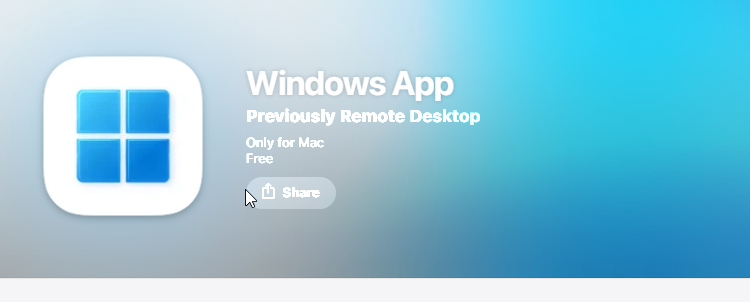
1. Install the Remote Desktop App
Download and install the Windows App application from the Mac App Store.
Note: If you are unable to locate it in the store, refer to the Microsoft Remote Client Documentation for direct download links.
2. Add a New Connection
- Open the Microsoft Remote Desktop app on your Mac.
- Click the plus (+) icon in the top toolbar and select Add PC.
3. Configure Server Details
- PC Name: Enter the Host Name provided by the Commission Tracker support team. (If you do not have this, contact support@commission-tracker.com).
- User Account: Click the dropdown and select Add User Account....
4. Enter Your Credentials
- In the popup window, enter the User Name and Password exactly as they appear in your "Step 1" setup email.
- (Optional) Enter a Friendly Name (e.g., "CT Cloud") to easily identify the connection later.
- Click Add.
5. Establish the Connection
Your new connection will now appear as a tile in the main app window. Double-click the tile to launch your Commission Tracker session.
Best Practices for Mac Users
- Folder Redirection: If you need to upload files (like carrier statements) to the cloud, click the Folders tab in the connection settings and check Redirect folders. This allows the cloud to "see" your Mac's local files.
- Closing Your Session: When finished, always use the Log Off icon inside the Commission Tracker environment. Simply closing the app window may leave your session "hanging," which can cause login issues later.
- Right-Clicking: If you are using a Magic Mouse or Trackpad, ensure "Secondary Click" is enabled in your Mac System Settings so you can access right-click menus within Commission Tracker.
Troubleshooting
Q: I get a "Certificate Name Mismatch" warning. What should I do? A: This is common with RDP connections. As long as you have entered the correct Host Name provided by our team, you can click Continue or Connect Anyway.
Q: The screen resolution is too small. A: Right-click your connection tile in the app, select Edit, and go to the Display tab. Check the box for Optimize for Retina displays and Update the session resolution on resize.
Next Step: To set up your printer for the cloud environment, visit the Mac Printing from the Cloud guide.
Need your Host Name? Contact support@commission-tracker.com