Connection Issues
This guide addresses common technical hurdles encountered when connecting to the Commission Tracker Cloud environment. If you follow these steps and still cannot connect, please contact our support team.
1. Black Screen After Connecting
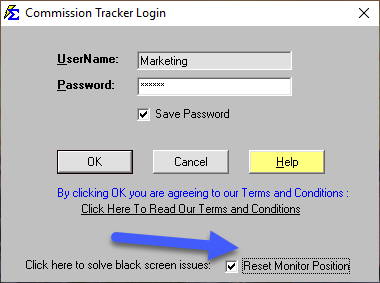
If you successfully enter your credentials but are met with a solid black screen instead of the software interface, your session may be stuck in a specific monitor configuration.
The Solution: Reset Monitor Position
-
Disconnect: Close your Remote Desktop window completely.
-
Wait: Wait at least 2 minutes. This allows the server to recognize the disconnected state and prepare for a reset.
-
Re-launch: Open your connection file again.
-
Reset: Check the "Reset Monitor Position" box on the login prompt before clicking OK.
2. Invalid Credentials (Username Prefix Error)
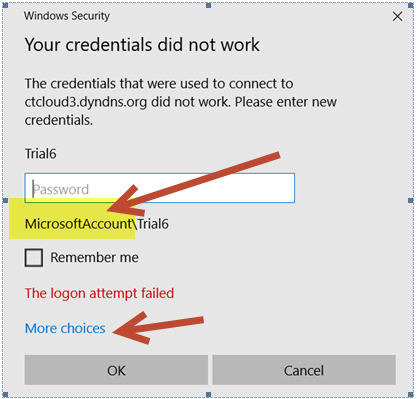
A common reason for login failure is the "Domain" prefix. If your computer automatically inserts your local office domain (e.g., OFFICE-PC\YourName), the cloud server will reject the login.
The Solution: Use Another Account
If you see any prefix other than USER or COMMTRACK before your username:
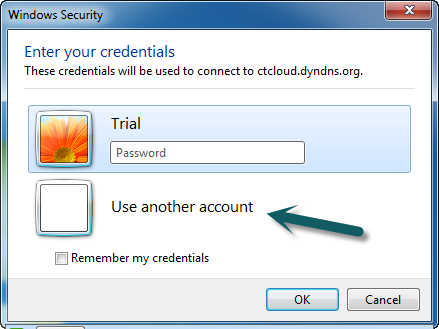
- Click More choices on the Windows Security prompt.
- Select Use a different account.
The Correct Format
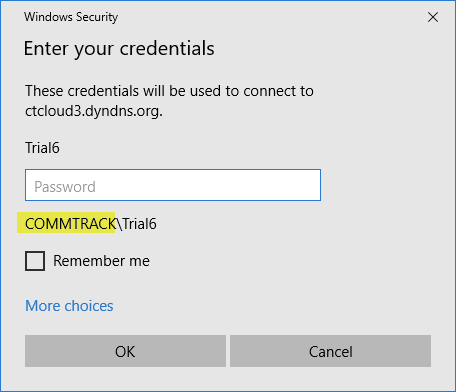
Manually type your username using the correct cloud prefix:
-
Format:
COMMTRACK\YourUsernameorUSER\YourUsername -
Ensure you check the Remember me box to save this correct path for future use.
3. Forgotten Password
Passwords for the cloud environment are managed separately from your local computer.
- Cloud Password: If you cannot access the server, contact your agency administrator or support@commission-tracker.com.
- Software Password: If you can get into the server but cannot log into the CT software, refer to the User Management guide for instructions on resetting internal user credentials.
4. Connection File "Not Secure" Warning
If you receive a warning that your connection is not secure or your publisher is "Unknown," you are likely using an outdated RDP file.
- Fix: Please follow the instructions on the Connection File Update page to request the latest
_v1secure connection file.
Next Steps:
Still unable to connect? Contact support@commission-tracker.com