Windows April 2026 Update – RDP Connection Changes
A Microsoft Windows update released April 14, 2026 changed the way Windows handles Remote Desktop (RDP) connections. If your computer installed this update, you may notice a new security prompt when launching Commission Tracker.
Did Copy and Paste Suddenly Stop Working?
If you can no longer copy and paste files, carrier statements or Excel data between your computer and Commission Tracker, this page is the fix. Close Commission Tracker, connect again, and in the Windows prompt shown in Step 2 check Clipboard and "Remember my choices for remote connections from this publisher", then click Connect.
Printing Stopped Working, or Your Printer Is Not Listed?
The same prompt controls printing. Close Commission Tracker, connect again, and in the prompt shown in Step 2 check Printers and "Remember my choices for remote connections from this publisher", then click Connect. See Printing From The Cloud for Mac.
Not Everyone Is Affected
This issue affects Windows users only. Mac users are not impacted by this update. For Windows users, this only affects those whose machines installed the April 14, 2026 cumulative update. If you are not seeing this prompt, no action is needed.
This is a Windows change — not a Commission Tracker change
Commission Tracker has not been updated. This prompt is entirely driven by the new Windows security requirements.
What Changed
Instead of connecting silently as before, Windows now pauses and requires you to review and confirm your connection settings before proceeding.
Step 1 — Confirm You Have the Latest RDP File
Check that your desktop shortcut filename ends in _v2. If it does not, visit the Connection File Update page to get the latest file before continuing.
Publisher Not Showing *.commission-tracker.com?
If the security prompt does not show *.commission-tracker.com as the Publisher, you do not have the latest RDP file. Update your connection file before proceeding.
Step 2 — Get Through the New Security Prompt
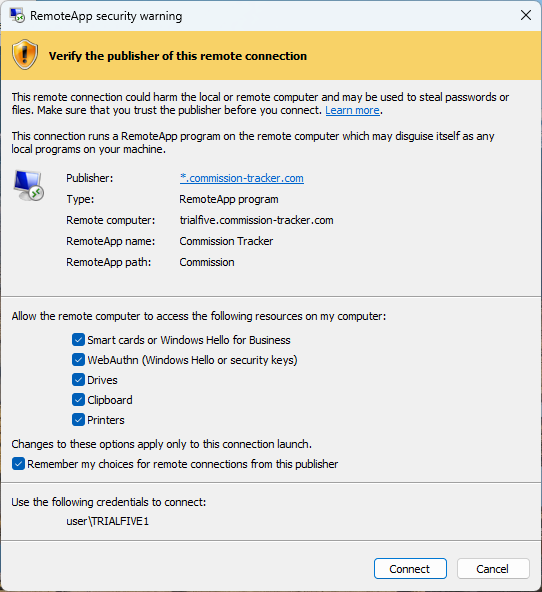
Once you are on the latest RDP file (_v2), launch Commission Tracker. You will see a new security prompt:
Only Check the Boxes You Actually Need
Do not check all boxes by default. Each checked box grants your local computer access to that resource on the remote server. Only enable what you require. When in doubt, Clipboard and Printers are the boxes most users need.
This is a one-time step. Here is what to do:
- Confirm the Publisher shows
*.commission-tracker.com
Check the boxes for the resources you need:
- Smart cards or Windows Hello for Business — only check if your organization uses these for authentication
- WebAuthn (Windows Hello or security keys) — only check if your organization uses these for authentication
- Drives — generally not required; Commission Tracker uses copy/paste to transfer files
- Clipboard — check this if you copy and paste carrier statements or reports between your computer and Commission Tracker (recommended for most users)
-
Printers — check this if you want to print reports directly from Commission Tracker
-
Check "Remember my choices for remote connections from this publisher"
- Click Connect
You Should Only Need to Do This Once
Checking "Remember my choices" tells Windows not to ask again for this publisher. As long as that box is checked, the prompt will not reappear.
🔧 Troubleshooting
Quick Way to Tell Which Case You're In
Look at what the security prompt shows:
- Publisher shows "Unknown Publisher" (red) — You are on an old connection file. Follow Step 1 above to get the new
_v2file. - Publisher shows the verified
*.commission-tracker.com(yellow), but the resource checkboxes are grayed out — This is the remembered-choice issue described below. See "The boxes are grayed out, or the prompt no longer appears."
The prompt keeps appearing every time I connect. The "Remember my choices for remote connections from this publisher" box was not checked. Reconnect, check that box, and click Connect.
The Publisher does not show *.commission-tracker.com.
You are not using the latest RDP file. Follow Step 1 above to get the updated _v2 file.
I connected but copy and paste (Clipboard) or printing is not working. The boxes for those resources were not checked during the prompt. Disconnect, relaunch the RDP shortcut, and check the appropriate boxes before clicking Connect. If the boxes are grayed out or the prompt does not appear, see the next entry.
The boxes are grayed out, or the prompt no longer appears. Windows remembered an earlier choice made with those boxes unchecked, and it keeps using that choice. Contact support@commission-tracker.com and we will walk you through clearing it.
I cannot find my RDP shortcut. Contact support@commission-tracker.com and we will send you a new connection file.
🔗 Related Topics
- Windows Connection Instructions
- Connection File Update
- Connection Issues
- Mac Connection Instructions
Need help? Contact support@commission-tracker.com