Statement Upload Portal
The Statement Upload Portal is a secure website where agencies on our statement-processing service send carrier statements to Commission Tracker, follow each file's progress, and pick up finished reports — all from a web browser, with nothing to install.
Access Is By Approval
The portal is available to agencies enrolled in our statement-processing service. Each user's email address must be approved by the Commission Tracker team before they can sign in. To add or remove users for your agency, contact support@commission-tracker.com.
Training Video
💡 Why Use This
- Send statements securely — Upload carrier statement files directly to your processing team instead of emailing attachments.
- Stay organized by month — Files are grouped into monthly Commission Cycles, each with its own Statements, Reports, and Misc folders.
- Track progress — Every file shows a status badge, so you always know what has been imported and what still needs attention.
- Pick up your reports — When processing is complete, your finished reports are posted to the cycle's Reports folder for you to download.
🗺️ How to Access
Open your web browser and go to upload.commission-tracker.com.
Sign in using either:
- Email and password — Enter your approved email address and your portal password, then click Sign in.
- Sign in with Google — If your approved email is a Google account, you can sign in with one click and skip passwords entirely.
First Time, or Forgot Your Password?
- On the sign-in page, click First time, or forgot your password?
- Enter your email address and click Send link.
- Check your inbox for an email from Commission Tracker Support. Click the link inside.
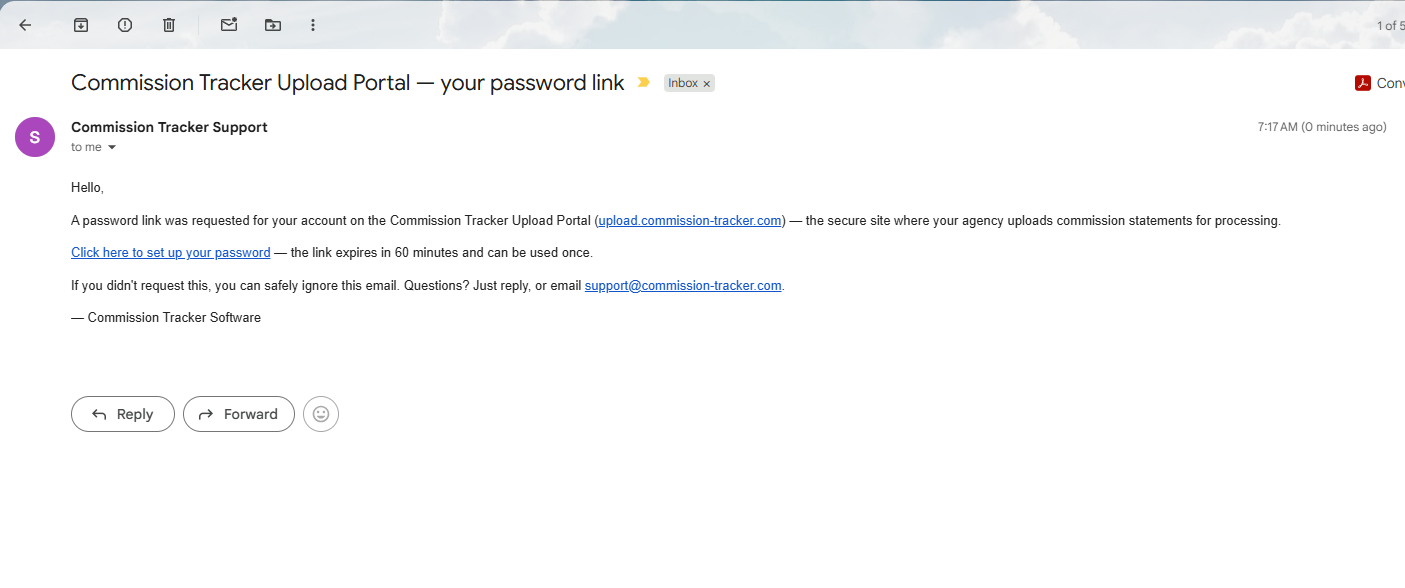
- Choose a password of at least 12 characters and click Set password.
- Return to the sign-in page and sign in.
Password Links Expire Quickly
Each link works once and expires after a short time (60 minutes for first-time setup, 30 minutes for a reset). If your link has expired, just request a new one — the newest link is always the one that works.
Terms of Use
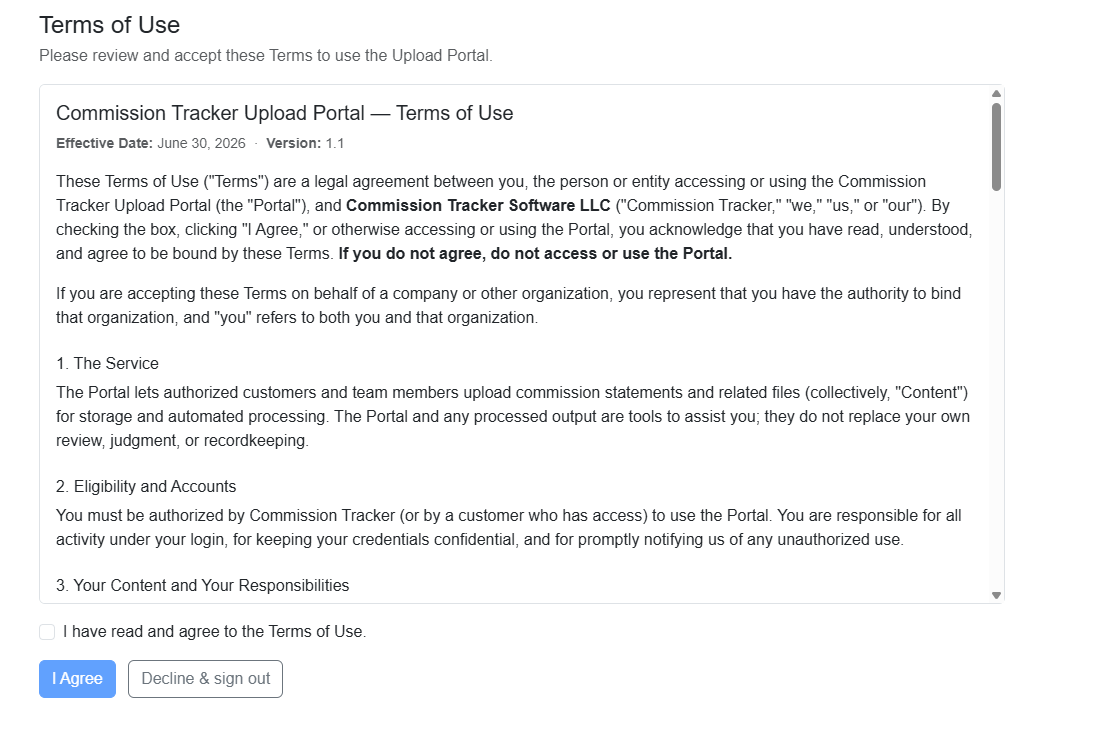
The first time you sign in — and again whenever the terms are updated — the portal asks you to review and accept the Terms of Use. Read through them, check I have read and agree to the Terms of Use, and click I Agree to continue.
Want the deeper rules?
For what happens to a file after you upload it — automatic Excel versions, how files group into statements, and exactly what each download gives you — see How the Portal Handles Your Files.
Your Company Home
After signing in, you land on your company's home page: a grid of Commission Cycles, one row per month.
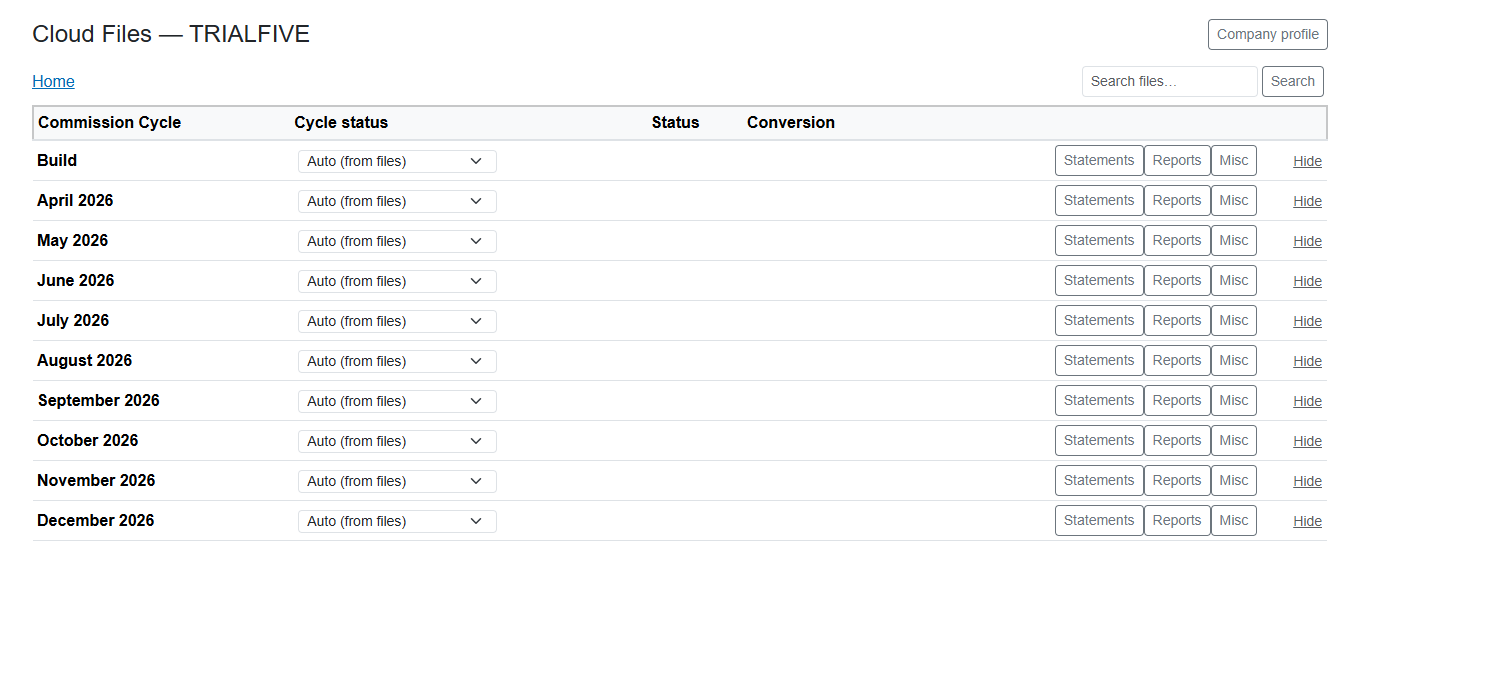
Each cycle row has three folder buttons:
- Statements — Upload your carrier statements for that month here.
- Reports — Your processing team posts finished reports here for you to download.
- Misc — Anything else related to that cycle (correspondence, supporting documents, and so on).
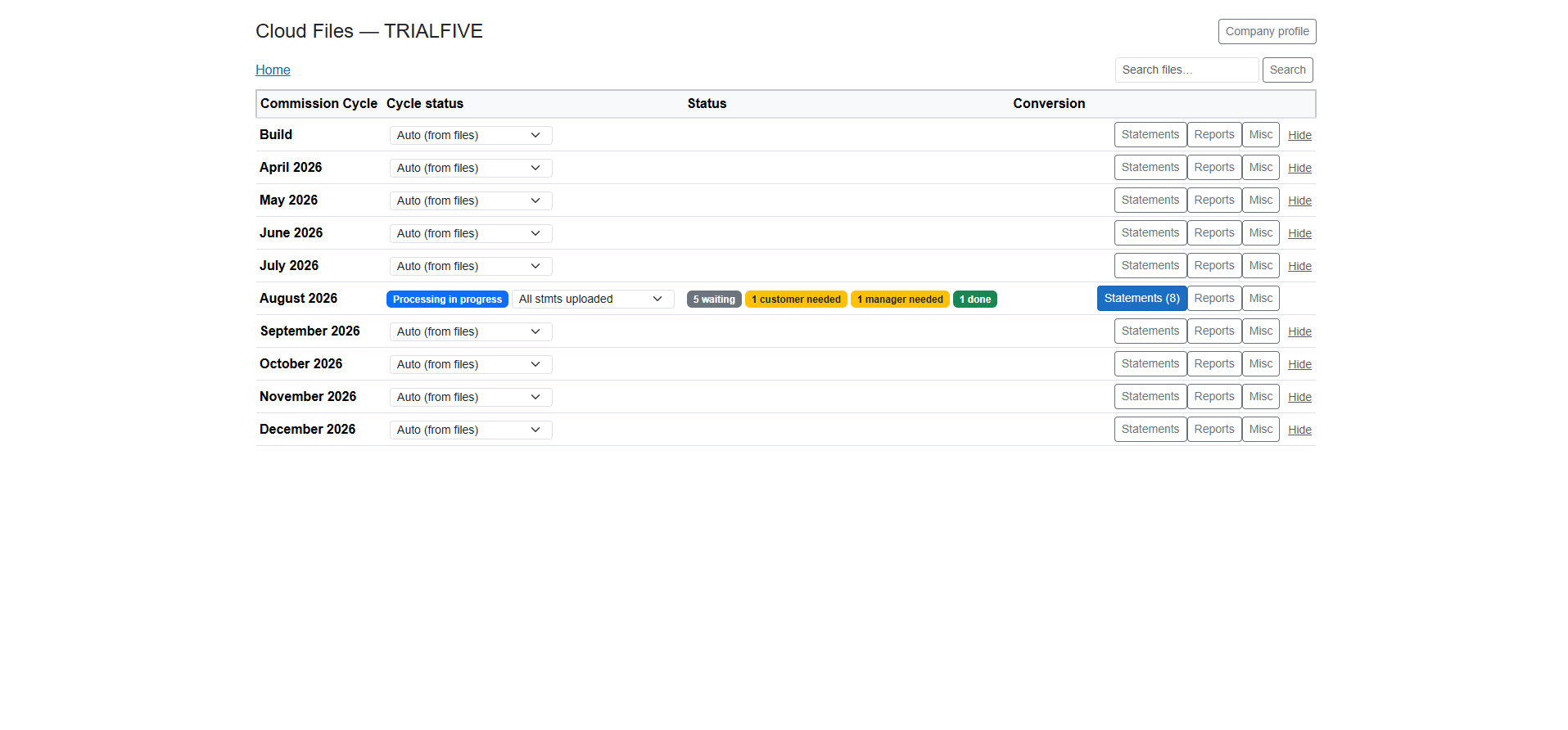
A button appears grey when the folder is empty and blue with a file count (for example, Statements (14)) when it has files — so you can see at a glance where the activity is.
Cycle Status
Each cycle row shows a Cycle status badge that follows the month from start to finish — from Stmt upload in progress through Processing in progress to Closed. The dropdown next to the badge lets you set a milestone yourself:
- All stmts uploaded — Tell your processing team every statement for the month is in.
- Processing complete, Reports ready for review, Closed — Later milestones, usually set by your processing team.
- Auto (from files) — Clear a milestone and let the status follow the files again.
Tell Us When You're Done Uploading
When the last statement for a month is uploaded, set the cycle to All stmts uploaded. That is the signal your processing team watches for to begin working the cycle.
Hiding Unused Cycles
If a cycle doesn't apply to your agency, click Hide on its row to tidy your list. Only cycles with no files can be hidden. Use Show hidden rows at the bottom of the grid to reveal hidden cycles and Unhide any of them.
If You Have More Than One Company
Users with access to several companies see a Companies list first. Pick a company to open its files, use the filter box to narrow the list, or use Search all companies for a file… to find a file no matter which company it is in. Each company row also shows status badges summarizing its files.
Uploading Statements
- On your company home, click the cycle's Statements button (or Reports / Misc as appropriate).
- Click Upload and select one or more files — or click Upload folder to upload a whole folder, subfolders and all.
- Watch the progress panel: first Preparing (the portal checks your files), then Uploading with a progress bar.
- When the upload finishes, a confirmation message shows how many files were uploaded.
Keep the Tab Open
Leave the browser tab open until the upload finishes — large files can take a few minutes. The portal warns you if you try to leave mid-upload.
Upload Limits
- Maximum file size: 100 MB per file.
- Maximum batch size: 400 files per upload.
- All common statement formats are accepted — PDF, Excel (.xlsx / .xls), and CSV are the usual ones.
Duplicate check. Before anything is sent, the portal checks whether any selected file is identical to one already in the portal. If so, it asks whether to upload the duplicates anyway or skip them — a handy guard against re-sending last month's statement by mistake.
Password-protected files. If an uploaded file is password-protected, the portal flags it with a red 🔒 protected badge and warns you — the processing team can't open protected files. Upload an unprotected copy, or contact support to provide the password.
PDF Statements Convert Automatically
PDF statements uploaded to a cycle's Statements folder are automatically converted to Excel for import. When the conversion finishes, the PDF and its Excel copy appear together as a single row (📊). Click the 📕 source chip on that row any time you want to view or download the original PDF.
Tracking Your Files
Every file row shows its size, who uploaded it, when it was uploaded (in your local time zone), and a Status badge:
Waiting— In the queue; not yet imported into Commission Tracker.Conversion needed— The processing team is working on converting this file.Customer needed— We need something from you; a note under the file explains what.Manager needed— Held for internal review by the Commission Tracker team.New Policies— The processing team is creating this statement's new policies before it's imported. Nothing is needed from you.Done— Imported into Commission Tracker; this statement is complete.Duplicate— Identified as a copy of a statement already uploaded.
Watch for Customer Needed
When a file shows Customer needed, a 📝 note underneath tells you exactly what to do — for example, uploading a missing page or an unprotected copy. Handling these promptly keeps your cycle moving.
Working With Files
- View — Open a file right in the browser. PDFs open in a new tab; spreadsheets open in a formatted read-only view with sheet tabs, colors, and column widths preserved (negative amounts even show in red, just like Excel).
- Download — Save a copy of any file to your computer.
- Edit — Open an .xlsx or .csv file in a simple in-browser editor to fix a value, add a row, or delete a row, then click Save. Every save keeps a Version history, and Restore can bring back any earlier version.
- Rename and Move — Rename any file or folder, drag rows onto a folder to move them, or use the Move button to pick a destination. Files always live inside a cycle's Statements, Reports, or Misc folder.
- New folder — Create subfolders inside a cycle folder to organize large months.
- Delete and Restore — Deleting a file archives it rather than destroying it. Turn on Show deleted to see archived items, and click Restore to bring one back.
- Multi-select — Use the checkboxes to select several files, then Download selected (as a single zip, up to 150 MB), Move selected, or Delete selected in one step.
- Search — The Search files… box finds a file anywhere in your company. Use
*as a wildcard:SunLife*finds names starting with SunLife,*.csvfinds all CSV files. - Sorting — Click any column heading to sort; your choice is remembered the next time you sign in.
Spreadsheets With Formulas
The in-browser editor only opens spreadsheets without formulas, so it can never break a calculation. If a file uses formulas, use View to read it or Download to edit it in Excel.
Company Profile
Click Company profile at the top of your files page to see and maintain your company's details:
- Processing details — Your assigned processor and monthly statement due date, set by Commission Tracker (read-only).
- Address and time zone — Keep your agency's address current; the time zone is derived automatically from it and can be overridden.
- Contacts — Add the people we should reach for accounting or statement questions, with a name, role, email, and phone for each.
- Approved email addresses — The list of your agency's approved portal users, with each person's Terms of Use acceptance shown.
What's New
Click What's new in the top bar any time to see recent portal updates and improvements.
🔧 Troubleshooting
I can't sign in. Confirm you are using the email address that was approved for the portal. If your email is a Google account, try Sign in with Google. Otherwise click First time, or forgot your password? to set a fresh password. After several rapid attempts the portal briefly pauses sign-ins from your connection — wait five minutes and try again.
My password link says it is invalid or expired. Links work once and expire quickly (60 minutes for setup, 30 for a reset), and requesting a new link cancels the old one. Request a fresh link and use the newest email.
I don't see an Upload button. Uploads happen inside a cycle's folders. From your company home, click the cycle's Statements (or Reports / Misc) button first — the Upload button appears there.
My upload looks stuck. The Preparing phase checks files before anything transfers, and large files can take a few minutes to upload — keep the tab open until it finishes. Files over 100 MB are not uploaded and are called out by name; split or compress those, or contact support.
I deleted a file by accident. Nothing is destroyed. Turn on Show deleted in the folder toolbar, find the file, and click Restore.
The Edit button is greyed out or refuses my file. Only .xlsx and .csv files can be edited in the browser — .xls files are view-only. Spreadsheets with formulas or very large files also open as view-only. Use Download to edit those in Excel, then upload the corrected copy.
I can't find a file I uploaded.
Use the Search files… box, which looks through every folder in your company — add * wildcards if you only remember part of the name. Also check Show deleted in case the file was deleted, and check the other cycle folders in case it was moved.
🔗 Related Topics
- Customer Support — Contact the support team for portal access or processing questions.
- Cloud Files — The file storage inside the Commission Tracker software (the Cloud Files button on the main toolbar), used by CT Cloud subscribers (a separate feature from the Statement Upload Portal website).
- Key Features & Commission Entry Methods — Overview of how commissions get into Commission Tracker.
Need help? Contact support@commission-tracker.com