Navigating the New Commission Tracker Interface
Commission Tracker's main screen has been rebuilt from the ground up. The folder tree you have expanded and collapsed for years is gone — in its place is a fast, sortable list on the left, a full policy grid on the right, and the details you used to open a separate window for, right there on the same screen. Everything you know about commission processing still applies. This page shows the handful of changes that will save you the most clicks every day.
🎬 Watch the Tour (3 minutes)
Short on time? Watch the video.
Everything on this page is in the video, in the same order. Use the sections below as a quick reference afterwards.
💡 Why Use This
You already know how to process commissions. What changed is how you get to things — finding an agent, opening a policy, checking its payments, seeing which carrier table pays it. Ten minutes with the video and this page and you will be faster than you were on the old screen.
🗺️ How to Access
There is nothing to install or set up. Connect to Commission Tracker exactly as you do today — same connection file, same login — and the new interface opens automatically. Your database, agents, clients, carriers, policies, and reports are untouched.
Every Cloud server runs this screen
Every Commission Tracker Cloud server has used the new interface since September 2026; the old folder tree is gone. The Policy List page describes the main screen in detail.
⚡ What's Different at a Glance
- Lists instead of folders — Agents, Clients, and Carriers are flat, sortable lists with live counts. No more clicking + to expand, and no more 2,000-policy red folders.
- Type to filter — a filter box sits above every list and above the policy grid. Type any part of a name and the list narrows as you type.
- A fourth view: Policies — every policy in your database in one grid, ready to filter and sort.
- Details on the same screen — select an agent, client, or carrier and their details, notes, and policies appear beside the list. No pop-up window.
- Your layout is remembered — columns, sort order, window size, and the divider between the list and the grid are saved for you and restored next time you log in.
- Everything is a click or a keystroke closer — right-click a policy for its payment and history tools, press Enter to open the highlighted policy, press Esc to clear a filter or close a window.
The Navigator: Agents · Clients · Carriers · Policies
The four buttons at the top-left replace the old folder views.
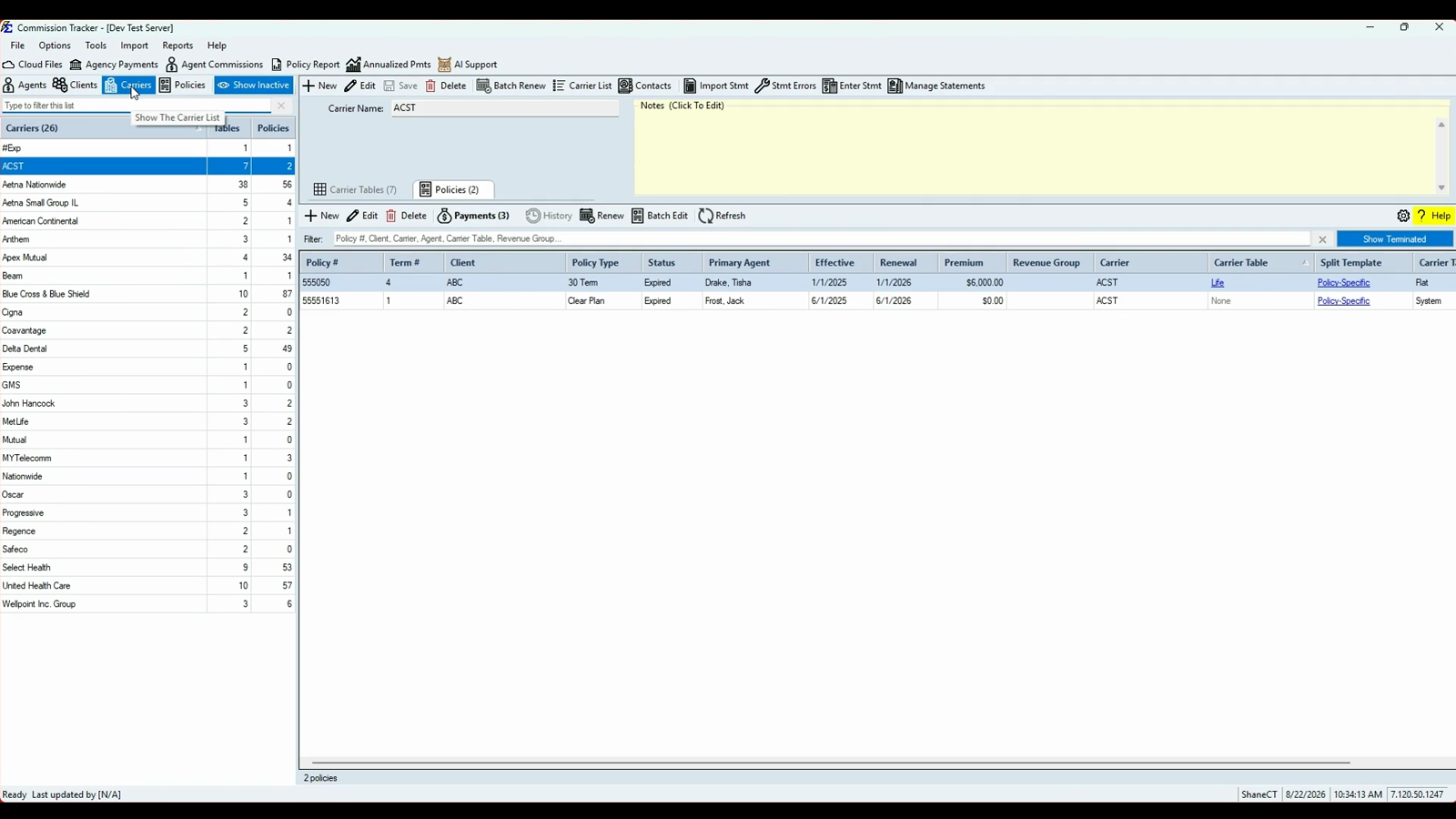
- Counts everywhere — the list header shows the total (for example Agents (22)), and each row shows its policy count. Carriers also show how many carrier tables they have; clients show their sub-clients.
- Sort by either column — click a column heading to sort. Your sort is remembered for each view.
- Color cues — The House is highlighted in blue. Inactive agents and clients show in red, and the Show Inactive toggle hides them.
- Filter box — type any part of a name to find someone instantly. The box turns amber while a filter is on; click the red × (or press Esc) to clear it. Each view keeps its own filter while you work.
- Select a name to see their details and their policies below. On the Carriers view, the Carrier Tables and Policies tabs switch the lower half between that carrier's tables and its policies — each tab shows its count.
- Carrier workflow on the carrier — the carrier's detail toolbar has Import Stmt, Stmt Errors, Enter Stmt, Manage Statements, and Batch Renew, so the whole statement cycle is one click from the carrier you are working on.
The Policies view replaces Policy Search
Click Policies to see every policy in the system at once, then type in the grid's filter box. It matches on policy number, client, carrier, agent, plan, and revenue group — and the count at the bottom of the grid updates as you type.
The Policy Grid
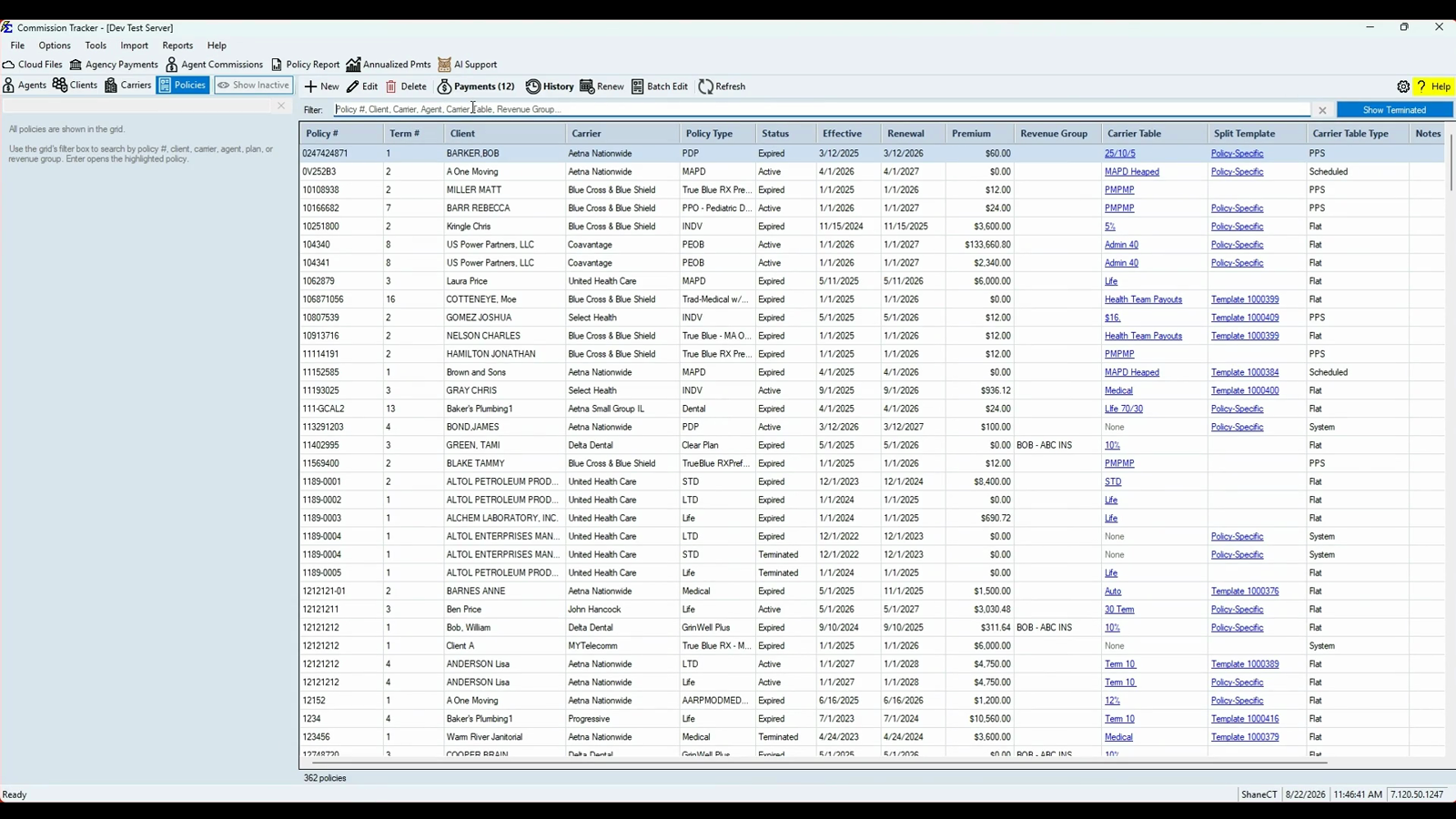
- One filter box, six fields — policy #, client, carrier, agent, plan, and revenue group. The policy count at the bottom changes as you filter.
- Show Terminated — one toggle hides or shows terminated policies; the count follows.
- Sort by any column by clicking its heading.
- Configure (the gear) — choose which columns show, move them up or down, set up to a three-level default sort, or Reset to Default. Your choices are saved for you.
- Blue links — the Carrier Table and Split Template columns are links. Click one to open that carrier table or that policy's splits directly from the grid.
- Buttons that tell you something — Payments (12) shows the payment count and goes bold when a policy has payments; History goes bold when there is change history to see.
- Batch Edit — the old Update Policies tool, already scoped to the agent, client, or carrier you have selected.
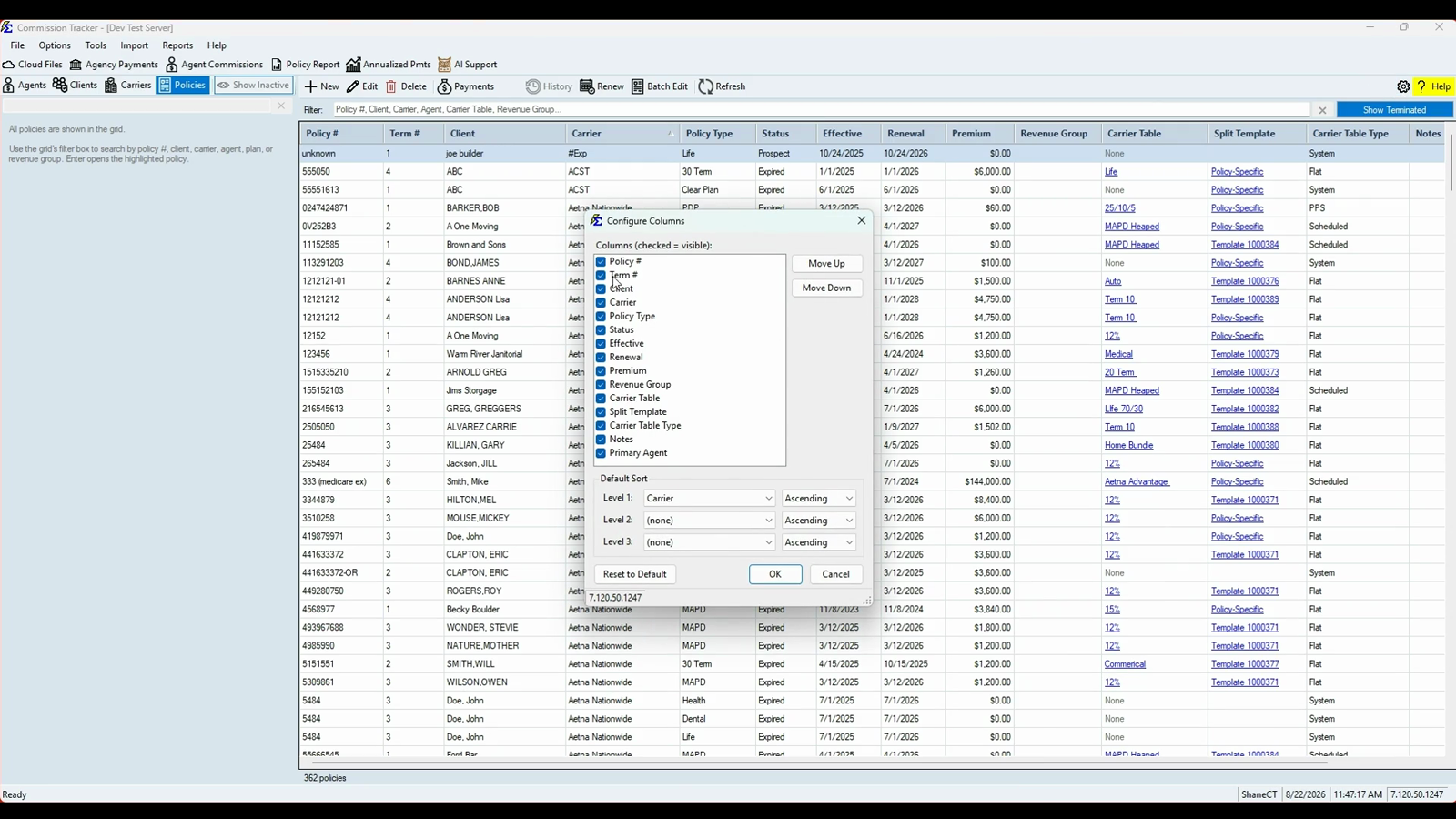
Opening and working a policy
- Open a policy three ways: click Edit, double-click the row, or press Enter.
- Right-click any policy for the tools you used to hunt for: Receive Payment, Partial/Chargeback, Bonus/Override, Payments, Policy History, Agent Advance, Agent Sharing, Edit Splits, Renew, and Duplicate.
The Policy Editor
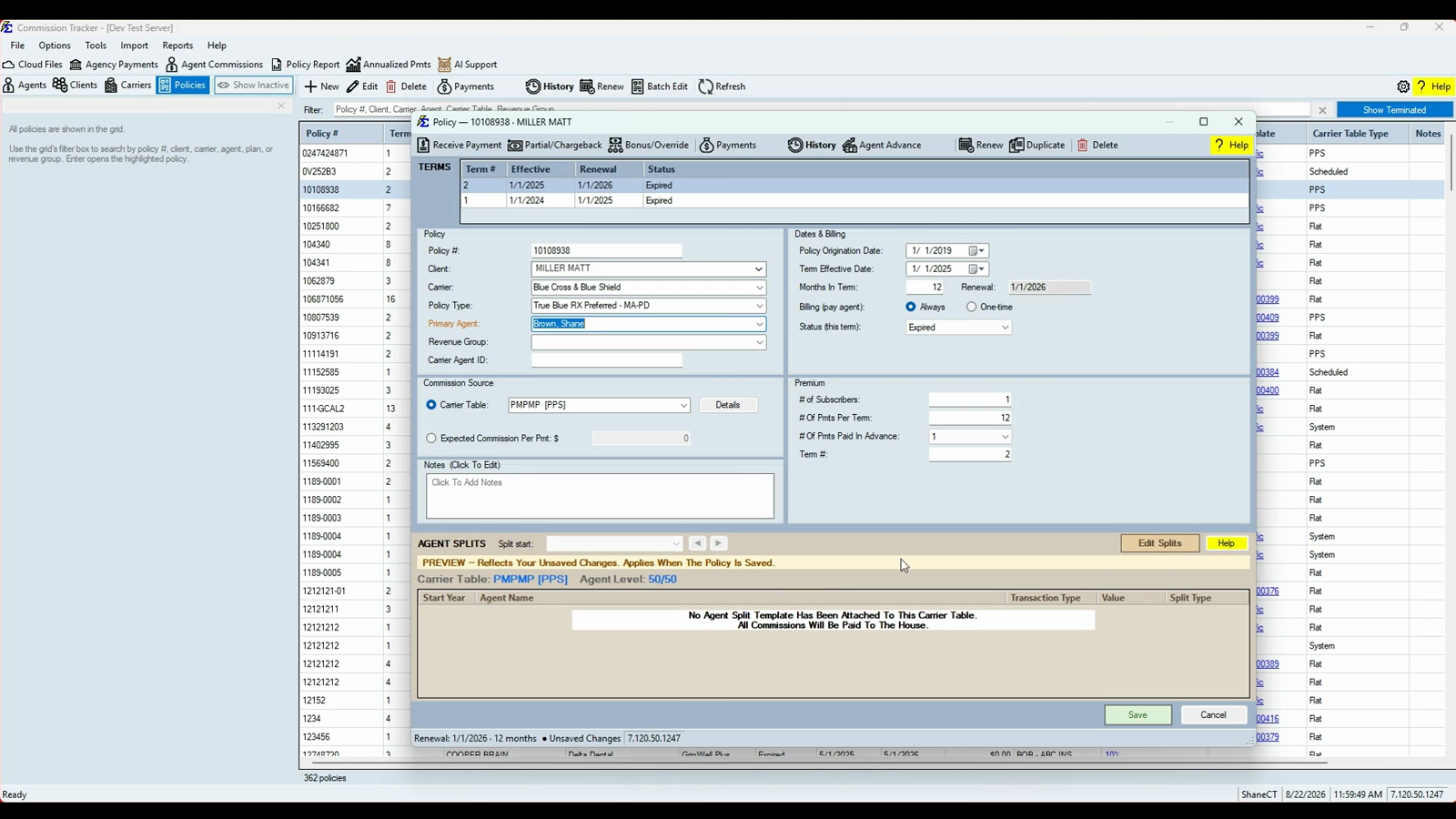
- Opens ready to edit — no separate "edit mode" step.
- Every term at the top — the Terms strip lists all of the policy's terms; click one to switch to it.
- Start typing the client's name — the Client picker matches any part of the name as you type, so there is no scrolling through thousands of clients.
- Agent splits on the policy — the Agent Splits panel at the bottom previews exactly what will be paid, including your unsaved changes, and Edit Splits opens the editor right there. In the splits editor you can pick an agent from the list or simply start typing the agent's name.
- The policy's tools are on its toolbar — Receive Payment, Partial/Chargeback, Bonus/Override, Payments, History, Agent Advance, Renew, Duplicate, and Delete.
- Esc is safe — closing with unsaved changes asks Yes / No / Cancel, and Cancel keeps you in the editor with your changes intact.
Agent, Client, and Carrier Details
- Details beside the list — selecting a name shows its details, its notes, and its policies on one screen.
- Edit in place — click Edit, make your changes, click Save. While you are editing, the rest of the screen stays live — the menus, the list, and the grid all keep working.
- Notes (Click To Edit) — the yellow notes card opens for editing with a single click.
- Contacts — all of a record's contact people live behind the Contacts button. See Contacts.
- Reports where you need them — Agent List, Client List, and Carrier List reports run from the matching detail panel.
The Top Toolbar
One row of buttons for the things you open most: Cloud Files (your cloud storage, including the PDFx PDF-to-Excel converter), Agency Payments, Agent Commissions, Policy Report, Annualized Pmts, and AI Support — which opens Tippy, the built-in AI assistant.
Multi-User Awareness
- The screen checks for changes by other users every few seconds. The status bar shows who last updated the data and when.
- If someone else changes a record while you are editing it, you are told — Changed by another user – Save or Cancel to see the update — instead of the screen changing under you.
- F5 (or Tools → Refresh Now) refreshes immediately.
🤝 What Has Not Changed
- Your connection file, login, and password.
- The File, Options, Tools, Import, Reports, and Help menus and everything in them.
- Every report.
- Import Carrier Statement, Reconcile Carrier Statement, Create Policies, Receive Payment, and Renew — the commission workflows themselves.
- The fields on the policy, agent, client, and carrier screens.
- Your data. Users on the old screen and the new screen share the same database.
🔧 Troubleshooting
I am looking for the folder tree and the + signs. Click Agents, Clients, or Carriers at the top-left, then click a name in the list. That name's policies appear in the grid below its details — the same thing expanding a folder used to show you.
Find and Find Next are gone. Type in the filter box above the list instead. It matches any part of the name, not just the beginning, and the list narrows as you type. Click the red × or press Esc to clear it.
I do not see all of the policies I expect. Check three things: the Show Terminated toggle on the grid, the Show Inactive toggle on the navigator, and whether the filter box is amber (a filter is on). Clear the filter with the red ×. To see every policy in the database, click Policies.
Columns I need are missing, or the order is wrong. Click the gear (Configure) at the right end of the grid toolbar. Tick the columns you want, move them up or down, then click OK. Reset to Default restores the original layout.
The list on the left is too narrow or too wide. Drag the divider between the list and the grid. The position is remembered.
A red folder used to stop me from opening a large agent. That limit is gone. Select the agent and use the grid's filter box to narrow their policies.
I pressed Esc in the policy editor and was asked to save. Choose Yes to save, No to discard, or Cancel to go back to the editor with your changes still there.
🔗 Related Topics
- Video Tutorials — Walk-throughs of common workflows.
- Policy List — The main screen: the Agents, Carriers, Clients and Policies views and the filter boxes.
- Policy Search — Searching for policies.
- Edit Policies — Updating policy details.
- Policy History — The change history behind the History button.
- Update All Policies — The tool behind Batch Edit.
- Contacts — The Contacts window.
- Tippy — The AI assistant behind AI Support.
- Cloud Files — The Cloud Files toolbar button: cloud storage and the PDFx converter.
- Release Notes — All software updates.
Need help? Contact support@commission-tracker.com