Clients by Policy
The Clients by Policy report (called Client Report until September 2026) lists your clients through their policies: one line per policy, showing the client's name, status, client type, customer ID, number of employees, date of birth, state and primary contact. Every filter is a policy attribute, and the lines can be grouped by any one of them. It is the report to reach for when the question starts with "which clients have a policy that...".
Clients without a policy
A client with no policy never appears here. For a plain directory of every client, use the Client List Report.
💡 Why Use This
Use this report when:
- Reviewing an agent's book — Group by Primary Agent to see every client each agent holds, or filter to one agent.
- Preparing for a carrier change — Filter to one carrier or one carrier table and get the clients (with contact and email) you need to reach.
- Working renewals — Set a Policy Term # range (for example 2 and up) to list clients whose policies have renewed at least once.
- Checking data — Pick NONE under Primary Agent or Revenue Group to find policies missing that assignment.
🗺️ How to Access
- Navigate to Reports → Client → Clients by Policy.
- Set the filters and choose a Group By.
- Click Show Report.
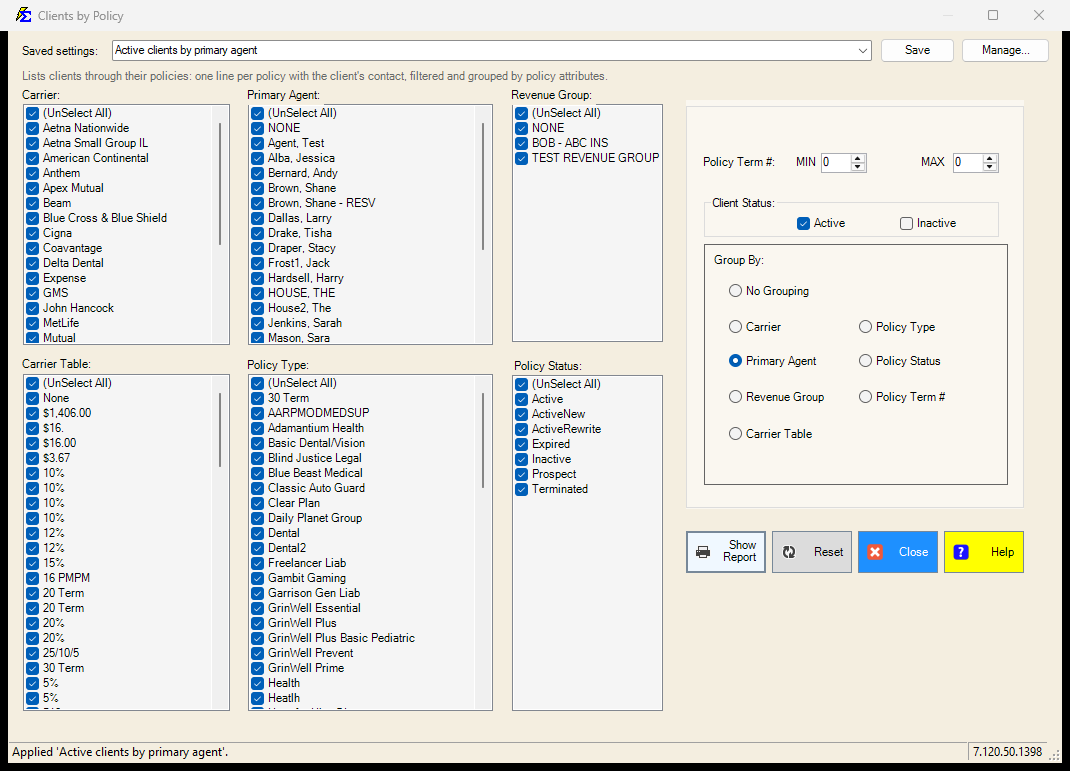
Filters
Every list opens with (Select All) ticked; untick it and pick the items you want.
- Carrier, Policy Type, Carrier Table, Policy Status — the policy's own attributes. Carrier Table includes the None table, for policies with no table assigned.
- Primary Agent, Revenue Group — the policy's assignment. Each list has a NONE row for policies with no assignment.
- Policy Term # — MIN and MAX bound the term number; leave both at 0 for no bound, or set only one of them.
- Client Status — Active and/or Inactive clients. At least one must be ticked.
Group By
Choose one of Carrier, Policy Type, Primary Agent, Policy Status, Revenue Group, Policy Term # or Carrier Table to get a section per value, or No Grouping for one plain list.
Saved Settings
The filter screen has a Saved settings row at the top. Set the filters the way you run this report each cycle, type a name and click Save; next time, pick the name and the whole screen fills in. Saved settings are shared by everyone in your company, and the report remembers the last one you used.
- Everything on the screen is remembered: the six lists, the term number range, the client status boxes and the grouping.
- Lists left at (Select All) stay "all", so a carrier or agent added later is included automatically.
- There are no dates on this report, so there is no period to choose.
- Reset puts the whole screen back to the way it opens: every list selected, term numbers 0 to 0, active and inactive clients, grouped by Carrier.
See Saved Report Settings for saving, renaming and deleting.
Reviewing the Results
One line per policy. The client columns (name, status, contact, client type, customer ID, employees, date of birth, age, state, email) repeat for each of the client's policies, so a client with three policies appears three times. When a Group By is chosen, each group gets a heading with the group's name.
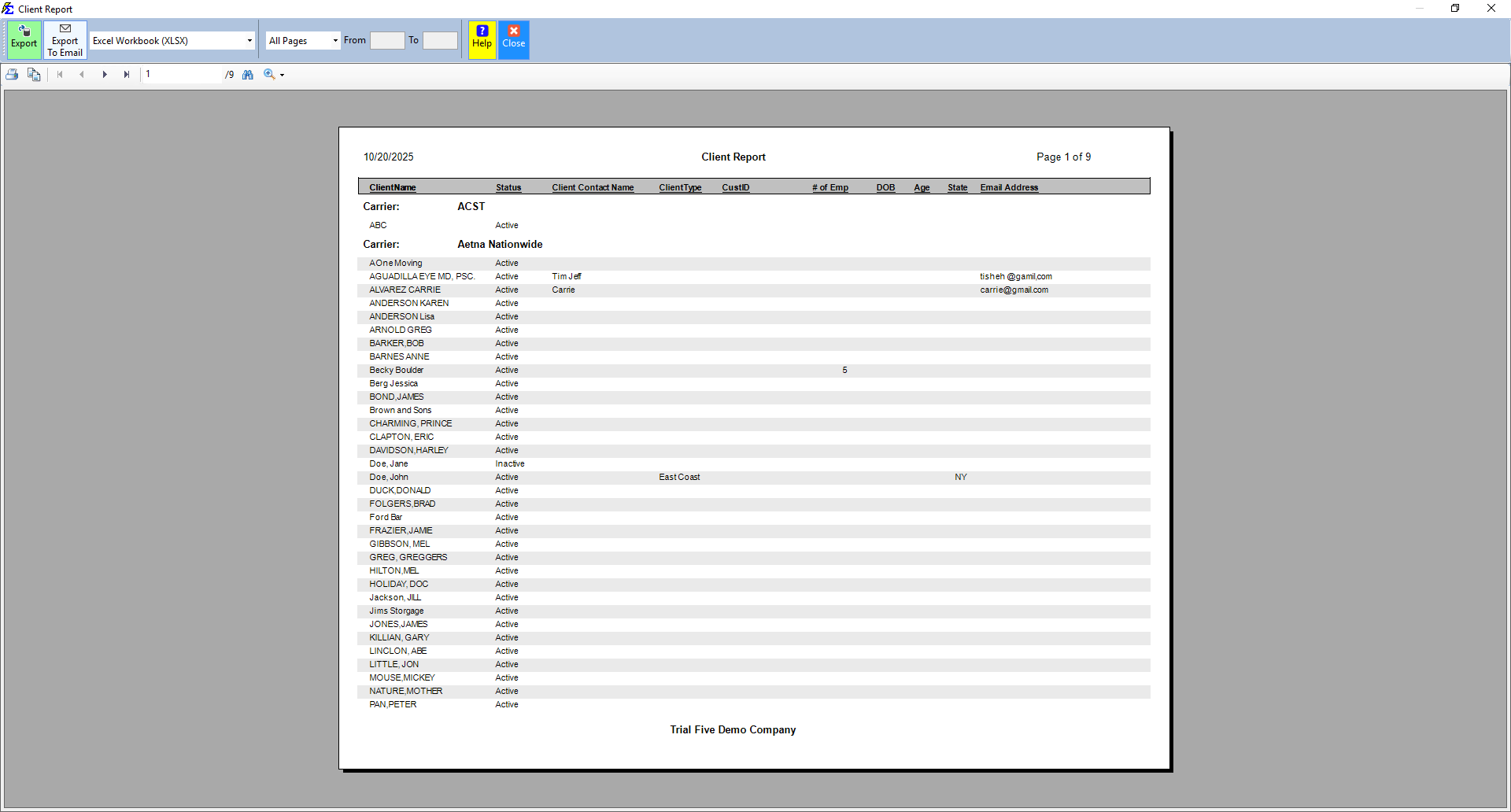
The example above was taken before the rename; the report header now reads Clients by Policy.
The report can be printed, exported, or sent by email from the viewer.
🔧 Troubleshooting
"No Matching Clients Found." No policy passes every filter at once. Widen one filter at a time; the Policy Status list and the term range are the usual culprits.
"You Must Select ... First!" One of the six lists has nothing ticked. Tick (Select All) or at least one item.
A client I expect is missing. Either the client has no policy, or none of its policies passes the filters. Check the Client Status boxes as well: an inactive client is dropped when only Active is ticked.
The same client appears several times. That is by design: the report is one line per policy. Use the Client List Report for one line per client.
🔗 Related Topics
- Client List Report — One line per client, with contact details; no policy filters.
- Book of Business — Premium and commission totals by client.
- Policy List Report — The policies themselves, with dates and amounts.
Need help? Contact support@commission-tracker.com