Merge Agents
The Agent Merge Tool combines two agent records into one. Everything that belongs to the agent you remove — policies, commissions, splits, advances, contacts, and aliases — is moved to the agent you keep, and the removed agent is then deleted.
💡 Why Use This
Use Merge Agents when:
- The same person was entered twice — For example, "Smith, John" was created by hand and "Smith, J." was created during an import, and each record has some of John's policies.
- A carrier statement created a duplicate agent — Create Policies added a new agent record for a name that already existed under a slightly different spelling.
- You are cleaning up your agent list — You want every policy, split, and commission for one person under a single agent record so reports such as the Agent Commissions Earned Report show one total.
This cannot be undone
A merge permanently moves the records and deletes the removed agent. There is no undo button. Run Preview Merge first, and make sure you have a recent backup of your database before you click Perform Merge.
🗺️ How to Access
-
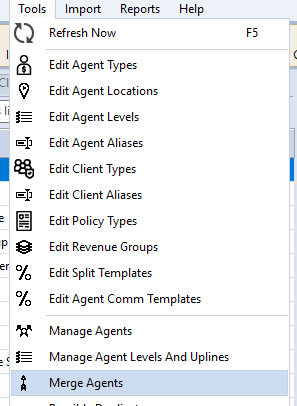
Navigate to Tools → Merge Agents.
-
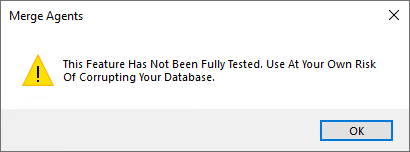
A warning appears: "This Feature Has Not Been Fully Tested. Use At Your Own Risk Of Corrupting Your Database." Click OK to continue.
-
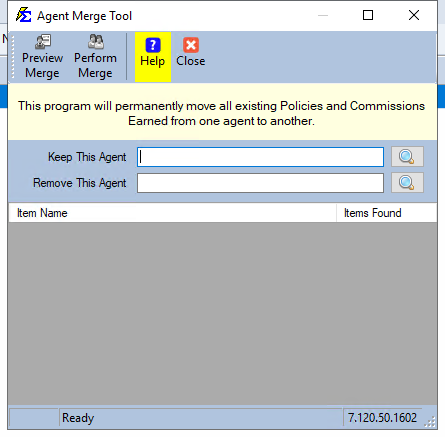
The Agent Merge Tool window opens.
Save your work first
If you are in the middle of editing an agent, client, or carrier, Commission Tracker asks you to save or cancel that edit before the Agent Merge Tool opens.
The Agent Merge Tool Window
Choosing the Agents
- Keep This Agent — The agent record that will remain. Everything is moved to this agent.
- Remove This Agent — The duplicate agent record. Everything is moved from this agent, and then this agent is deleted.
You cannot type in these boxes. Click the search button (magnifying glass) beside each box, then pick the agent from the list that opens.
Toolbar Buttons
- Preview Merge — Shows what the merge would move, without changing any data. The grid lists each type of record and how many would be moved.
- Perform Merge — Runs the merge for real.
- Help — Opens this page.
- Close — Closes the Agent Merge Tool.
The Results Grid
After a preview or a merge, the grid shows one row per type of record (Item Name) and how many were found (Items Found):
- Policies — Policies where the removed agent is the Primary Agent.
- Agent Commissions Received — Commission payments already posted to the removed agent.
- Agent Commission Splits — The removed agent's rows in policy-specific split tables.
- Carrier Table Agent Splits — The removed agent's rows in carrier table split templates.
- Commission Split Templates and Agent Templates — The removed agent's rows in agent commission templates.
- Agent Advances — Advances paid to the removed agent.
- Agent Shares — Agent Sharing rows for the removed agent.
- Contacts — The removed agent's contact people.
- Agent Aliases — Name variations that pointed to the removed agent.
- Create Policies Agent Splits — Agent splits waiting in Create Policies sessions.
- Deleted Agent Advances and Deleted Agent Commissions Received — The removed agent's records in the deleted-records history.
Step-by-Step: Merging Two Agents
- Navigate to Tools → Merge Agents and click OK on the warning.
- Click the search button beside Keep This Agent and pick the agent record you want to keep.
- Click the search button beside Remove This Agent and pick the duplicate agent record.
- Click Preview Merge. Review the counts in the grid to confirm you picked the right agents. Nothing is changed.
- Click Perform Merge.
- Commission Tracker asks you to confirm: Merge Agent "[removed agent]" Into Agent "[kept agent]". Click Yes to continue, or No to stop without changing anything.
- When the merge finishes, a message says "The agents have been successfully merged." The grid shows a summary of what was moved.
- Click Close. The main screen refreshes, and the removed agent no longer appears in the Agents list.
Keep future imports matching
The removed agent's aliases are moved to the kept agent, but the removed agent's own name is not turned into an alias. If carrier statements still use the removed name, add it as an alias of the kept agent under Tools → Edit Agent Aliases so future imports match automatically. See Agent Alias.
Before You Merge: What Must Match
Commission Tracker checks the two agents before it changes anything. If any check fails, a message lists the problems and ends with "You must correct all errors before you can merge these agents." Nothing is merged.
- Agent Levels and Uplines — Both agents must have the same Agent Level and upline setup, with the same start dates, and the same agents must report to each of them. Fix the levels and uplines in Manage Agent Levels and Uplines so the two agents match, then run the merge again.
- Agent Commission Splits — If both agents are on the same policy's split table with the same start date, the merge would create a duplicate split for the kept agent.
- Contacts — If both agents have a contact person with the same name, the merge would create a duplicate contact.
- Agent Shares — If both agents share the same policy through Agent Sharing, the merge would create a duplicate share.
🔧 Troubleshooting
I clicked Preview Merge or Perform Merge and got "Select The Agent To Be Kept" or "Select The Agent To Be Removed". One of the two boxes is empty. Use the search button beside each box to pick an agent for both Keep This Agent and Remove This Agent, then try again.
The message says "The Agent To Be Removed Is The Same As The Agent To Be Kept". You picked the same agent in both boxes. Click the search button beside Remove This Agent and pick the duplicate agent.
The message says "Agent Levels do not match", "Agent Level and/or Upline Start Dates do not match", or "Agent Upline and Level configuration counts do not match". The two agents have different level or upline setups. Open Manage Agent Levels and Uplines, make the removed agent's levels, uplines, and start dates the same as the kept agent's, and run the merge again.
The message says "The two agents being merged are upline of different agents" or that they "have different agents upline of them". Other agents report to one of the two agents but not the other, or the two agents report to different uplines. Make the upline relationships match in Manage Agent Levels and Uplines, then run the merge again.
The message says "Duplicate Agent Commission Splits will be created for the kept agent". At least one policy has both agents on its split table with the same start date. Open each affected policy, click Edit Splits in the AGENT SPLITS band, and remove the duplicate agent from that split table (moving their percentage to the kept agent). Then run the merge again.
The message says "Duplicate Contacts will be created for the kept agent". Both agents have a contact person with the same name. Select the removed agent in the Agents list, click Contacts, and delete the duplicate contact. Then run the merge again. See Contacts.
The message says "Duplicate Agent Shares will be created for the kept agent". Both agents share the same policy through Agent Sharing. Open the policy, click Agent Sharing, and remove the duplicate row. Then run the merge again. See Multiple Primary Agents (Agent Sharing).
The message says "Agent Commission Splits Changed While The Confirmation Was Open". Someone changed a split table while the confirmation message was on screen. Nothing was merged. Click Perform Merge again.
I merged the wrong agents. A merge cannot be undone from the software. Contact support@commission-tracker.com right away — a database backup from before the merge may be needed to restore the removed agent.
🔗 Related Topics
- Create New Agent — Add and edit agent records.
- Agent Alias — Map carrier name variations to an existing agent.
- Manage Agent Levels and Uplines — Set the levels and uplines the merge checks.
- Agent Commission Splits — How agents are paid from each commission.
- Tools Menu — Other maintenance tools.
Need help? Contact support@commission-tracker.com