Send Reports
Send Reports emails a set of reports in one go. Tick the saved report settings you want, choose PDF or Excel for each, enter the addresses and press Send now. Commission Tracker runs every ticked report in the background and sends one email with the files attached.
💡 Why Use This
Use Send Reports when:
- The same reports go out every month — Tick the settings once and save them. Each month, open the screen and press Send now.
- Several reports go to the same people — The owner gets the Book of Business, the payments received and the policy list in one email instead of three.
- Someone outside the software needs the numbers — An accountant or a partner agency gets a PDF or an Excel file without ever opening Commission Tracker.
🗺️ How to Access
- Navigate to Reports → Send Reports....
- Tick the saved settings to send and pick PDF or Excel on each row.
- Enter the To addresses (and CC if you like).
- Click Send now.
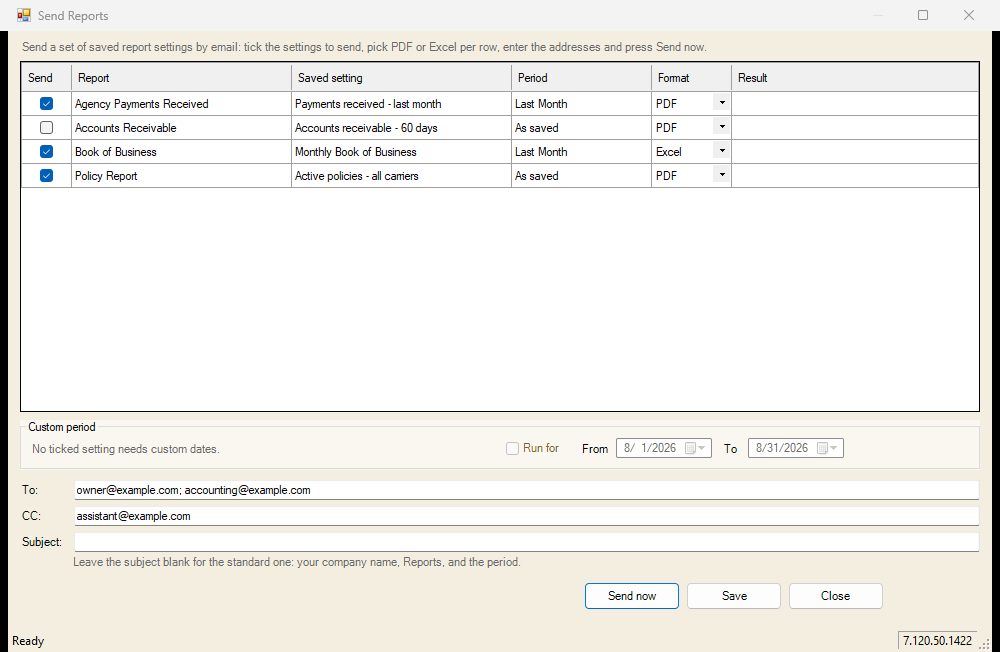
Only reports you are allowed to open appear on the screen, and only their saved settings. If a report you expect is missing, open it from the Reports menu, set its filters and save them under a name first (see Saved Report Settings).
The List
One row per saved setting, for these reports: Agency Payments Received, Agency Payments Received - Annualized, Accounts Receivable, Payment Discrepancy, Book of Business, Agent List, Agent Commission Splits, Agent Book of Business, Client List, Clients by Policy, Policy Report and Policy Error Report.
- Send — tick the settings to send.
- Report and Saved setting — which report, under which saved name.
- Period — the dates the setting was saved with:
- Last Month, This Quarter, This Year-to-date and so on — the dates move with the calendar. A setting saved as Last Month always sends last month.
- Custom - dates below — the setting was saved with a fixed date range. The Custom period box decides which dates to run it for (see below).
- As saved — the setting has no date range; the report runs as saved.
- Format — PDF or Excel, chosen per row. Excel files hold the report's data without the layout, which is handy for sorting and pivoting.
- Result — what happened to each report on the last Send now (see What the Result Column Says).
The ticks, formats and addresses are shared by everyone in your company: one list per company, so a colleague who opens the screen sees what you set.
Custom Period
Settings whose Period reads Custom - dates below were saved with a fixed date range. To send them for a different period, tick Run for and set From and To. Every ticked custom-range setting runs for those dates; the pickers open on the previous month.
Run for is required for custom-range settings
If a ticked setting needs custom dates and Run for is not ticked, Send now stops with a message. Tick the box and set the dates, or untick the setting.
Settings with a moving period (Last Month and the like) and settings with no dates (As saved) ignore the Custom period box.
Addresses and Subject
- To — one or more addresses, separated by semicolons, commas or spaces. Plain addresses only (
owner@example.com), not names. - CC — the same, optional.
- Subject — optional. Leave it blank for the standard subject: your company name, Reports, and the period (for example
Smith Agency - Reports - 08/01/2026 to 08/31/2026). When the attached reports cover different periods, the subject says the day the reports were run instead.
Click Save to keep the ticks, formats and addresses without sending anything.
Send Now
- The ticks and addresses are saved.
- Each ticked report runs in the background, in the order shown. The Result column fills in row by row.
- One email goes out with every file attached.
- The status bar at the bottom shows the outcome, and remembers it the next time the screen opens.
A send that has not finished after ten minutes is stopped. Closing the screen during a send asks whether to stop it.
The email is the delivery
The files are not shown on this screen. The email is how the reports reach people; the Result column says what was attached.
What the Result Column Says
- Sent, 120 KB — the file was attached to the email.
- No data — the report had nothing for its period. Nothing is attached for it; the email lists it under No data for the period.
- Too large, left out of the email (35.0 MB) — the attachments are capped at 20 MB in total. A file that would push the email past the cap is left out, and the email names it so the reader can ask for it another way.
- Failed - ... — the report did not run. The email lists it under Not included.
- Exported, 120 KB - not emailed — the file was made but the email could not be sent (the message on screen says why). Fix the cause and press Send now again.
When every ticked report fails, nothing is sent.
The Email
- From —
reports@commission-tracker.com, shown with your company name as the sender. - Reply to — the person who pressed Send now, when their Commission Tracker user has an email address. A reader who replies reaches you, not the system.
- Body — the list of what is attached (report, saved setting, period, format and size), then any reports with no data, any left out as too large, and any that did not run. A subject you typed is used as is; the standard body is always included.
- Attachments — one file per report, named after the report, the saved setting and the period it covers (for example
BOB_Monthly_Book_of_Business_20260801-20260831.xlsx).
🔧 Troubleshooting
A report is not on the list. Only saved settings appear. Open the report from the Reports menu, set the filters and save them under a name. If the report itself is missing, your user is not allowed to open it; ask your administrator.
"A ticked setting was saved with a custom date range." Tick Run for in the Custom period box and set From and To, then send again.
"... is not an email address."
Addresses must be plain, such as owner@example.com. Remove any names or angle brackets and separate the addresses with semicolons.
"The reports were made but the email was not sent." The files exist; the email server refused the message or could not be reached. The message says why. Press Send now again once the cause is fixed.
The status bar says "Last run ... Failed". The last send stopped before it finished. The message on the bar says why; run it again.
I need the Agent Commissions Earned reports sent to agents. Those have their own email, one per agent: see ACE Email Setup.