Client List Report
The Client List Report is the plain directory of your clients: one line per client with status, client type, customer ID, number of employees, date of birth, state and the primary contact (address, phone and email). No policies are involved, so every client appears, with or without a policy.
Clients through their policies
To list clients by the policies they hold (by carrier, agent, policy type and so on), use Clients by Policy.
💡 Why Use This
Use this report when:
- Auditing client contact data — Check that the primary contact's address, phone and email are filled in.
- Reviewing client status — See which clients are Active and which are Inactive.
- Building a mailing list — Filter by state or client type and export for a newsletter or an outreach campaign.
- Cleaning up the database — Pick NONE under Client Type or State to find clients with that field left blank.
🗺️ How to Access
- Navigate to Reports → Client → Client List, or click Client List on a client's detail screen.
- Set the filters and choose a Group By.
- Click Show Report.
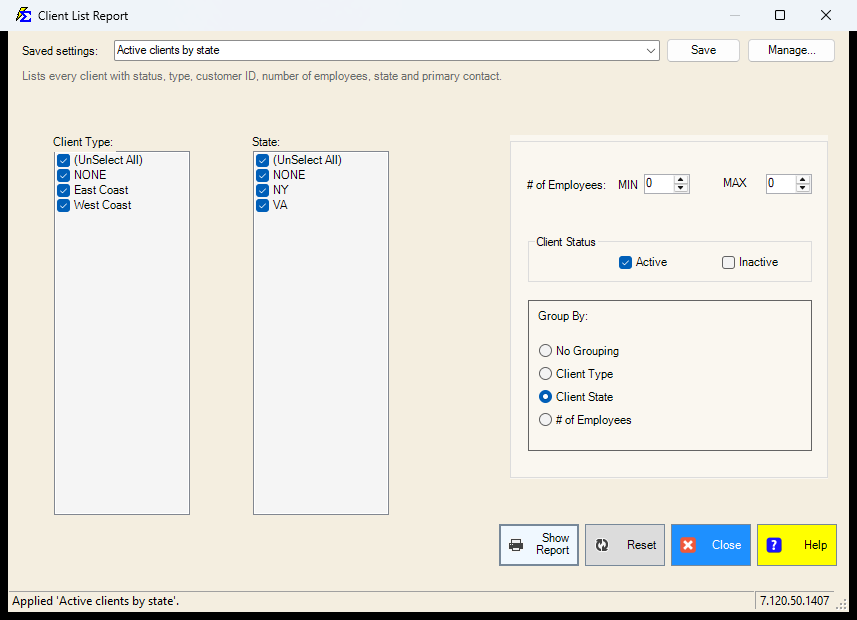
Filters
Both lists open with (Select All) ticked; untick it and pick the items you want.
- Client Type — the types set up under Client Types. The NONE row is for clients with no type assigned.
- State — every state your clients carry, one row each. The NONE row is for clients with no state.
- # of Employees — MIN and MAX bound the number of employees; leave both at 0 for no bound.
- Client Status — Active and/or Inactive clients. At least one must be ticked.
Group By
- No Grouping — one flat list.
- Client Type, Client State, # of Employees — one section per value.
Saved Settings
The filter screen has a Saved settings row at the top. Set the lists, the employee range, the status and the grouping the way you run this report, type a name and click Save; next time, pick the name and the screen fills in. Saved settings are shared by everyone in your company, and the report remembers the last one you used.
- Everything on the screen is remembered: both lists, the employee range, the status boxes and the grouping.
- A list left at (Select All) stays "all", so a client type or state added later is included automatically.
- States are remembered by their code. A saved state that no longer has any client is dropped when the setting is applied, and the screen tells you.
- There are no dates on this report, so there is no period to choose.
- Reset puts the screen back to the way it opens: every type, every state, no employee bound, both statuses, No Grouping.
See Saved Report Settings for saving, renaming and deleting.
Interacting with the Results
The report opens in the viewer with the clients matching your filters, one line each.
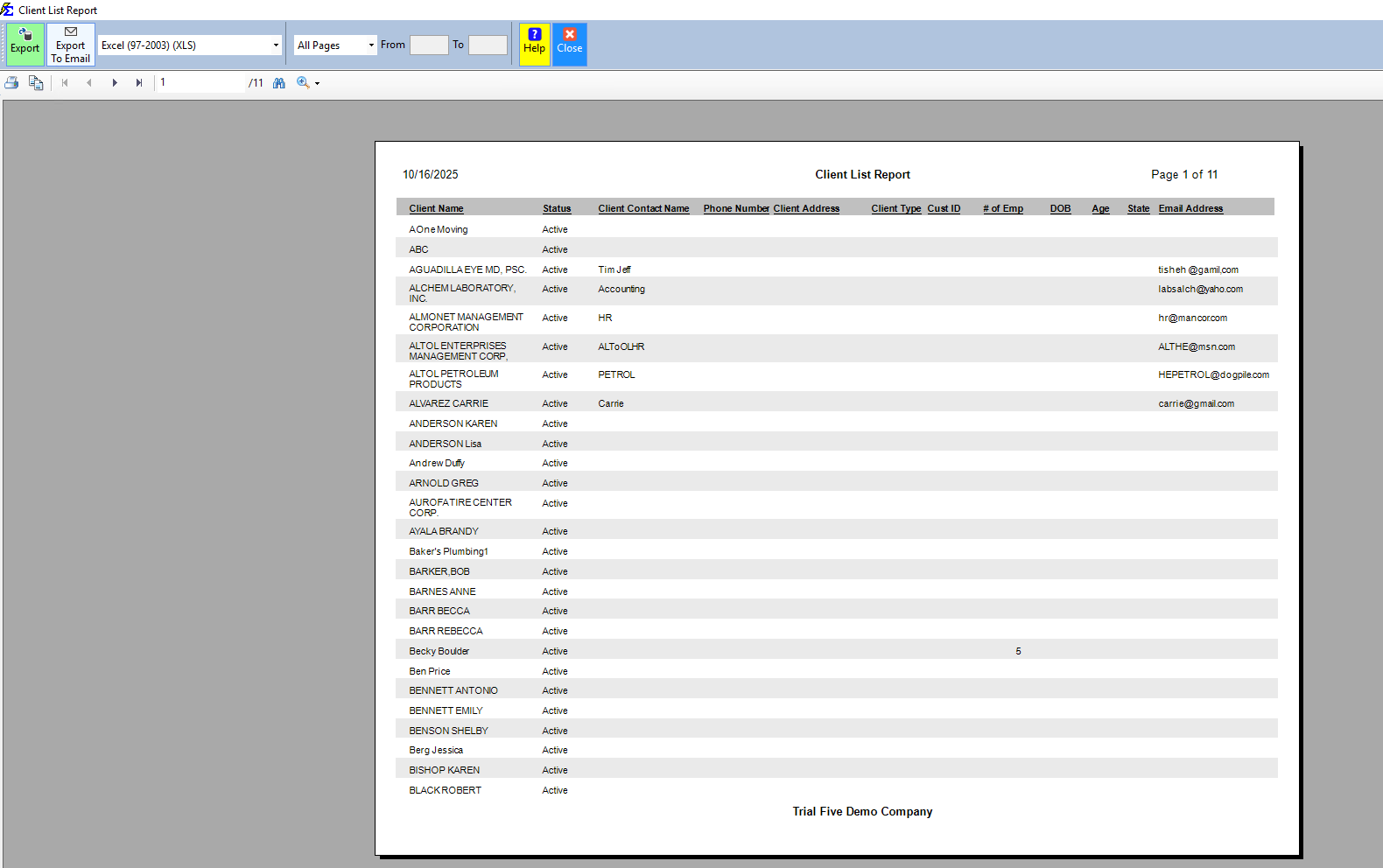
Exporting the Report
- PDF Export — Keeps the headers and formatting, ideal for a printed directory.
- Excel/CSV Export — A flat file for sorting, mail merge or importing into an email tool.
🔧 Troubleshooting
A client is missing from the report. Check the Client Status boxes: with only Active ticked, an inactive client does not appear. Then check the Client Type and State lists; a client with no type or no state only appears when the NONE row is ticked.
The report says "You Must Select Client Type First!" (or a State). Nothing is ticked in that list. Tick (Select All) or the items you want.
I need to see a client's policies alongside their contact data. This report shows client data only. Use Clients by Policy or the Book of Business report.
🔗 Related Topics
- Clients by Policy — One line per policy with the client's contact, filtered and grouped by policy attributes.
- Book of Business — Client data combined with policy and commission totals.
- Commissions by State — Revenue grouped by client state for tax reporting.
Need help? Contact support@commission-tracker.com